LDAP Login via Keycloak (OIDC)
| Parameter | Value |
|---|---|
Application version |
Spring Boot 3.5.6 / Java 25 |
Library |
Spring Security OAuth2 Client (OIDC Relying Party) |
Standard |
OpenID Connect 1.0, OAuth 2.0 Authorization Code flow + PKCE (S256) |
Login type |
|
1. Overview
When a portal’s authentication type is set to ldap, the login is delegated to Keycloak.
The backend never receives or checks the user’s password: Keycloak presents the login form,
validates the credentials against the company directory (Active Directory / LDAP, connected
through Keycloak User Federation), and returns the authenticated identity to the backend
via the OpenID Connect (OIDC) protocol.
|
Historically the backend authenticated against LDAP directly. That mechanism has been
removed. The |
This document covers only the ldap login type: the backend environment variables and
the Keycloak Admin Console configuration. To deploy the Keycloak container itself (Docker
Compose, keycloak schema, TLS certificate, shared network, HA), see
Keycloak Deployment first.
1.1. Components
| Component | Role |
|---|---|
Browser |
Runs the Angular portals: Support Center (SC) and Management Console (MC). Initiates the login and follows the OIDC redirects. |
Backend ( |
The OIDC client (relying party). Starts the authorization flow, exchanges the authorization code for tokens, provisions the user, and issues the application’s own JWT. |
Keycloak |
The identity server. Shows the login form, validates credentials against LDAP, and issues OIDC tokens. Deployed per Keycloak Deployment. |
LDAP / Active Directory |
The company user directory (usernames, passwords, groups). Connected to Keycloak via User Federation. |
Database (MySQL / Oracle) |
The backend’s own database: application users, user-groups, and login sessions. |
2. Login flow
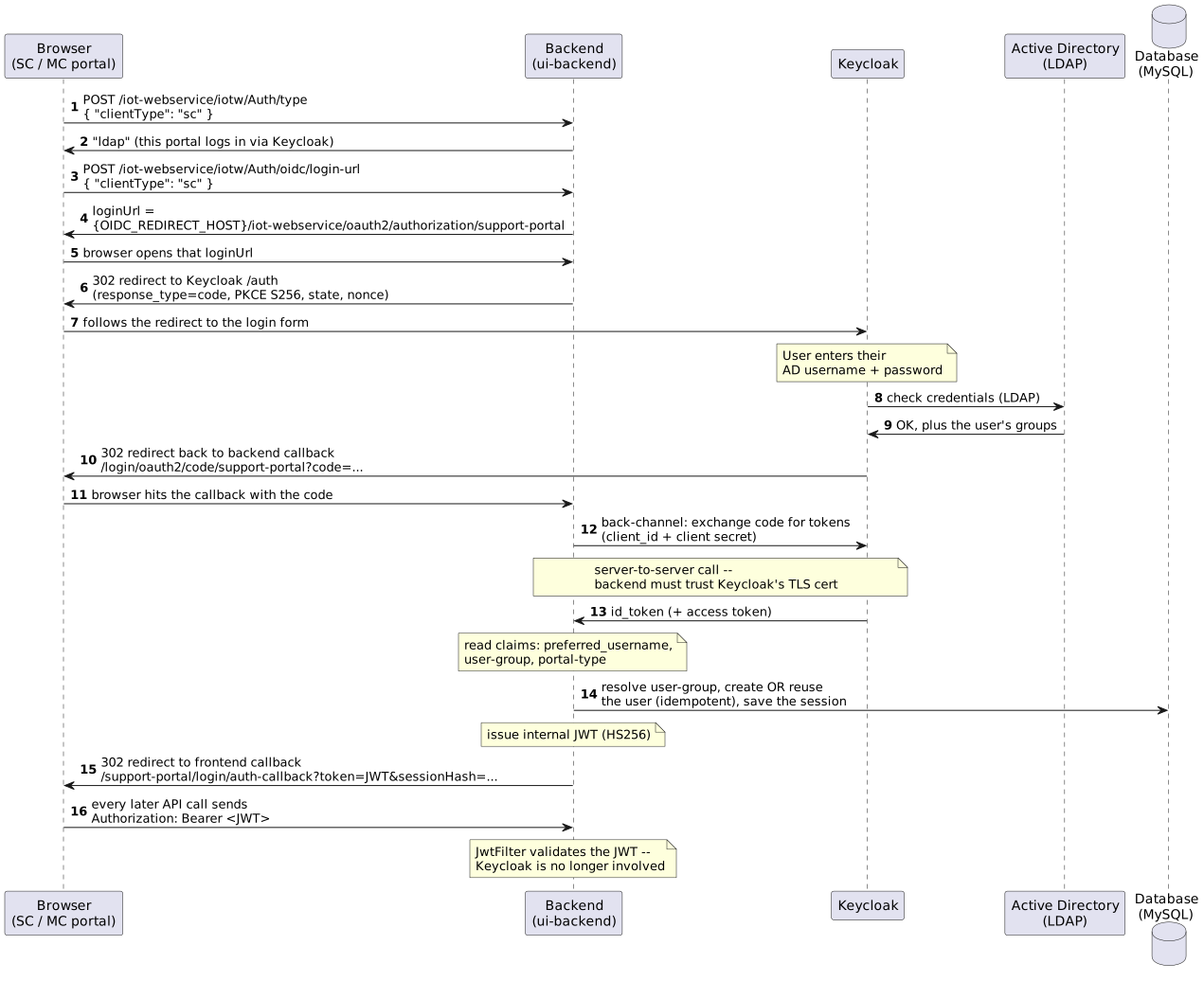
Step by step:
-
The frontend asks the backend for the portal’s authentication type (
POST /iot-webservice/iotw/Auth/type). The type is stored per portal in the database;ldap(orwindows) means "OIDC via Keycloak". -
The frontend requests the login URL (
POST /iot-webservice/iotw/Auth/oidc/login-url) and opens it. The backend responds with{OIDC_REDIRECT_HOST}/iot-webservice/oauth2/authorization/support-portal(or…/management-portalfor MC). -
The backend redirects the browser to Keycloak’s authorize endpoint using the Authorization Code flow with PKCE (S256), including
stateandnonce. -
Keycloak shows its login form and validates the entered credentials against LDAP User Federation.
-
On success, Keycloak redirects the browser to the backend callback
{OIDC_REDIRECT_HOST}/iot-webservice/login/oauth2/code/<registrationId>?code=…with a short-lived, one-time authorization code. -
The backend exchanges the code for tokens on a back-channel call to Keycloak’s token endpoint, authenticating with its
client_idand client secret. This step requires (a) the correct client secret and (b) JVM trust of Keycloak’s TLS certificate. -
From the ID token the backend reads the claims:
preferred_username(the login name),user-group,domain, andportal-type. Theuser-groupanddomainvalues are application names that Keycloak has already translated from the user’s AD group membership; each must match a record that exists in the database — permissions and visibility are then resolved from the database by that user-group and domain. -
The backend provisions the user if it does not exist, or reuses and syncs the existing one (idempotent — no duplicates), then issues its own internal JWT (HS256).
-
The browser is redirected to the frontend callback
{OIDC_REDIRECT_HOST}/<portal>/login/auth-callback?token=<JWT>&sessionHash=<hash>. All subsequent API calls carryAuthorization: Bearer <JWT>, validated byJwtFilter. Keycloak plays no part after login.
|
Authorization Code flow + PKCE
With the Authorization Code flow, tokens never pass through the browser — only a short-lived
|
2.1. URL reference
| Purpose | URL pattern |
|---|---|
Login start (per portal) |
|
Backend OAuth callback |
|
Frontend success callback |
|
Keycloak endpoints (derived from the issuer) |
|
registrationId vs. Keycloak Client ID
The Keycloak Client ID is a separate value, set via |
3. Part A — Deploy Keycloak
The ldap login type uses the standard Keycloak container. Deploy it first following
Keycloak Deployment (the OIDC compose file; the
Windows/Kerberos mounts stay commented out), then continue with the backend variables and
Keycloak Admin Console configuration below.
4. Part B — Backend environment variables
All variables below are set on the backend (ui-backend) — they ship commented out as the OIDC block in ui-backend/.env
(FT_DISK — ONE_IOT_UI/docker/ui-backend); uncomment it and fill it in.
For each variable: what to put in
it, and where to find the value.
4.1. Core switches
| Variable | What to set |
|---|---|
|
|
|
The external base URL under which the browser reaches the backend: Where to find it: it is the address users type to open the portals (the ingress / reverse-proxy hostname of the deployment). It anchors both the OAuth callback and the final frontend redirect, so it must be the URL as seen from outside, not an internal service address. Set it explicitly: if left unset, the backend derives it from the incoming request, which is unreliable behind a proxy or load balancer. |
4.2. Support Center (SC) client
| Variable | What to set |
|---|---|
|
The Client ID of the OIDC client created for the Support Center in Keycloak. Where to find it: Keycloak Admin Console → select the SC realm → Clients → the Client ID column of the client you created for SC. Copy it verbatim (case-sensitive). |
|
The SC realm’s issuer URL: Where to find it: Keycloak Admin Console → select the SC realm → Realm settings → Endpoints → open OpenID Endpoint Configuration and copy the |
4.3. Management Console (MC) client
| Variable | What to set |
|---|---|
|
The Client ID of the OIDC client created for the Management Console in Keycloak (MC realm → Clients → Client ID column). |
|
The MC realm’s issuer URL: |
4.4. Attribute claims
The backend reads the user’s identity from claims in the ID token, using fixed default claim names — there are no environment variables for remapping them. Configure the Keycloak protocol mappers to emit exactly these claim names (see Protocol mappers):
| Claim | Carries |
|---|---|
|
The login name of the user. A standard OIDC claim Keycloak emits out of the box — no custom mapper needed. |
|
The application user-group name, translated from the user’s AD role group (see Translation table). |
|
Which portal the token is for: |
|
The application domain name, translated from the user’s AD domain group. |
|
The claim value must exactly match a name in the backend database
The backend matches claim values by name: the The AD group name itself does not have to match.
Keycloak translates it: the AD group carries an attribute holding the application name, and that attribute is what reaches the token.
This is what makes AD naming ( |
|
One user-group and one domain per user
Both claims are single-valued: the backend stores one |
4.5. Client secrets (files, not environment variables)
The client secret — the credential the backend presents to Keycloak at the token exchange — is deliberately kept out of the environment and read from files on disk:
| File | Holds |
|---|---|
|
The SC client secret — the raw value, one line, nothing else. |
|
The MC client secret — same format. |
Where to find the secret: Keycloak Admin Console → the realm → Clients → open the client → Credentials tab → Client secret. The tab exists only if Client authentication is ON for the client.
|
If the secret is regenerated in Keycloak, the matching file must be updated; otherwise the
code-for-token exchange fails with |
5. Part C — TLS / certificate trust
During the token exchange the backend calls Keycloak server-to-server over HTTPS, so the backend’s JVM must trust the certificate Keycloak presents. If it does not, the backend logs:
PKIX path building failed: unable to find valid certification path to requested target
| Keycloak’s certificate is… | What to do |
|---|---|
Issued by a public CA (e.g. Let’s Encrypt) |
Nothing — the JVM trusts it out of the box. |
Self-signed or issued by a private / internal CA |
Add the certificate to the backend’s Java truststore. |
To trust a self-signed or private-CA certificate, import Keycloak’s certificate into a Java truststore and point the backend JVM at it:
# Import Keycloak's certificate into a truststore
keytool -importcert -noprompt -alias keycloak \
  -file keycloak.crt \
  -keystore ${APP_HOME}/conf/truststore.jks \
  -storepass changeit

# Start the backend with the truststore
JAVA_OPTS="-Djavax.net.ssl.trustStore=${APP_HOME}/conf/truststore.jks \
           -Djavax.net.ssl.trustStorePassword=changeit"
The truststore.jks file lives in the backend conf/ directory (mounted at
/opt/app/conf in Docker), alongside the sc-oidc-secret / mc-oidc-secret files.
|
The certificate’s SAN (or a covering wildcard) must include the exact Keycloak hostname used in the issuer URIs. Otherwise TLS fails hostname verification even though the certificate is trusted. |
6. Part D — Keycloak Admin Console configuration
This is the click-by-click walkthrough for the ldap login type. Perform every step in
both realms — one per portal (oneiot-sc for the Support Center, oneiot-mc for the
Management Console) — unless a step is explicitly per-portal.
The realm names (oneiot-sc / oneiot-mc) are examples. They only need to match the
OIDC_SC_ISSUER_URI / OIDC_MC_ISSUER_URI values configured on the backend.
|
6.1. D.1 Create the realms
-
Open the Keycloak Admin Console (
{KC_HOSTNAME}/admin) and log in as admin. -
In the realm selector (top-left), click Create realm.
-
Enter Realm name
oneiot-scand click Create. -
Repeat for
oneiot-mc.
6.2. D.2 Create the OIDC client (per realm)
Create one confidential OIDC client in each realm. The client for the Support Center lives
in oneiot-sc; the client for the Management Console lives in oneiot-mc.
-
Switch to the target realm using the realm selector.
-
Navigate to Clients > Create client.
-
General settings:
-
Client type:
OpenID Connect -
Client ID: the value you will put in
OIDC_SC_CLIENT_ID(SC) orOIDC_MC_CLIENT_ID(MC), e.g.support-portal/management-portal.
-
-
Click Next.
-
Capability config:
-
Client authentication:
On(makes the client confidential — it gets a secret). -
Authorization:
Off. -
Authentication flow: enable Standard flow (Authorization Code). Leave Direct access grants off (not used).
-
-
Click Next, then Save.
-
On the Settings tab, set Valid redirect URIs to the exact backend callback — no wildcards:
-
SC:
{OIDC_REDIRECT_HOST}/iot-webservice/login/oauth2/code/support-portal -
MC:
{OIDC_REDIRECT_HOST}/iot-webservice/login/oauth2/code/management-portal
-
-
Click Save.
The redirect URI path segment (support-portal / management-portal) is the
fixed registrationId, not the Client ID. Keep it exactly as shown regardless of the
Client ID value.
|
6.3. D.3 Enable PKCE (S256)
-
Open the client and go to the General Settings tab.
-
Under Capability config, set PKCE Method to
S256. -
Click Save.
6.4. D.4 Copy the client secret
-
Open the client and go to the Credentials tab.
-
Copy the Client secret value.
-
Paste it — raw value, one line, nothing else — into the matching file on the backend:
-
SC:
${APP_HOME}/conf/sc-oidc-secret -
MC:
${APP_HOME}/conf/mc-oidc-secret
-
If you click Regenerate later, update the corresponding secret file too,
otherwise the token exchange fails with invalid_client.
|
6.5. D.5 LDAP User Federation
This connects Keycloak to Active Directory so the login form validates real AD credentials and the user’s group membership is available.
-
Switch to the target realm.
-
Navigate to User federation > Add LDAP providers.
-
Fill in the connection settings:
Field Value Vendor
Active Directory(Keycloak pre-fills the AD-specific defaults)Connection URL
ldaps://<ad-host>:636(use LDAPS in production)Bind type
simpleBind DN
The service account used to read the directory, e.g.
CN=svc-keycloak,OU=Service,DC=corp,DC=localBind credentials
The service account password
Edit mode
READ_ONLY(Keycloak never writes back to AD)Users DN
The base DN to search users under, e.g.
OU=Users,DC=corp,DC=localUsername Attribute
sAMAccountNamefor Active Directory (Keycloak pre-fills it when Vendor = Active Directory). This is the attribute users type as their login name; it flows into thepreferred_usernameclaim. Keep the exact spelling and case. -
Click Test connection and Test authentication — both must succeed.
-
Click Save.
-
Optionally click Synchronize all users to pre-import users (they are also imported lazily on first login).
|
LDAPS requires Keycloak to trust the AD certificate
With a |
|
Get the DN fields exactly right — case, and object type (
CN= vs OU=)Active Directory matches DNs exactly. The two most common reasons Test connection / Test authentication fails, or no users are found even though everything "looks right", are the wrong case and the wrong object-type prefix:
|
6.5.1. What must exist in Active Directory
Keycloak never writes to the directory. Two kinds of groups must already exist, and every user must belong to exactly one of each:
| Kind | Example AD name | Produces |
|---|---|---|
Role group |
|
the |
Domain group |
|
the |
A typical layout:
dc=example,dc=com
+-- ou=people                     <-- users
|   +-- uid=user1
|   +-- uid=user2
+-- ou=groups                     <-- groups
    +-- cn=AdminRole              <-- produces user-group
    +-- cn=UserRole               <-- produces user-group
    +-- cn=SuperDomainRole        <-- produces domain
Requirements per object:
| Object | Attribute | Notes |
|---|---|---|
User |
|
|
login attribute |
|
|
Group |
|
|
|
The group name as Keycloak will show it. |
|
|
The full DN of the user, not the bare login. |
On OpenLDAP test stands the structure can be created with LDIF:
dn: ou=groups,dc=example,dc=com
objectClass: organizationalUnit
ou: groups

dn: cn=AdminRole,ou=groups,dc=example,dc=com
objectClass: groupOfNames
cn: AdminRole
member: uid=user1,ou=people,dc=example,dc=com

dn: cn=SuperDomainRole,ou=groups,dc=example,dc=com
objectClass: groupOfNames
cn: SuperDomainRole
member: uid=user1,ou=people,dc=example,dc=com
ldapadd -c -x -H ldap://<ldap-host>:389 -D "cn=admin,dc=example,dc=com" -W < groups.ldif
-c continues past an "Already exists" error on ou=groups, which is expected when the container already exists.
On a real Active Directory the groups are created with the standard tooling (ADUC or PowerShell) instead.
|
6.5.2. Group membership (LDAP group mapper)
AD groups must be visible to Keycloak before they can carry the translation attributes.
-
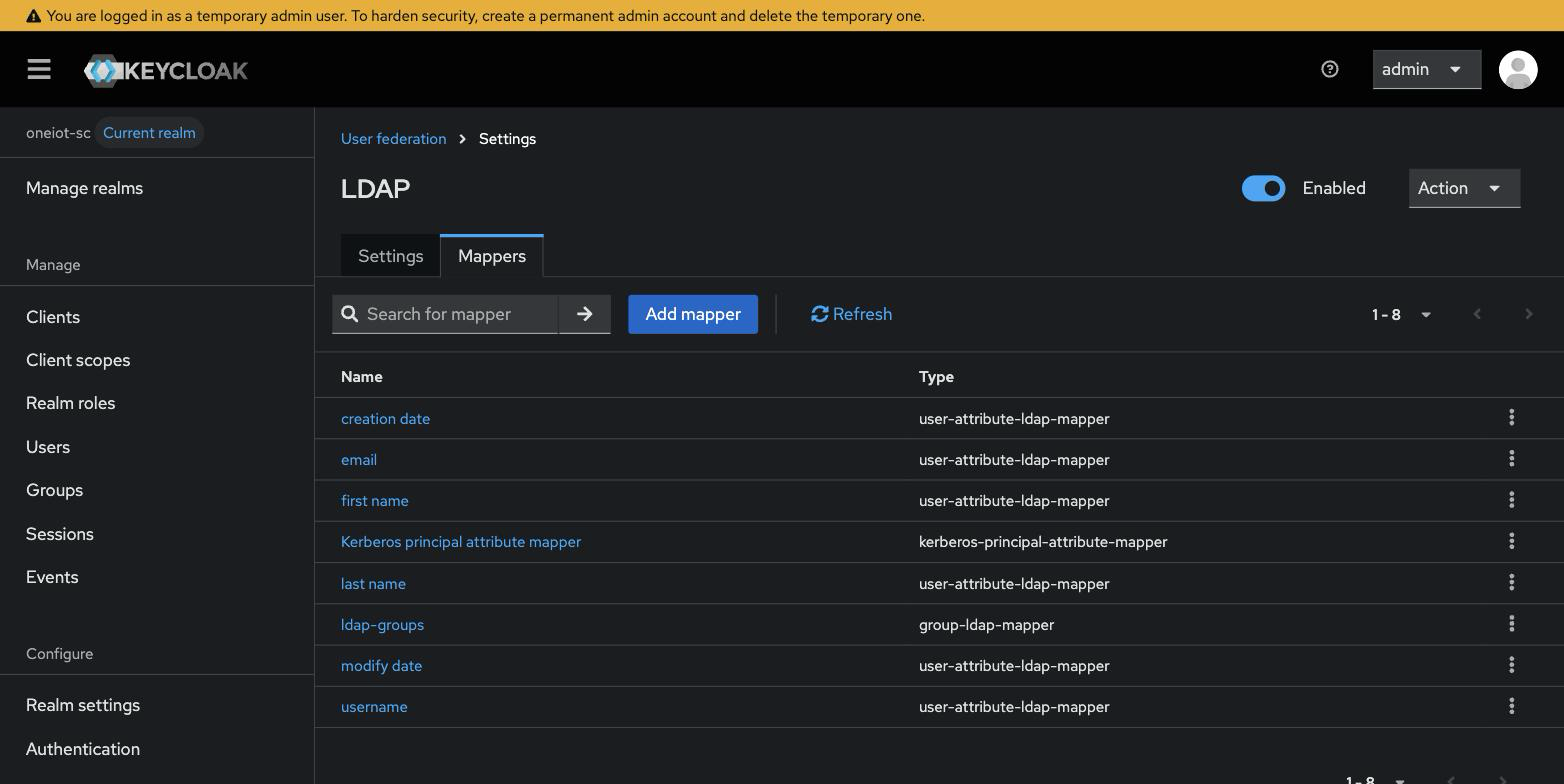
Open the LDAP provider and go to its Mappers tab. Keycloak’s AD template usually includes a group mapper already; if not, click Add mapper and choose Mapper type: group-ldap-mapper.
-
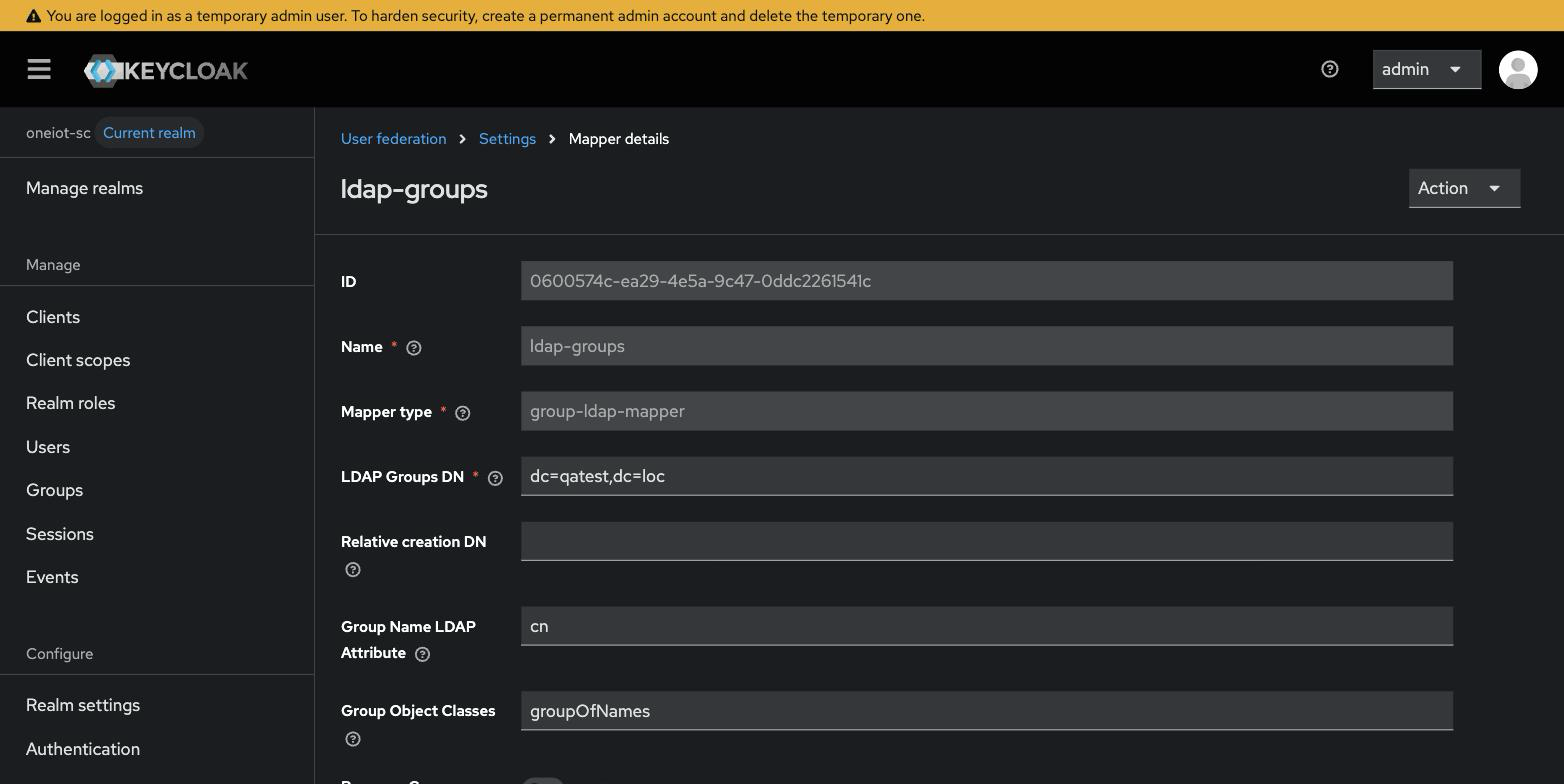
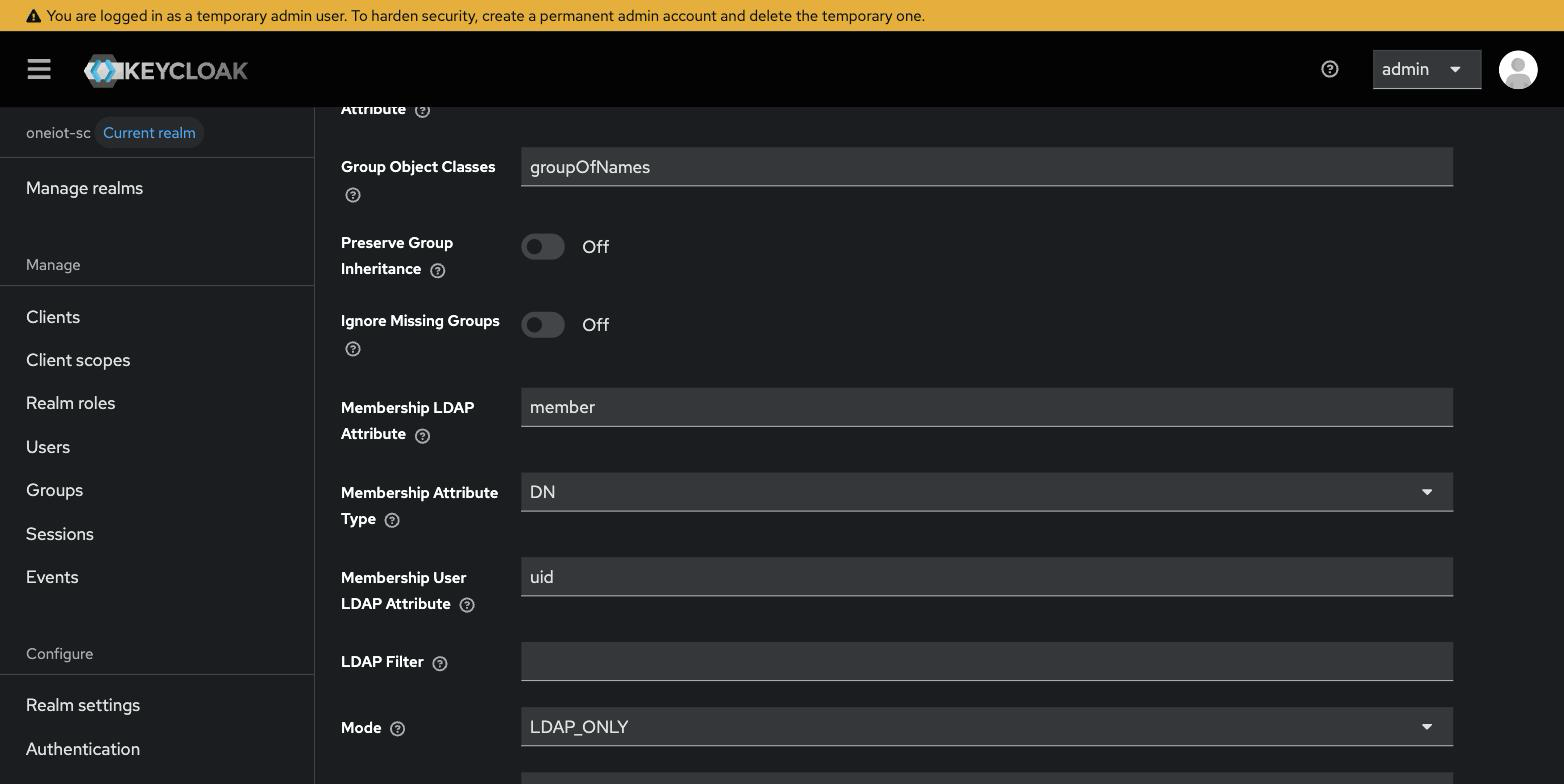
Open it and verify the configuration against the directory:
| Field | Value | Why |
|---|---|---|
LDAP Groups DN |
|
Where the groups live. Covered by the provider’s Search scope — with |
Group Name LDAP Attribute |
|
Where the group name comes from. |
Group Object Classes |
|
Must match the directory. |
Membership LDAP Attribute |
|
Attribute listing the members. |
Membership Attribute Type |
|
|
User Groups Retrieve Strategy |
|
Keycloak resolves membership by scanning |
Mode |
|
Groups are read from the directory. Translation attributes are still stored on the Keycloak side, so this mode is fine. |
|
The
memberOf overlay is not requiredWith |
-
Click Action → Sync LDAP groups to Keycloak. Repeat this after every group change in the directory.
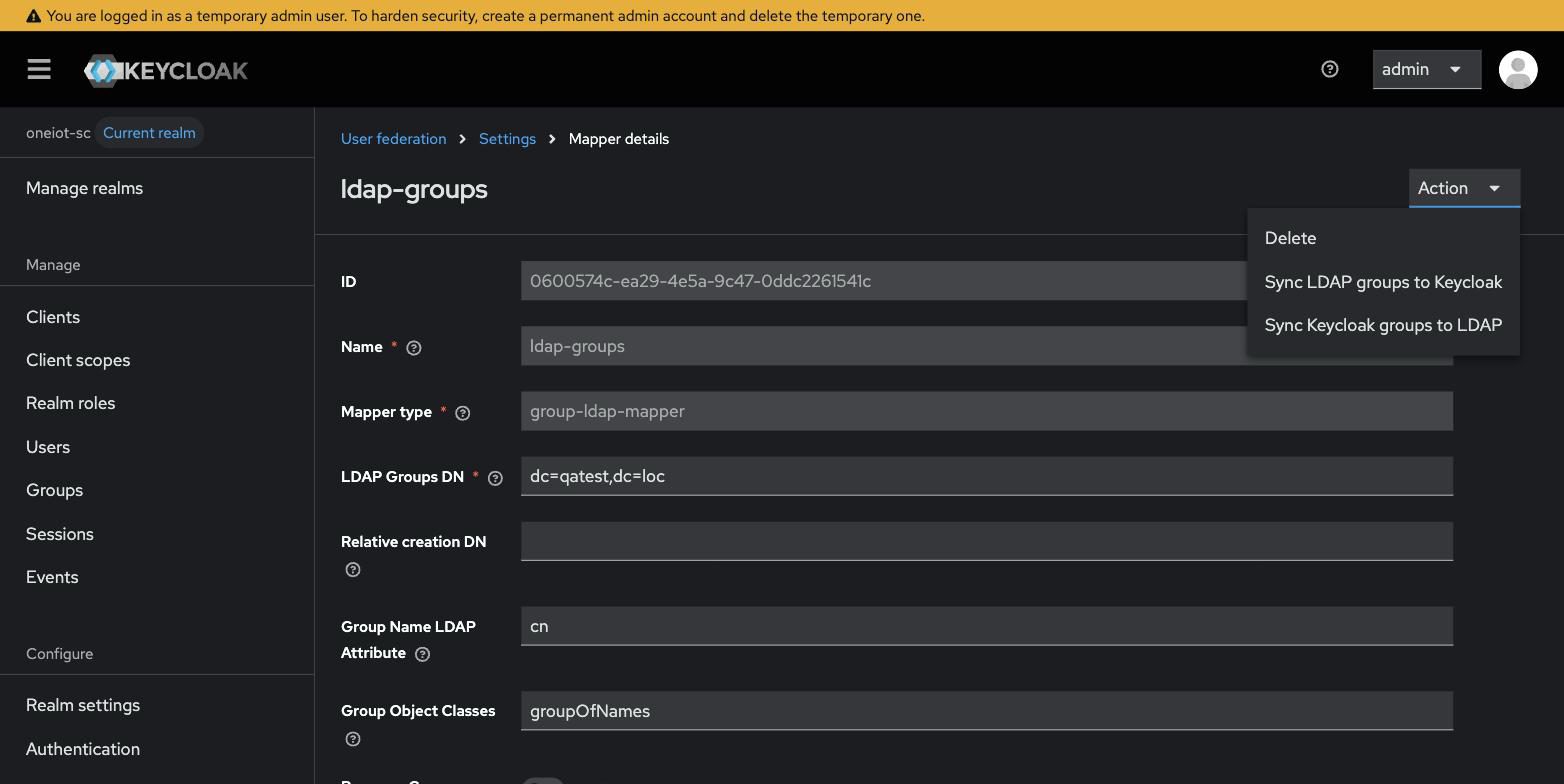
|
Mind the sync direction
Sync Keycloak groups to LDAP writes into the directory. The direction needed here is Sync LDAP groups to Keycloak. |
The result line reports imported (new groups), updated (existing groups whose membership changed) and removed.
Confirm the groups are present under Groups:
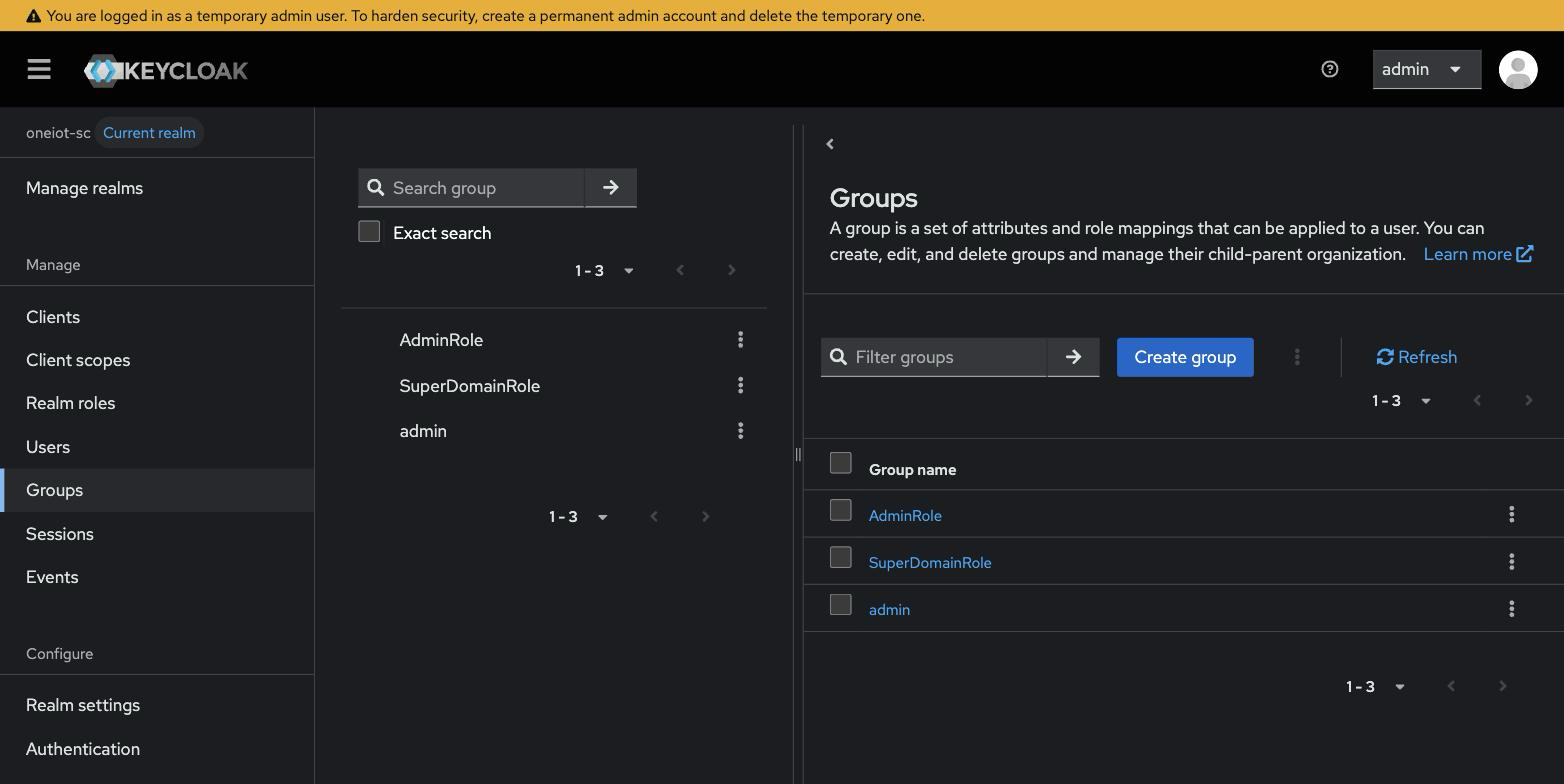
6.5.3. Translation table — attributes on groups
Once the groups are synced into Keycloak, set a translation attribute on each one — this is
what turns an AD group name into the application user-group / domain value, and it is how
multi-domain / multi-role support works. The full procedure — the translation table with
screenshots, plus the per-client protocol mappers that emit the claims — lives in the shared,
login-type-neutral guide:
Keycloak Role & Domain Mappers (Step 1 — translation attributes, Step 2 — protocol mappers, Step 3 — verify).
|
If you need to support more than one application domain, or map several AD groups onto
different application user-groups, that shared guide is the one to follow — it prepares
Keycloak to emit the correct |
6.6. D.6 Protocol mappers (per client)
The ID token must carry three custom claims — portal-type, user-group, and domain — added to each client’s dedicated scope. The username arrives in the standard
preferred_username claim and needs no mapper. The field-by-field walkthrough, with
screenshots, is in the shared guide:
Protocol mappers (per client).
6.7. D.7 Browser flow — show the LDAP login form
For the ldap login type the user must see Keycloak’s username/password form (which
validates against LDAP). Ensure the realm’s bound Browser flow does not have an
Identity Provider Redirector configured with a default IdP — otherwise the user is
bounced straight to an external identity provider instead of the LDAP form.
-
Navigate to Authentication > Flows.
-
Confirm the bound Browser flow is the default one (no auto-redirect step), or that any Identity Provider Redirector step has no Default Identity Provider set.
| Auto-redirect to an external IdP is the opposite requirement and is used by the Azure AD login type — see Azure AD + Keycloak. |
6.8. D.8 Checklist
For each portal (SC and MC):
-
One realm per portal.
-
A confidential OIDC client: Client authentication = On, Standard flow = On, PKCE = S256, exact backend callback as the only Valid Redirect URI (no wildcard).
-
Client secret copied into
conf/sc-oidc-secret/conf/mc-oidc-secret. -
LDAP User Federation pointing at Active Directory, with a group mapper (
member/DN/LOAD_GROUPS_BY_MEMBER_ATTRIBUTE). -
One role group and one domain group per user in AD; groups synced into Keycloak.
-
Translation attributes set on each group:
user-groupon role groups,domainon domain groups. -
Protocol mappers emitting
user-groupanddomain(both User Attribute), plusportal-type(hardcodedsc/mc). -
No leftover Hardcoded claim or Group Membership mappers for
user-group/domain. -
Attribute values match user-group and domain names that exist in the backend database.
-
Browser flow shows the LDAP username/password form (no Identity Provider Redirector).
7. Selecting the authentication type per portal
The ldap type is selected per portal (application UI → Settings → Interface →
Authentication, or in the iotw_client_interface table). See
Selecting the
authentication type per portal for the full table of types.
|
If a portal shows a local password form when the Keycloak form was expected — or jumps to an external (e.g. Microsoft) login instead — check two things first: (a) the AuthenticationType setting for that portal, and (b) whether the realm’s browser flow has an Identity Provider Redirector enabled. |
8. Verifying the setup
8.1. Checking the claims without logging in
Keycloak can assemble a token for any user from the Admin Console (Clients > client
> Client scopes > Evaluate > Generated ID token), which verifies the whole chain without
disturbing anyone’s session — both user-group and domain must appear as plain strings.
The step-by-step, with screenshots, is in
Keycloak Role & Domain Mappers — Step 3.
8.2. Checking a real login
A healthy ldap-via-Keycloak login looks like this:
-
On login, the portal does not show a local username/password form — it redirects to Keycloak.
-
The address bar shows the Keycloak host with Keycloak’s login form.
-
Wrong AD credentials are rejected by Keycloak (the backend is never reached).
-
After a correct password, the browser passes through
…/iot-webservice/login/oauth2/code/<registrationId>?code=…and lands on…/<portal>/login/auth-callback?token=…. -
The user is inside the portal with permissions matching their AD group.
-
The backend logs show the user being provisioned or reused and an internal JWT issued — no
PKIX,invalid_client, orNO_MATCH_AUTHerrors. -
Reloading the portal keeps the session (the JWT is stored); Keycloak is not contacted again.
|
Common prerequisite
The value the translation produces must name a user-group that already exists in the backend database for that portal. The backend never creates user-groups on the fly: if the name is unknown, login is rejected even though the password was correct and the token was well-formed. Pre-create the matching user-group before the first login. |
9. Troubleshooting
| Symptom | Likely cause | Fix |
|---|---|---|
|
Wrong or missing client secret in |
Copy the secret from Keycloak → client → Credentials into the file, then redeploy. |
HTTP 500 right after entering the password ( |
The user-group name from the |
Create the application user-group with exactly that name, or correct the group attribute value to match an existing one. |
The |
The mapper was not created, or was created outside the client’s dedicated scope |
Add it under Clients > client > Client scopes > |
The claim is present but empty |
The user belongs to no group carrying that attribute |
Check Users > user > Groups, then the group’s Attributes tab. |
The user has no groups at all in Keycloak |
The group mapper reads membership the wrong way |
Set |
New AD groups do not appear in Keycloak |
Synchronisation was not run after the directory change |
Mappers > group mapper > Action → Sync LDAP groups to Keycloak. |
Groups exist in AD but are never found |
Search scope is |
Set Search scope to |
The claim value never changes, whatever the user’s groups |
A leftover Hardcoded claim mapper with the same claim name overrides the translation |
Delete it from the dedicated scope. |
The claim is an array instead of a string |
Multivalued is enabled on the mapper |
Switch Multivalued and Aggregate attribute values off. |
|
The backend’s JVM does not trust Keycloak’s certificate |
Set |
|
The exact callback URL is not registered in the client’s Valid Redirect URIs |
Add |
Error about a missing |
The Keycloak client’s PKCE method is not |
Set Advanced → PKCE method = S256 on the client. |
Browser jumps to an external (e.g. Microsoft) login instead of the Keycloak form |
The realm’s browser flow has an Identity Provider Redirector enabled |
Disable it so the LDAP username/password form is shown. |
Login loops or lands on the wrong host |
|
Set it to the exact external base URL the browser uses (scheme + host + port, no trailing slash). |
Test connection / Test authentication fails in LDAP User Federation (PKIX / SSL handshake) |
Keycloak does not trust the AD LDAPS certificate, or the certificate is issued for a hostname you are connecting to by IP |
Mount the AD certificate into Keycloak’s truststore ( |
Test connection succeeds but Test authentication fails, or no users are found |
Wrong case in a DN, or |
Copy each DN level verbatim from AD (Attribute Editor → |
|
Diagnose from the token backwards
Work the chain in this order: the generated ID token (Client scopes → Evaluate), then the user’s Groups tab, then the group’s Attributes tab, then the federation’s group mapper. The first step that shows the wrong value is the layer that is broken. |
10. Related documentation
-
Keycloak Role & Domain Mappers — the shared group-to-claim mapper setup (multi-domain / user-group support).
-
Keycloak Deployment — deploy the Keycloak container (Docker, storage, TLS, network, HA).
-
Windows (AD / Kerberos) SSO — the same OIDC/Keycloak flow with silent Kerberos SSO.
-
SAML SSO Setup — the SAML login type.