All-in-One UI Services Deployment
Overview
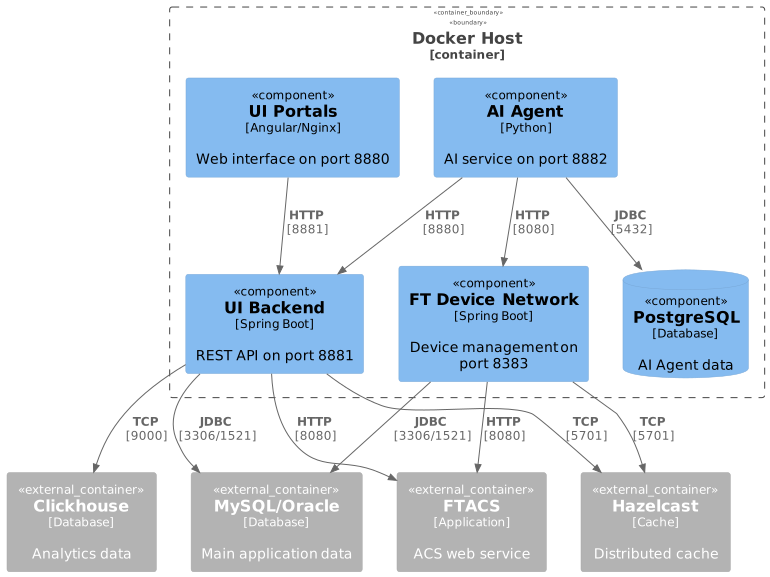
This deployment runs all UI services on a single host using Docker Compose:
-
UI Backend (Spring Boot)
-
UI Portals (Angular on Nginx)
-
FT Device Network Service (Spring Boot)
-
AI Agent Service (Python)
-
PostgreSQL database (for AI Agent)
Prerequisites
Required External Components
The following components must be installed and accessible before deployment:
| Component | Purpose | Default Port |
|---|---|---|
MySQL or Oracle |
Main application database |
3306 (MySQL) / 1521 (Oracle) |
Hazelcast |
Distributed cache |
5701 |
FTACS Application |
ACS web service |
8080 |
Clickhouse |
Analytics database |
9000 |
Deployment Steps
1. Prepare Environment File
Choose the appropriate environment file based on your database:
- MySQL
-
cp .env.mysql .env - Oracle
-
cp .env.oracle .env
2. Configure Host Variables
Edit .env and replace placeholder values with actual hostnames or IP addresses:
# Required replacements:
~HOST~            → Your server hostname/IP (e.g., 192.168.1.100)
~HAZEL_HOST~      → Hazelcast server (e.g., 192.168.1.50)
~FTACS_HOST~      → FTACS server (e.g., 192.168.1.60)
~CLICKHOUSE_HOST~ → Clickhouse server (e.g., 192.168.1.70)
~MYSQL_HOST~      → MySQL server (for MySQL deployment)
~ORACLE_HOST~     → Oracle server (for Oracle deployment)
Example:
FT_UI_HOST=192.168.1.100
HZ_MEMBERS=192.168.1.50:5701,192.168.1.51:5701,192.168.1.52:5701
ACS_WEB_SERVICE_HOST=192.168.1.60
CLICKHOUSE_HOST=192.168.1.70
DB_HOST=192.168.1.80
3. Create Data Directories
mkdir -p /usr/local/ft-services/{ui-backend-conf,ft-data/{ui-portals/{backend,nginx}/logs,ft-device-network/logs,ai-agent/postgres/data}}
ui-backend-conf requires predefined application configuration files.
See separate-host deployment documentation for detailed configuration instructions.
|
Environment Variables
Common Variables
| Variable | Description | Default | Required |
|---|---|---|---|
|
Base directory for persistent data and configurations |
|
Yes |
|
Timezone for all services |
|
Yes |
|
Database type: |
|
Yes |
|
Database password |
|
Yes |
Database Configuration
- MySQL
-
Variable Description Default DB_HOSTMySQL server address
-
MYSQL_PORTMySQL port
3306MYSQL_USERMySQL username
ftacs - Oracle
-
Variable Description Default DB_HOSTOracle server address
-
ORACLE_PORTOracle port
1521ORACLE_SERVICEOracle service name
XEPDB1ORACLE_USER_FTACSOracle username
ftacs
External Dependencies
| Variable | Description | Default | Required |
|---|---|---|---|
|
Hazelcast cluster members (comma-separated list of HOST:PORT) |
|
Yes |
|
FTACS application host |
|
Yes |
|
FTACS application port |
|
Yes |
|
Clickhouse server address |
|
Yes |
|
Clickhouse port |
|
Yes |
|
Clickhouse database name |
|
Yes |
|
Clickhouse username |
|
Yes |
|
Clickhouse password |
|
Yes |
UI Services Configuration
| Variable | Description | Default | Required |
|---|---|---|---|
|
Public hostname for UI access |
|
Yes |
|
UI Portals HTTP port |
|
Yes |
|
UI Portals HTTPS port |
|
Yes |
|
Backend API port |
|
Yes |
|
Grafana url for dashboards exporting (http://IP:PORT/) |
No |
|
|
Backend JVM memory settings |
|
No |
|
Backend log level |
|
No |
|
Internal authentication keyword for cross-application communication (see separate-host deployment for details) |
|
Yes |
FT Device Network Configuration
| Variable | Description | Default | Required |
|---|---|---|---|
|
Service HTTP port |
|
Yes |
|
JVM memory settings |
|
No |
|
Log level |
|
No |
AI Agent Configuration
| Variable | Description | Default | Required |
|---|---|---|---|
|
PostgreSQL hostname (internal) |
|
Yes |
|
PostgreSQL port |
|
Yes |
|
PostgreSQL database name |
|
Yes |
|
PostgreSQL username |
|
Yes |
|
PostgreSQL password |
|
Yes |
|
Google API key for AI features |
- |
Yes |
|
API request timeout in seconds |
|
No |
|
Device command timeout in seconds |
|
No |
|
Maximum tokens for LLM |
|
No |
|
Maximum audio file size |
|
No |
|
Minimum db pool size |
|
Yes |
|
Maximum db pool size |
|
Yes |
Service Access
After successful deployment, access services at:
| Service | URL | Description |
|---|---|---|
UI Portals |
Main web interface |
|
UI Backend API |
|
API documentation |
FT Device Network |
Health check endpoint |
|
AI Agent |
AI agent service |
Exposed Ports
The following ports are exposed on the host:
| Port | Service | Protocol | Configurable Via |
|---|---|---|---|
8880 |
UI Portals (Nginx) |
HTTP |
|
8843 |
UI Portals (Nginx) |
HTTPS |
|
8881 |
UI Backend (Spring Boot) |
HTTP |
|
8383 |
FT Device Network (Spring Boot) |
HTTP |
|
To verify ports are listening:
netstat -tlnp | grep -E '8880|8881|8383|8882'
# or
ss -tlnp | grep -E '8880|8881|8383|8882'
Service Startup Order
Services start in the following order with health checks:
-
PostgreSQL - Database for AI Agent
-
UI Backend - REST API service (waits for DB)
-
UI Portals - Web interface (waits for backend)
-
FT Device Network - Device management service (independent start)
-
AI Agent - AI service (waits for PostgreSQL, UI Backend, and FT Device Network)
Data Persistence
Persistent data is stored in the following locations (assuming DATA_FOLDER=/usr/local/ft-services):
| Service | Path | Content |
|---|---|---|
UI Backend Config |
|
Configuration files (must be pre-configured) |
UI Backend Logs |
|
Application logs |
UI Portals Logs |
|
Nginx access and error logs |
FT Device Network Logs |
|
Application logs |
PostgreSQL Data |
|
Database files |
Folder structure:
/usr/local/ft-services/
├── ui-backend-conf/          # Configuration files
└── ft-data/                  # Runtime data and logs
    ├── ui-portals/
    │   ├── backend/logs/
    │   └── nginx/logs/
    ├── ft-device-network/logs/
    └── ai-agent/postgres/data/
Troubleshooting
Check Service Logs
# All services
docker compose logs -f

# Specific service
docker compose logs -f ui-backend
docker compose logs -f portals
docker compose logs -f ft-device-network-service
docker compose logs -f ui-ai-agent
docker compose logs -f postgres
Common Issues
Services Not Starting
Check if all external dependencies are accessible:
# Test database connection
telnet <DB_HOST> 3306    # MySQL
telnet <DB_HOST> 1521    # Oracle

# Test Hazelcast
telnet <HAZEL_HOST> 5701

# Test FTACS
curl http://<FTACS_HOST>:8080

# Test Clickhouse
telnet <CLICKHOUSE_HOST> 9000Maintenance
Update Services
Pull latest images and restart:
# Pull latest images
docker compose pull

# Restart with new images
docker compose up -d
Force Repull Images
Force Docker to pull fresh images (ignores cache):
# Stop services
docker compose down

# Remove existing images
docker compose pull --ignore-pull-failures

# Or remove images manually
docker images | grep "hub.friendly-tech.com" | awk '{print $3}' | xargs docker rmi -f

# Start with fresh images
docker compose up -d
Stop Services
# Stop services (keeps data)
docker compose down

# Stop services and remove all data (WARNING: deletes all persistent data)
docker compose down -v

# Remove specific volumes only
docker volume rm ft-ui-services_postgres_data