UI Services Separate Host Deployment
Overview
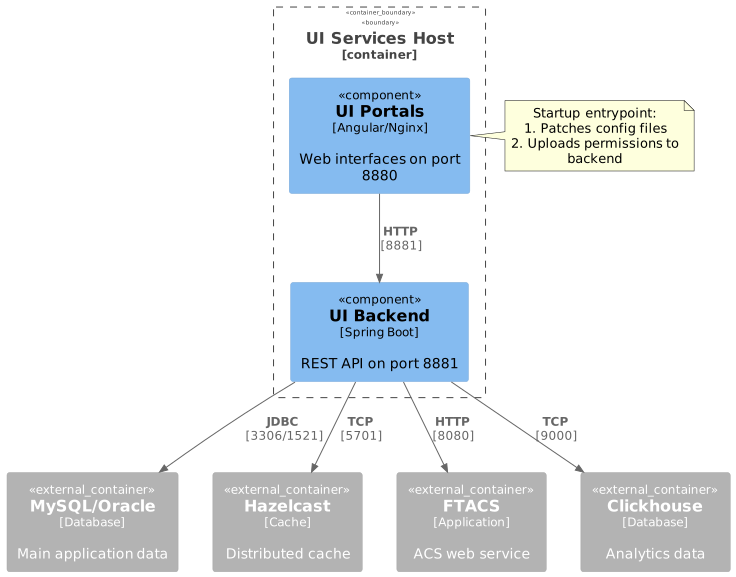
This deployment runs UI services (Backend + Portals) on a dedicated host. The deployment includes:
-
UI Backend - Spring Boot REST API service
-
UI Portals - Angular web applications on Nginx (Support Center & Management Console)
Prerequisites
|
For detailed information about Docker registry and image management, see Docker Image Management Guide. |
|
For HTTPS configuration, see Ssl certificate configuration. |
Preparation
1. Prepare Configuration Directory
Create the required directory structure:
mkdir -p /usr/local/ft-services/{ui-backend-conf,ft-data/ui-portals/{backend,nginx}/logs}2. Configure UI Backend
The ui-backend-conf folder contains essential configuration files for the backend service.
3. Prepare Environment File
Choose the appropriate environment file:
- MySQL
-
cp .env.mysql .env - Oracle
-
cp .env.oracle .env
4. Configure Host Variables
Edit .env and replace placeholder values:
# Required replacements:
~HOST~            → UI services hostname/IP (e.g., 192.168.1.100)
~HAZELCAST_HOST~  → Hazelcast server (e.g., 192.168.1.50)
~FTACS_HOST~      → FTACS server (e.g., 192.168.1.60)
~CLICKHOUSE_HOST~ → Clickhouse server (e.g., 192.168.1.70)
~MYSQL_HOST~      → MySQL server (for MySQL deployment)
~ORACLE_HOST~     → Oracle server (for Oracle deployment)
Example configuration:
HOST=192.168.1.100
HZ_MEMBERS=192.168.1.50:5701,192.168.1.51:5701
ACS_WEB_SERVICE_HOST=192.168.1.60
CLICKHOUSE_HOST=192.168.1.70
DB_HOST=192.168.1.80Container Startup Process
UI Backend Startup
The backend container starts with the following initialization:
-
Loads configuration from
/app/conf(mounted fromui-backend-conf) -
Connects to Hazelcast cluster using
hazelcast-client.xml -
Connects to MySQL/Oracle database
-
Initializes REST API endpoints
-
Health check becomes available at
/iot-webservice/swagger-ui/index.html
UI Portals Startup (Entrypoint)
The portals container runs an entrypoint script that performs the following actions:
1. Configuration Patching
Patches Angular application configuration files with backend API endpoints:
# Support Center
/usr/share/nginx/html/support-center/assets/app-config.json
  → .server.api = "http://${HOST}:8881/iot-webservice/"

# Management Console
/usr/share/nginx/html/management-console/assets/app-config.json
  → .server.api = "http://${HOST}:8881/iot-webservice/"
This ensures the Angular apps know where to send API requests.
2. Permissions Upload
Uploads portal-specific permissions to the backend:
# Support Center permissions
curl -X PUT http://ui-backend:8880/iot-webservice/iotw/Setting/userGroup/permissions \
  -H "X-Internal-Keyword: ${FT_UI_BACKEND_KEYWORD}" \
  -H "X-Internal-Client-Type: sc" \
  -F "config=@/usr/share/nginx/html/support-center/assets/app-permissions-config.json"

# Management Console permissions
curl -X PUT http://ui-backend:8880/iot-webservice/iotw/Setting/userGroup/permissions \
  -H "X-Internal-Keyword: ${FT_UI_BACKEND_KEYWORD}" \
  -H "X-Internal-Client-Type: mc" \
  -F "config=@/usr/share/nginx/html/management-console/assets/app-permissions-config.json"
Purpose: Synchronizes user group permissions from Angular apps to the backend database.
Authentication: Uses FT_UI_BACKEND_KEYWORD header for internal service-to-service authentication.
Environment Variables
Service Configuration
| Variable | Description | Default | Required |
|---|---|---|---|
|
Public hostname for UI access (used in Angular configs) |
|
Yes |
|
UI Portals HTTP port |
|
Yes |
|
UI Portals HTTPS port |
|
Yes |
|
Backend API port |
|
Yes |
|
Grafana url for dashboards exporting (http://IP:PORT/) |
No |
|
|
Backend JVM memory settings |
|
No |
|
Backend log level (info, debug, warn, error) |
|
No |
|
Internal authentication keyword for cross-service communication (entrypoint uses this for permissions upload) |
|
Yes |
Common Configuration
| Variable | Description | Default | Required |
|---|---|---|---|
|
Base directory for persistent data and configurations |
|
Yes |
|
Timezone for all services |
|
Yes |
Database Configuration
- MySQL
-
Variable Description Default Required DB_HOSTMySQL server address
MYSQL_HOSTYes
MYSQL_PORTMySQL port
3306Yes
MYSQL_USERMySQL username
ftacsYes
DB_PASSWORDMySQL password
ftacsYes
DB_VENDORDatabase type
mysqlYes
- Oracle
-
Variable Description Default Required DB_HOSTOracle server address
ORACLE_HOSTYes
ORACLE_PORTOracle port
1521Yes
ORACLE_SERVICEOracle service name
XEPDB1Yes
ORACLE_USER_FTACSOracle username for FTACS schema
ftacsYes
ORACLE_USER_IOTWOracle username for IOTW schema
iotwYes
DB_PASSWORDOracle password
ftacsYes
DB_VENDORDatabase type
oracleYes
External Dependencies
| Variable | Description | Default | Required |
|---|---|---|---|
|
Hazelcast cluster members (comma-separated HOST:PORT) |
|
Yes |
|
FTACS application host |
|
Yes |
|
FTACS application port |
|
Yes |
|
Clickhouse server address |
|
Yes |
|
Clickhouse port |
|
Yes |
|
Clickhouse database name |
|
Yes |
|
Clickhouse username |
|
Yes |
|
Clickhouse password |
|
Yes |
Service Access
After successful deployment:
| Service | URL | Description |
|---|---|---|
Support Center |
End-user support portal |
|
Management Console |
Administrator console |
|
Backend API |
|
API documentation |
Exposed Ports
| Port | Service | Protocol | Purpose | Configurable Via |
|---|---|---|---|---|
8880 |
UI Portals (Nginx) |
HTTP |
Web interface |
|
8843 |
UI Portals (Nginx) |
HTTPS |
Web interface |
|
8881 |
UI Backend |
HTTP |
REST API |
|
Verify ports are listening:
netstat -tlnp | grep -E '8880|8881'Data Persistence
Persistent data locations (assuming DATA_FOLDER=/usr/local/ft-services):
| Path | Content | Backup Required |
|---|---|---|
|
Configuration files (hazelcast-client.xml, customizations) |
Yes |
|
Backend application logs |
No |
|
Nginx access and error logs |
No |
Folder structure:
/usr/local/ft-services/
├── ui-backend-conf/                    # Configuration (backup required)
│   ├── hazelcast-client.xml
│   └── customization/
│       ├── def/
│       ├── mc/
│       └── sc/
└── ft-data/ui-portals/                 # Runtime data
    ├── backend/logs/
    └── nginx/logs/
Troubleshooting
Check Service Logs
# All services
docker compose logs -f

# Backend only
docker compose logs -f ui-backend

# Portals only
docker compose logs -f portals
Common Issues
Portals Container Fails to Start
Symptom: Portals container exits or restarts repeatedly.
Check entrypoint logs:
docker compose logs portals | grep -E "Patched|Upload|WARN"Common causes:
-
Backend not healthy:
-
Portals depends on backend health check
-
Wait for backend to become healthy first
-
-
Permissions upload failed:
-
Check
FT_UI_BACKEND_KEYWORDmatches between services -
Verify backend API is accessible from portals container
-
-
Missing permissions files:
-
Ensure portals image contains
app-permissions-config.jsonfiles -
Check entrypoint logs for "WARN: permissions file not found"
-
Backend Cannot Connect to Hazelcast
Symptom: Backend logs show Hazelcast connection errors.
Check:
# Verify Hazelcast is reachable
telnet <HAZELCAST_HOST> 5701

# Check hazelcast-client.xml
cat /usr/local/ft-services/ui-backend-conf/hazelcast-client.xml

# Check HZ_MEMBERS environment variable
docker compose exec ui-backend env | grep HZ_MEMBERS
Solution:
- Update HZ_MEMBERS in .env with correct Hazelcast addresses - Verify hazelcast-client.xml references ${env.HZ_MEMBERS}
Angular Apps Cannot Reach Backend API
Symptom: UI shows connection errors or 404 responses.
Check:
# Verify backend API is accessible
curl http://<FT_UI_HOST>:8881/iot-webservice/swagger-ui/index.html

# Check patched configuration
docker compose exec portals cat /usr/share/nginx/html/support-center/assets/app-config.json | jq .server.api
Expected output:
"http://<FT_UI_HOST>:8881/iot-webservice/"Solution:
- Verify FT_UI_HOST is set correctly in .env
- Ensure FT_UI_HOST is accessible from user browsers
Permissions Not Applied
Symptom: Users cannot access expected features.
Check entrypoint logs:
docker compose logs portals | grep -i "upload"Verify permissions in database:
# Access backend API to check permissions
curl -X GET http://<FT_UI_HOST>:8881/iot-webservice/iotw/Setting/userGroup/permissions
Solution:
- Restart portals to re-upload permissions: docker compose restart portals
- Verify FT_UI_BACKEND_KEYWORD is correct
Debugging
Maintenance
Update Services
# Pull latest images
docker compose pull

# Restart with new images
docker compose up -d
Force Repull Images
docker compose down
docker compose pull --ignore-pull-failures
docker compose up -d