AI Agent Service Separate Host Deployment
Overview
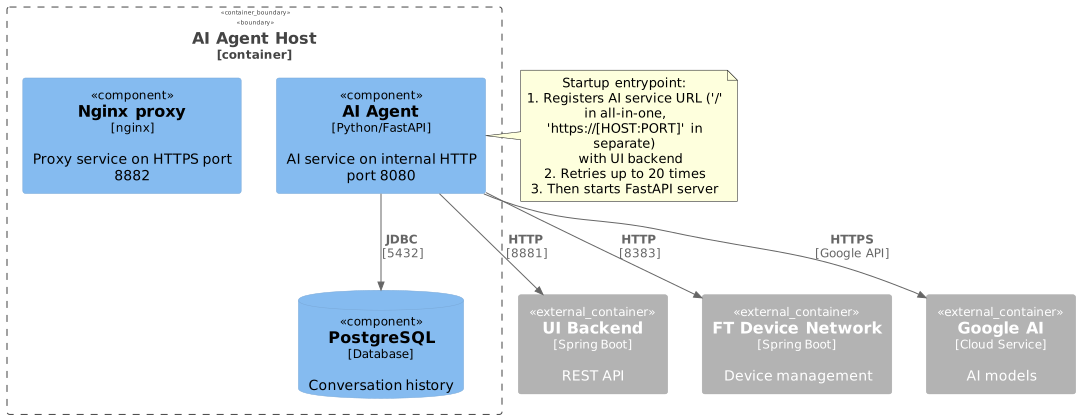
This deployment runs the AI Agent Service with its PostgreSQL database on a dedicated host. The service provides AI-powered chatbot capabilities for technical support and device troubleshooting.
The deployment includes:
-
UI AI Agent - Python FastAPI service with Google AI integration
-
PostgreSQL - Database for conversation history and AI context
Prerequisites
|
For detailed information about Docker registry and image management, see Docker Image Management Guide. |
|
For HTTPS configuration, see Ssl certificate configuration. |
Required External Components
The following components must be installed and accessible:
| Component | Purpose | Default Port |
|---|---|---|
UI Backend |
Main REST API service (for registration and API calls) |
8881 |
FT Device Network Service |
Device management API |
8383 |
Google AI API |
AI model access (requires API key) |
HTTPS/443 |
Preparation
1. Prepare Configuration Directory
Create the required directory structure:
mkdir -p /usr/local/ft-services/ft-data/ai-agent/postgres/dataDownload the deployment files (compose.yaml, .env, nginx.conf, ssl/) from the FT_DISK on SharePoint and place them into the working directory.
2. Prepare Environment File
Edit .env and configure all required variables.
See Environment Variables for a full reference of available settings.
3. Configure Host Variables
Edit .env and replace all ~PLACEHOLDER~ values with actual hostnames or IP addresses.
The env file contains placeholders in the format ~NAME~ that must be replaced before starting the services:
| Placeholder | Variable in .env | Description |
|---|---|---|
~HOST~ |
FT_AI_AGENT_HOST |
Public hostname or IP address of this server (the machine where AI Agent is being deployed). Used during registration with UI Backend so that the Support Center portal knows where to reach the AI chatbot. |
~UI_HOST~ |
FT_UI_HOST |
Hostname or IP of the UI Backend server. The AI Agent registers itself with the backend and makes API calls to it. |
~FT_DEVICE_NETWORK_HOST~ |
FT_DEVICE_NETWORK_HOST |
Hostname or IP of the FT Device Network service. The AI Agent calls this service to execute device commands. |
Example:
FT_AI_AGENT_HOST=192.168.1.100
FT_UI_HOST=192.168.1.110
FT_DEVICE_NETWORK_HOST=192.168.1.120
GOOGLE_API_KEY=AIzaSyC1234567890abcdefghijklmnop
4. Configure Google API Key
Obtain Google API Key from Google Cloud Console:
-
Enable Google AI APIs (Gemini API, etc.)
-
Create API key in "Credentials" section
-
Set
GOOGLE_API_KEYin.env
| Keep your Google API key secure. Never share publicly. |
Docker Networking: host.docker.internal
If the UI Backend or FT Device Network runs on the host machine (not inside Docker), use host.docker.internal as the hostname in .env variables (FT_UI_HOST, FT_DEVICE_NETWORK_HOST):
FT_UI_HOST=host.docker.internal
FT_DEVICE_NETWORK_HOST=host.docker.internal
Why this is needed:
-
Inside a Docker container, localhost and 127.0.0.1 point to the container itself, not to the host machine. Any connection attempt to a host-side service via localhost will fail.
-
host.docker.internal is a special DNS name that Docker resolves to the host’s internal IP address.
-
The provided compose.yml already includes the required mapping:
extra_hosts: - "host.docker.internal:host-gateway" -
On Docker Desktop (macOS, Windows) this works out of the box. On Linux the extra_hosts directive above is required (already present in compose.yml).
Alternatively, use the host machine’s real IP address (e.g., 192.168.1.10) instead of host.docker.internal.
Environment Variables
Service Configuration
| Variable | Description | Default | Required |
|---|---|---|---|
|
Public hostname for AI agent (used in registration URL) |
|
Yes |
|
AI Agent HTTPS port |
|
Yes |
|
UI Backend hostname |
|
Yes |
|
UI Backend port |
|
Yes |
|
FT Device Network service hostname |
|
Yes |
|
FT Device Network service port |
|
Yes |
|
Internal authentication keyword for cross-service communication (used during registration) |
|
Yes |
|
Minimum db pool size |
|
Yes |
|
Maximum db pool size |
|
Yes |
Google AI Configuration
| Variable | Description | Default | Required |
|---|---|---|---|
GOOGLE_API_KEY |
Google API key for AI models |
- |
Yes |
GOOGLE_APPLICATION_CREDENTIALS |
Path to Google service account JSON (inside container) |
/app/keys/google_service_account.json |
No |
PostgreSQL Configuration
| Variable | Description | Default | Required |
|---|---|---|---|
|
PostgreSQL hostname (internal) |
|
Yes |
|
PostgreSQL port |
|
Yes |
|
PostgreSQL database name |
|
Yes |
|
PostgreSQL username |
|
Yes |
|
PostgreSQL password |
|
Yes |
API Timeout Configuration
| Variable | Description | Default | Required |
|---|---|---|---|
|
Timeout for requests to UI backend/device network (seconds) |
|
No |
|
Timeout for device command polling (seconds) |
|
No |
LLM Configuration
| Variable | Description | Default | Required |
|---|---|---|---|
|
Maximum tokens for LLM context |
|
No |
|
Tokens threshold before summarization |
|
No |
|
Maximum tokens for summary |
|
No |
|
Maximum audio file size for transcription |
|
No |
Container Startup Process
PostgreSQL Startup
-
Database Initialization
-
Creates database
ftl_aiif it doesn’t exist -
Initializes tables for conversation history
-
TCP keepalive configured for stable connections
-
-
Health Check
-
Runs
pg_isreadyevery 10 seconds -
Service marked healthy after successful connection
-
AI Agent Startup (Entrypoint)
The AI agent container runs an entrypoint script (init-interface.sh) that performs critical registration before starting the main service.
1. Environment Validation
Validates required environment variables:
FTL_WEB_UI_API_BASE_URL  # Must be set (UI backend URL)
FT_AI_AGENT_HOST         # Defaults to 'ui-ai-agent'
FT_AI_AGENT_HTTP_PORT    # Defaults to 8882
FT_UI_BACKEND_KEYWORD    # Authentication keyword
2. AI Service Registration
Registers the AI service with the UI Backend via PUT request:
PUT http://<UI_BACKEND>:8881/iot-webservice/iotw/Setting/interface
Headers:
  - Content-Type: application/json
  - X-Internal-Keyword: ${FT_UI_BACKEND_KEYWORD}
  - X-Internal-Client-Type: sc

Payload:
{
  "items": [
    {
      "id": "AIHistoryDays",
      "valueType": "INTEGER",
      "description": "",
      "required": true,
      "group": "AI Chatbot",
      "value": "0",
      "encrypted": false
    },
    {
      "id": "AIServiceConnectionURL",
      "valueType": "STRING",
      "description": "",
      "required": false,
      "group": "AI Chatbot",
      "value": "https://<FT_AI_AGENT_HOST>:8882/", // OR '/' for all-in-one
      "encrypted": false
    }
  ]
}
Purpose: This registration tells the UI Backend where to find the AI service, allowing the Support Center portal to communicate with the AI chatbot.
Retry Logic: The script retries up to 20 times (2 seconds between attempts) if the UI Backend is not yet ready.
Service Access
After successful deployment:
| Endpoint | URL | Description |
|---|---|---|
AI Agent API |
FastAPI root endpoint |
|
API Documentation |
Swagger UI (FastAPI auto-generated) |
|
Health Check |
Service health status |
Exposed Ports
| Port | Service | Protocol | Purpose | Configurable Via |
|---|---|---|---|---|
8882 |
AI Agent |
HTTPS |
FastAPI API |
|
5432 |
PostgreSQL |
TCP |
Database (internal only) |
Not exposed to host |
Verify AI Agent port is listening:
netstat -tlnp | grep 8882
# or
ss -tlnp | grep 8882
Test service health:
curl https://localhost:8882/healthTroubleshooting
Check Service Logs
# All services
docker compose logs -f

# AI Agent only
docker compose logs -f ui-ai-agent

# PostgreSQL only
docker compose logs -f postgres
Common Issues
AI Agent Fails to Start
Symptom: Container exits or restarts repeatedly during initialization.
Check entrypoint logs:
docker compose logs ui-ai-agent | grep "init-interface"Common causes:
-
UI Backend not accessible:
-
Entrypoint cannot reach UI Backend for registration
-
Check
FT_UI_HOSTandFT_UI_BACKEND_HTTP_PORTin.env -
Verify UI Backend is running:
curl http://<UI_HOST>:8881/iot-webservice/swagger-ui/index.html
-
-
Authentication failure:
-
FT_UI_BACKEND_KEYWORDmismatch between AI Agent and UI Backend -
Ensure both services use the same keyword value
-
-
Registration timeout:
-
Script fails after 20 retry attempts (40 seconds)
-
Increase
maxvalue in entrypoint script or fix UI Backend connectivity
-
Solution:
# Verify UI Backend reachability
curl -v http://<FT_UI_HOST>:8881/iot-webservice/iotw/Setting/interface

# Check keyword match
docker compose exec ui-ai-agent env | grep FT_UI_BACKEND_KEYWORD

# Restart after fixing configuration
docker compose restart ui-ai-agent
Cannot Connect to PostgreSQL
Symptom: AI Agent logs show database connection errors.
Check PostgreSQL status:
docker compose ps postgres
docker compose logs postgres
Verify connection:
# Test from AI Agent container
docker compose exec ui-ai-agent sh -c 'curl -v telnet://postgres:5432'

# Check PostgreSQL environment
docker compose exec ui-ai-agent env | grep POSTGRES
Solution:
- Wait for PostgreSQL to become healthy (can take 15-20 seconds on first start) - Check PostgreSQL logs for errors - Verify credentials match in .env
Google AI API Errors
Symptom: AI responses fail with API errors.
Check API key:
# Verify key is set
docker compose exec ui-ai-agent env | grep GOOGLE_API_KEY

# Test API key manually
curl "https://generativelanguage.googleapis.com/v1beta/models?key=YOUR_KEY"
Common causes:
-
Invalid or expired API key
-
API not enabled in Google Cloud Console
-
Quota exceeded
-
Network connectivity issues
Solution:
- Verify API key is correct in .env
- Enable required Google AI APIs in console - Check quota limits in Google Cloud Console - Verify internet connectivity from container
AI Service Not Registered with UI Backend
Symptom: Support Center shows no AI chatbot option.
Verify registration:
# Check if registration succeeded in logs
docker compose logs ui-ai-agent | grep "success"

# Query UI Backend for AI settings
curl -X GET "http://<FT_UI_HOST>:8881/iot-webservice/iotw/Setting/interface" \
  -H "Content-Type: application/json"
Solution:
- Check entrypoint logs for registration failures - Manually trigger registration by restarting AI Agent: docker compose restart ui-ai-agent
- Verify FT_AI_AGENT_HOST is accessible from UI Backend
Device Network Service Unreachable
Symptom: AI cannot execute device commands.
Check connectivity:
# Test from AI Agent container
docker compose exec ui-ai-agent curl -v "http://${FT_DEVICE_NETWORK_HOST}:8383/api/actuator/health"
Solution:
- Verify FT_DEVICE_NETWORK_HOST and FT_DEVICE_NETWORK_HTTP_PORT in .env
- Ensure FT Device Network service is running - Check network connectivity between hosts
Verify External Dependencies
Test connectivity to all required services:
# UI Backend
curl http://<FT_UI_HOST>:8881/iot-webservice/swagger-ui/index.html

# FT Device Network
curl http://<FT_DEVICE_NETWORK_HOST>:8383/api/actuator/health

# Google AI API (requires key)
curl "https://generativelanguage.googleapis.com/v1beta/models?key=<YOUR_KEY>"Debugging
Enable Langchain Tracing
For detailed AI operation tracing, configure Langchain:
Edit .env:
LANGCHAIN_API_KEY=your_langchain_key
LANGCHAIN_PROJECT=ft-ai-agent-debug
LANGCHAIN_TRACING_V2=true
Restart service:
docker compose restart ui-ai-agentView traces at https://smith.langchain.com/
View AI Agent Logs
# Real-time logs
docker compose logs -f ui-ai-agent

# Last 100 lines
docker compose logs --tail=100 ui-ai-agent

# Filter for errors
docker compose logs ui-ai-agent | grep -i error
Access PostgreSQL Database
# Connect to PostgreSQL
docker compose exec postgres psql -U postgres -d ftl_ai

# List tables
\dt

# Query conversation history
SELECT * FROM conversations LIMIT 10;

# Exit
\qMaintenance
Update Services
# Pull latest images
docker compose pull

# Restart with new images
docker compose up -d
Force Repull Images
docker compose down
docker compose pull --ignore-pull-failures
docker compose up -d
Backup PostgreSQL Database
# Full database backup
docker compose exec postgres pg_dump -U postgres ftl_ai > backup_$(date +%Y%m%d).sql

# Restore from backup
cat backup_20241104.sql | docker compose exec -T postgres psql -U postgres -d ftl_ai

# Backup data directory
tar -czf postgres-data-backup-$(date +%Y%m%d).tar.gz \
/usr/local/ft-services/ft-data/ai-agent/postgres/data/| Stop containers before restoring from data directory backup to avoid corruption. |