UI Services Separate Host Deployment
Overview
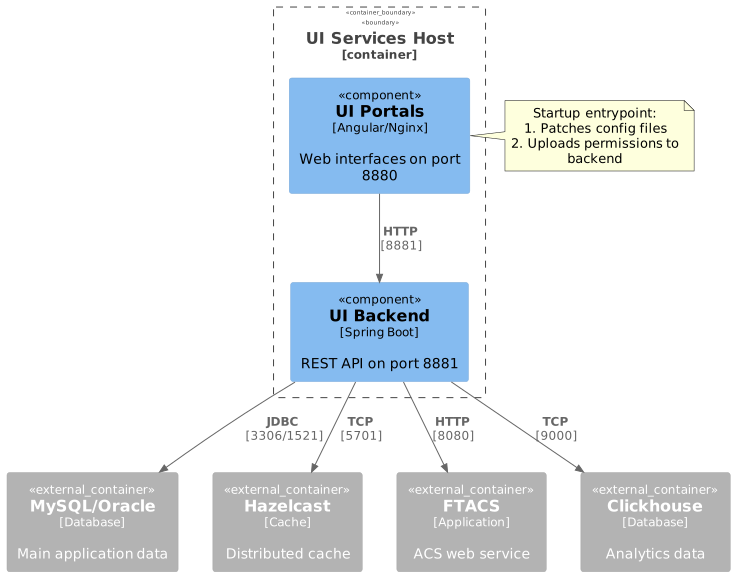
This deployment runs UI services (Backend + Portals) on a dedicated host. The deployment includes:
-
UI Backend - Spring Boot REST API service
-
UI Portals - Angular web applications on Nginx (Support Center & Management Console)
Prerequisites
|
For detailed information about Docker registry and image management, see Docker Image Management Guide. |
|
For HTTPS configuration, see Ssl certificate configuration. |
Preparation
1. Prepare Configuration Directory
Create the required directory structure:
mkdir -p /usr/local/ft-services/{ui-backend-conf,ft-data/ui-portals/{backend,nginx}/logs}Download the deployment files (compose.yml, .env.mysql, .env.oracle) from the FT_DISK on SharePoint and place them into /usr/local/ft-services/.
Volume Mounts & Directory Layout
The ui-backend-conf folder contains essential configuration files for the backend service. Download pre-configured files from the FT_DISK on SharePoint and place them into the directory.
The tree below shows the baseline layout plus common environment-dependent entries. Not every deployment needs every entry, but the standard SharePoint package can include them because some are default runtime config, some are loaded only when present, and some are used only for specific integrations.
/usr/local/ft-services/
├── ui-backend-conf/                    # Configuration (backup required)
│   ├── hazelcast-client.xml            # Main Hazelcast client configuration
│   ├── ftacs.keystore                  # Backend keystore used when HTTPS is enabled
│   ├── logback-spring.xml              # Default external logging configuration
│   ├── interfaceItems.json             # Interface seed data, loaded if present
│   ├── customization/                  # Portal customization JSON files
│   │   ├── def/                        # Default system-wide customizations
│   │   ├── mc/                         # Management Console customizations
│   │   └── sc/                         # Support Center customizations
│   ├── ssl/                            # TLS certificates for Nginx/portals when configured
│   └── keys/                           # Integration credentials (when used)
└── ft-data/ui-portals/                 # Runtime data (created automatically)
    ├── backend/logs/
└── nginx/logs/| Path | Content | Backup Required |
|---|---|---|
ui-backend-conf/ |
Configuration files. At minimum this includes |
Yes |
ft-data/ui-portals/backend/logs/ |
Backend application logs |
No |
ft-data/ui-portals/nginx/logs/ |
Nginx access and error logs |
No |
2. Prepare Environment File
The compose.yml references the env file via env_file directive.
Make sure it points to the file matching your database:
- MySQL
-
env_file: - .env.mysql - Oracle
-
env_file:
  - .env.oracle
3. Configure Host Variables
Edit .env.mysql or .env.oracle and replace all ~PLACEHOLDER~ values with actual hostnames or IP addresses.
The env files contain placeholders in the format ~NAME~ that must be replaced before starting the services:
| Placeholder | Variable in .env | Description |
|---|---|---|
~HOST~ |
FT_UI_HOST |
Public hostname or IP address of this server (the machine where UI services are being deployed). Used by the Portals entrypoint to patch Angular app-config.json so that browsers know where to send API requests. Must be accessible from end-user browsers — use a real IP or DNS name, not localhost. |
~HAZELCAST_HOST~ |
HZ_MEMBERS |
Hazelcast cluster member address(es). Format: host:port (comma-separated for multiple members). The backend connects to this cluster for distributed caching and session sharing. |
~FTACS_HOST~ |
ACS_WEB_SERVICE_HOST |
Hostname or IP of the FTACS application server. The backend uses this to make SOAP calls for device provisioning, parameter reads, and firmware management. |
~CLICKHOUSE_HOST~ |
CLICKHOUSE_HOST |
Hostname or IP of the ClickHouse server. Used for QoE analytics queries. If ClickHouse is not deployed, leave the default value — the application will skip analytics features. |
~MYSQL_HOST~ |
DB_HOST |
Hostname or IP of the MySQL server (only in .env.mysql). Both FTACS and IOTW schemas must be accessible at this address. |
~ORACLE_HOST~ |
DB_HOST |
Hostname or IP of the Oracle server (only in .env.oracle). Both FTACS and IOTW schemas must be accessible at this address. |
Example (.env.mysql):
FT_UI_HOST=192.168.1.100
HZ_MEMBERS=192.168.1.50:5701,192.168.1.51:5701
ACS_WEB_SERVICE_HOST=192.168.1.60
CLICKHOUSE_HOST=192.168.1.70
DB_HOST=192.168.1.80|
FT_UI_HOST must be the address that end-user browsers can reach. If users access the portal through a load balancer or public DNS (e.g., iot.example.com), use that value instead of the server’s internal IP. |
Docker Networking: host.docker.internal
If the database, Hazelcast, FTACS, or ClickHouse runs on the host machine (not inside Docker), use host.docker.internal as the hostname in .env variables (DB_HOST, HZ_MEMBERS, ACS_WEB_SERVICE_HOST, etc.):
DB_HOST=host.docker.internal
HZ_MEMBERS=host.docker.internal:5701
ACS_WEB_SERVICE_HOST=host.docker.internal
CLICKHOUSE_HOST=host.docker.internal
Why this is needed:
-
Inside a Docker container, localhost and 127.0.0.1 point to the container itself, not to the host machine. Any connection attempt to a host-side service via localhost will fail.
-
host.docker.internal is a special DNS name that Docker resolves to the host’s internal IP address.
-
The provided compose.yml already includes the required mapping:
extra_hosts: - "host.docker.internal:host-gateway" -
On Docker Desktop (macOS, Windows) this works out of the box. On Linux the extra_hosts directive above is required (already present in compose.yml).
Alternatively, use the host machine’s real IP address (e.g., 192.168.1.10) instead of host.docker.internal.
Environment Variables
Service Configuration
| Variable | Description | Default | Required |
|---|---|---|---|
|
Public hostname for UI access (used in Angular configs) |
|
Yes |
|
UI Portals HTTP port |
|
Yes |
|
UI Portals HTTPS port |
|
Yes |
|
Backend API port |
|
Yes |
|
Grafana url for dashboards exporting (http://IP:PORT/) |
No |
|
|
Superset base URL for dashboard embedding |
No |
|
|
Superset API username for backend authentication |
|
No |
|
Superset API password for backend authentication |
|
No |
|
Backend JVM memory settings |
|
No |
|
Backend log level (info, debug, warn, error) |
|
No |
|
Internal authentication keyword for cross-service communication (entrypoint uses this for permissions upload) |
|
Yes |
Common Configuration
| Variable | Description | Default | Required |
|---|---|---|---|
|
Base directory for persistent data and configurations |
|
Yes |
|
Timezone for all services |
|
Yes |
Database Configuration
- MySQL
-
Variable Description Default Required DB_HOSTMySQL server address
MYSQL_HOSTYes
MYSQL_PORTMySQL port
3306Yes
MYSQL_USERMySQL username
ftacsYes
DB_PASSWORDMySQL password
ftacsYes
DB_VENDORDatabase type
mysqlYes
- Oracle
-
Variable Description Default Required DB_HOSTOracle server address
ORACLE_HOSTYes
ORACLE_PORTOracle port
1521Yes
ORACLE_SERVICEOracle service name
XEPDB1Yes
ORACLE_USER_FTACSOracle username for FTACS schema
ftacsYes
ORACLE_USER_IOTWOracle username for IOTW schema
iotwYes
DB_PASSWORDOracle password
ftacsYes
DB_VENDORDatabase type
oracleYes
External Dependencies
| Variable | Description | Default | Required |
|---|---|---|---|
|
Hazelcast cluster members (comma-separated HOST:PORT) |
|
Yes |
|
FTACS application host |
|
Yes |
|
FTACS application port |
|
Yes |
|
Clickhouse server address |
|
Yes |
|
Clickhouse port |
|
Yes |
|
Clickhouse database name |
|
Yes |
|
Clickhouse username |
|
Yes |
|
Clickhouse password |
|
Yes |
Container Startup Process
UI Backend Startup
The backend container starts with the following initialization:
-
Loads configuration from
/app/conf(mounted fromui-backend-conf) -
Connects to Hazelcast cluster using
hazelcast-client.xml -
Connects to MySQL/Oracle database
-
Initializes REST API endpoints
-
Health check becomes available at
/iot-webservice/swagger-ui/index.html
UI Portals Startup (Entrypoint)
The portals container runs an entrypoint script that performs the following actions:
1. Configuration Patching
Patches Angular application configuration files with backend API endpoints:
# Support Center
/usr/share/nginx/html/support-center/assets/app-config.json
  → .server.api = "http://${HOST}:8881/iot-webservice/"

# Management Console
/usr/share/nginx/html/management-console/assets/app-config.json
  → .server.api = "http://${HOST}:8881/iot-webservice/"
This ensures the Angular apps know where to send API requests.
2. Permissions Upload
Uploads portal-specific permissions to the backend:
# Support Center permissions
curl -X PUT http://ui-backend:8880/iot-webservice/iotw/Setting/userGroup/permissions \
  -H "X-Internal-Keyword: ${FT_UI_BACKEND_KEYWORD}" \
  -H "X-Internal-Client-Type: sc" \
  -F "config=@/usr/share/nginx/html/support-center/assets/app-permissions-config.json"

# Management Console permissions
curl -X PUT http://ui-backend:8880/iot-webservice/iotw/Setting/userGroup/permissions \
  -H "X-Internal-Keyword: ${FT_UI_BACKEND_KEYWORD}" \
  -H "X-Internal-Client-Type: mc" \
  -F "config=@/usr/share/nginx/html/management-console/assets/app-permissions-config.json"
Purpose: Synchronizes user group permissions from Angular apps to the backend database.
Authentication: Uses FT_UI_BACKEND_KEYWORD header for internal service-to-service authentication.
Service Access
After successful deployment:
| Service | URL | Description |
|---|---|---|
Support Center |
End-user support portal |
|
Management Console |
Administrator console |
|
Backend API |
|
API documentation |
Exposed Ports
| Port | Service | Protocol | Purpose | Configurable Via |
|---|---|---|---|---|
8880 |
UI Portals (Nginx) |
HTTP |
Web interface |
|
8843 |
UI Portals (Nginx) |
HTTPS |
Web interface |
|
8881 |
UI Backend |
HTTP |
REST API |
|
Verify ports are listening:
netstat -tlnp | grep -E '8880|8881'Troubleshooting
Check Service Logs
# All services
docker compose logs -f

# Backend only
docker compose logs -f ui-backend

# Portals only
docker compose logs -f portals
Common Issues
Portals Container Fails to Start
Symptom: Portals container exits or restarts repeatedly.
Check entrypoint logs:
docker compose logs portals | grep -E "Patched|Upload|WARN"Common causes:
-
Backend not healthy:
-
Portals depends on backend health check
-
Wait for backend to become healthy first
-
-
Permissions upload failed:
-
Check
FT_UI_BACKEND_KEYWORDmatches between services -
Verify backend API is accessible from portals container
-
-
Missing permissions files:
-
Ensure portals image contains
app-permissions-config.jsonfiles -
Check entrypoint logs for "WARN: permissions file not found"
-
Backend Cannot Connect to Hazelcast
Symptom: Backend logs show Hazelcast connection errors.
Check:
# Verify Hazelcast is reachable
telnet <HAZELCAST_HOST> 5701

# Check hazelcast-client.xml
cat /usr/local/ft-services/ui-backend-conf/hazelcast-client.xml

# Check HZ_MEMBERS environment variable
docker compose exec ui-backend env | grep HZ_MEMBERS
Solution:
- Update HZ_MEMBERS in .env with correct Hazelcast addresses - Verify hazelcast-client.xml references ${env.HZ_MEMBERS}
Angular Apps Cannot Reach Backend API
Symptom: UI shows connection errors or 404 responses.
Check:
# Verify backend API is accessible
curl http://<FT_UI_HOST>:8881/iot-webservice/swagger-ui/index.html

# Check patched configuration
docker compose exec portals cat /usr/share/nginx/html/support-center/assets/app-config.json | jq .server.api
Expected output:
"http://<FT_UI_HOST>:8881/iot-webservice/"Solution:
- Verify FT_UI_HOST is set correctly in .env
- Ensure FT_UI_HOST is accessible from user browsers
Permissions Not Applied
Symptom: Users cannot access expected features.
Check entrypoint logs:
docker compose logs portals | grep -i "upload"Verify permissions in database:
# Access backend API to check permissions
curl -X GET http://<FT_UI_HOST>:8881/iot-webservice/iotw/Setting/userGroup/permissions
Solution:
- Restart portals to re-upload permissions: docker compose restart portals
- Verify FT_UI_BACKEND_KEYWORD is correct
Debugging
Maintenance
Update Services
# Pull latest images
docker compose pull

# Restart with new images
docker compose up -d
Force Repull Images
docker compose down
docker compose pull --ignore-pull-failures
docker compose up -d