All-in-One UI Services Deployment
1. Overview
This deployment runs all UI services on a single host using Docker Compose:
-
UI Backend (Spring Boot)
-
UI Portals (Angular on Nginx)
-
FT Device Network Service (Spring Boot)
-
AI Agent Service (Python)
-
PostgreSQL database (for AI Agent)
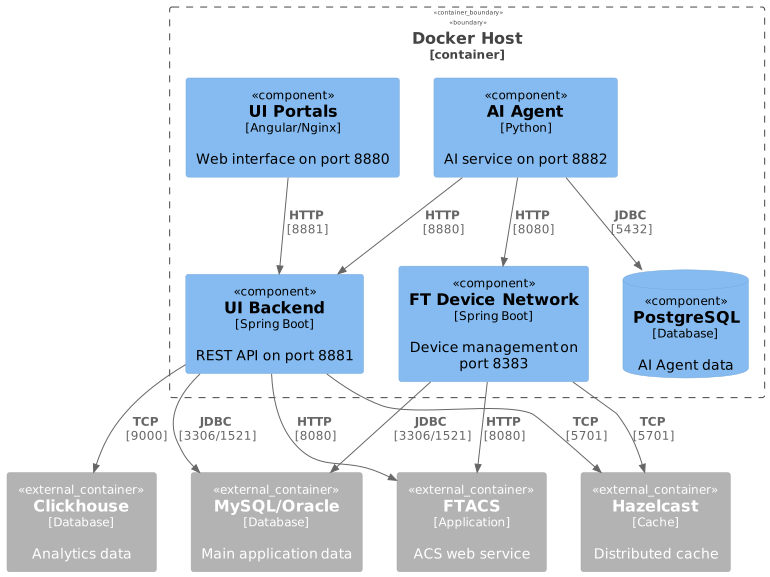
3. Prerequisites
3.1. Required External Components
The following components must be installed and accessible before deployment:
| Component | Purpose | Default Port |
|---|---|---|
MySQL or Oracle |
Main application database |
3306 (MySQL) / 1521 (Oracle) |
Hazelcast |
Distributed cache |
5701 |
FTACS Application |
ACS web service |
8080 |
Clickhouse |
Analytics database |
9000 |
4. Preparation
4.1. Prepare Configuration Directory
Create the required directory structure:
|
|
mkdir -p /usr/local/ft-system/ui-backend/{config,logs}
mkdir -p /usr/local/ft-system/portals/nginx/logs
mkdir -p /usr/local/ft-system/ft-device-network/logs
mkdir -p /usr/local/ft-system/ui-ai-agent/logs
mkdir -p /usr/local/ft-system/postgres/data
cd /usr/local/ft-system
Download the deployment files (compose.yml, .env.mysql, .env.oracle) from the FT_DISK on SharePoint and place them into the working directory.
4.1.1. Volume Mounts & Directory Layout
The ui-backend/config folder contains essential configuration files for the backend service.
Download pre-configured files from the FT_DISK on SharePoint (SharePoint folder ui-backend-conf) and place them into the ui-backend/config/ directory.
See Installation & Deployment for detailed configuration instructions.
The tree below shows the baseline layout plus common environment-dependent entries. Not every deployment needs every entry, but the standard SharePoint package can include them because some are default runtime config, some are loaded only when present, and some are used only for specific integrations.
/usr/local/ft-system/
├── ui-backend/
│   ├── config/                   # Configuration (backup required)
│   │   ├── hazelcast-client.xml  # Main Hazelcast client configuration
│   │   ├── ftacs.keystore        # Backend keystore used when HTTPS is enabled
│   │   ├── logback-spring.xml    # Default external logging configuration
│   │   ├── interfaceItems.json   # Interface seed data, loaded if present
│   │   ├── customization/        # Portal customization JSON files
│   │   │   ├── def/               # Default system-wide customizations
│   │   │   ├── mc/                # Management Console customizations
│   │   │   └── sc/                # Support Center customizations
│   │   ├── ssl/                  # TLS certificates for Nginx/portals when configured
│   │   └── keys/                 # Integration credentials (when used)
│   └── logs/                     # Backend application logs
├── portals/
│   └── nginx/logs/               # Portals Nginx access/error logs
├── ft-device-network/
│   └── logs/                     # FT Device Network application logs
├── ui-ai-agent/
│   └── logs/                     # AI Agent application logs
└── postgres/
└── data/ # PostgreSQL data directory (AI Agent)| Path | Content | Backup Required |
|---|---|---|
ui-backend/config/ |
Configuration files. At minimum this includes |
Yes |
ui-backend/logs/ |
Backend application logs |
No |
portals/nginx/logs/ |
Nginx access and error logs |
No |
ft-device-network/logs/ |
FT Device Network application logs |
No |
ui-ai-agent/logs/ |
AI Agent application logs |
No |
postgres/data/ |
PostgreSQL database files |
Yes |
4.2. Prepare Environment File
The compose.yml references the env file via env_file directive.
Make sure it points to the file matching your database:
- MySQL
-
env_file: - .env.mysql - Oracle
-
env_file:
  - .env.oracle
|
The all-in-one package ships one environment file per database vendor ( |
4.3. Configure Host Variables
Edit .env.mysql or .env.oracle and replace all ~PLACEHOLDER~ values with actual hostnames or IP addresses.
The env files contain placeholders in the format ~NAME~ that must be replaced before starting the services:
| Placeholder | Variable in .env | Description |
|---|---|---|
~HOST~ |
FT_UI_HOST |
Public hostname or IP address of this server (the machine where all services are being deployed). Used by the Portals entrypoint to patch Angular app-config.json so that browsers know where to send API requests. Must be accessible from end-user browsers — use a real IP or DNS name, not localhost. |
~HAZEL_HOST~ |
HZ_MEMBERS |
Hazelcast cluster member address(es). Format: host:port (comma-separated for multiple members). The backend connects to this cluster for distributed caching and session sharing. |
~FTACS_HOST~ |
ACS_WEB_SERVICE_HOST |
Hostname or IP of the FTACS application server. The backend uses this to make SOAP calls for device provisioning, parameter reads, and firmware management. |
~CLICKHOUSE_HOST~ |
CLICKHOUSE_HOST |
Hostname or IP of the ClickHouse server. Used for QoE analytics queries. If ClickHouse is not deployed, leave the default value — the application will skip analytics features. |
~MYSQL_HOST~ |
DB_HOST |
Hostname or IP of the MySQL server (only in .env.mysql). Both FTACS and IOTW schemas must be accessible at this address. |
~ORACLE_HOST~ |
DB_HOST |
Hostname or IP of the Oracle server (only in .env.oracle). Both FTACS and IOTW schemas must be accessible at this address. |
Example (.env.mysql):
FT_UI_HOST=192.168.1.100
HZ_MEMBERS=192.168.1.50:5701,192.168.1.51:5701,192.168.1.52:5701
ACS_WEB_SERVICE_HOST=192.168.1.60
CLICKHOUSE_HOST=192.168.1.70
DB_HOST=192.168.1.80|
FT_UI_HOST must be the address that end-user browsers can reach. If users access the portal through a load balancer or public DNS (e.g., iot.example.com), use that value instead of the server’s internal IP. |
4.4. Docker Networking: host.docker.internal
If the database, Hazelcast, FTACS, or ClickHouse runs on the host machine (not inside Docker), use host.docker.internal as the hostname in .env variables (DB_HOST, HZ_MEMBERS, ACS_WEB_SERVICE_HOST, etc.):
DB_HOST=host.docker.internal
HZ_MEMBERS=host.docker.internal:5701
ACS_WEB_SERVICE_HOST=host.docker.internal
CLICKHOUSE_HOST=host.docker.internal
Why this is needed:
-
Inside a Docker container, localhost and 127.0.0.1 point to the container itself, not to the host machine. Any connection attempt to a host-side service via localhost will fail.
-
host.docker.internal is a special DNS name that Docker resolves to the host’s internal IP address.
-
The provided compose.yml already includes the required mapping:
extra_hosts: - "host.docker.internal:host-gateway" -
On Docker Desktop (macOS, Windows) this works out of the box. On Linux the extra_hosts directive above is required (already present in compose.yml).
Alternatively, use the host machine’s real IP address (e.g., 192.168.1.10) instead of host.docker.internal.
5. Environment Variables
5.1. Common Variables
| Variable | Description | Default | Required |
|---|---|---|---|
|
Base directory for persistent data and configurations |
|
Yes |
|
Timezone for all services |
|
Yes |
|
Database type: |
|
Yes |
|
Database password |
|
Yes |
5.2. Database Configuration
- MySQL
-
Variable Description Default DB_HOSTMySQL server address
-
MYSQL_PORTMySQL port
3306MYSQL_USERMySQL username
ftacs - Oracle
-
Variable Description Default DB_HOSTOracle server address
-
ORACLE_PORTOracle port
1521ORACLE_SERVICEOracle service name
XEPDB1ORACLE_USER_FTACSOracle username
ftacs
5.3. External Dependencies
| Variable | Description | Default | Required |
|---|---|---|---|
|
Hazelcast cluster members (comma-separated list of HOST:PORT) |
|
Yes |
|
FTACS application host |
|
Yes |
|
FTACS application port |
|
Yes |
|
Clickhouse server address |
|
Yes |
|
Clickhouse port |
|
Yes |
|
Clickhouse database name |
|
Yes |
|
Clickhouse username |
|
Yes |
|
Clickhouse password |
|
Yes |
5.4. UI Services Configuration
| Variable | Description | Default | Required |
|---|---|---|---|
|
Public hostname for UI access |
|
Yes |
|
UI Portals HTTP port |
|
Yes |
|
UI Portals HTTPS port |
|
Yes |
|
Backend API port |
|
Yes |
|
Grafana url for dashboards exporting (http://IP:PORT/) |
No |
|
|
Superset base URL for dashboard embedding |
No |
|
|
Superset API username for backend authentication |
|
No |
|
Superset API password for backend authentication |
|
No |
|
Backend JVM memory settings |
|
No |
|
Backend log level |
|
No |
|
Internal authentication keyword for cross-application communication (see separate-host deployment for details) |
|
Yes |
5.5. FT Device Network Configuration
| Variable | Description | Default | Required |
|---|---|---|---|
|
Service HTTP port |
|
Yes |
|
JVM memory settings |
|
No |
|
Log level |
|
No |
5.6. AI Agent Configuration
| Variable | Description | Default | Required |
|---|---|---|---|
|
PostgreSQL hostname (internal) |
|
Yes |
|
PostgreSQL port |
|
Yes |
|
PostgreSQL database name |
|
Yes |
|
PostgreSQL username |
|
Yes |
|
PostgreSQL password |
|
Yes |
|
Google API key for AI features |
- |
Yes |
|
API request timeout in seconds |
|
No |
|
Device command timeout in seconds |
|
No |
|
Maximum tokens for LLM |
|
No |
|
Maximum audio file size |
|
No |
|
Minimum db pool size |
|
Yes |
|
Maximum db pool size |
|
Yes |
|
Model used by the main conversational agent |
|
No |
|
Sampling temperature for the main agent |
|
No |
|
Model used by the discovery agent |
|
No |
|
Sampling temperature for the discovery agent |
|
No |
|
Maximum total tool calls the discovery agent may make |
|
No |
|
Model used for conversation summarization |
|
No |
|
Sampling temperature for summarization |
|
No |
|
Model used for generating conversation titles |
|
No |
|
Sampling temperature for title generation |
|
No |
|
Model used by the interception node |
|
No |
|
Sampling temperature for the interception node |
|
No |
|
Model used by the supervisor node |
|
No |
|
Sampling temperature for the supervisor node |
|
No |
6. Deployment
6.1. Registry Authentication
All images of this group are pulled from hub.friendly-tech.com. Authenticate once per host before
the first docker compose up:
docker login hub.friendly-tech.comEnter the read-only pull credentials when prompted:
| Field | Value |
|---|---|
Username |
|
Password |
|
|
The |
6.2. Deploy Services
docker compose --env-file .env.mysql up -dOR
docker compose --env-file .env.oracle up -d6.3. Offline Servers
When the target server has no access to the Harbor registry, every image referenced in compose.yml must be pulled on a machine that does have Harbor access, exported to a tar archive, transferred to the offline server, and loaded there.
|
An explicit |
-
Identify the images referenced in your
compose.yml. For the all-in-one deployment they are:-
hub.friendly-tech.com/ui/backend:<version> -
hub.friendly-tech.com/ui/portals:<version> -
hub.friendly-tech.com/ftacs/ft-device-network-service:<version> -
hub.friendly-tech.com/ui/ai-agent:<version>Replace
<version>with the tag pinned in yourcompose.yml.
-
-
On a machine with Harbor access, log in:
docker login hub.friendly-tech.com -
Pull every image for the target server’s architecture:
docker pull --platform linux/amd64 hub.friendly-tech.com/ui/backend:<version> docker pull --platform linux/amd64 hub.friendly-tech.com/ui/portals:<version> docker pull --platform linux/amd64 hub.friendly-tech.com/ftacs/ft-device-network-service:<version> docker pull --platform linux/amd64 hub.friendly-tech.com/ui/ai-agent:<version> -
Save each image to a tar archive:
docker save hub.friendly-tech.com/ui/backend:<version> -o backend-<version>.tar docker save hub.friendly-tech.com/ui/portals:<version> -o portals-<version>.tar docker save hub.friendly-tech.com/ftacs/ft-device-network-service:<version> -o ft-device-network-<version>.tar docker save hub.friendly-tech.com/ui/ai-agent:<version> -o ai-agent-<version>.tar -
Compress each archive:
gzip backend-<version>.tar gzip portals-<version>.tar gzip ft-device-network-<version>.tar gzip ai-agent-<version>.tar -
Transfer all four
*.tar.gzarchives to the offline server (e.g., viascpor removable media). -
On the offline server, load each archive:
gzip -dc backend-<version>.tar.gz | docker load gzip -dc portals-<version>.tar.gz | docker load gzip -dc ft-device-network-<version>.tar.gz | docker load gzip -dc ai-agent-<version>.tar.gz | docker load -
Start (or restart) services:
docker compose --env-file .env.mysql up -d
|
The same flow applies to upgrades — pull the new image tags on the connected machine, save and transfer the archives, load them on the offline server, then run |
7. Service Startup Order
Services start in the following order with health checks:
-
PostgreSQL - Database for AI Agent
-
UI Backend - REST API service (waits for DB)
-
UI Portals - Web interface (waits for backend)
-
FT Device Network - Device management service (independent start)
-
AI Agent - AI service (waits for PostgreSQL, UI Backend, and FT Device Network)
8. Service Access
After successful deployment, access services at:
| Service | URL | Description |
|---|---|---|
UI Portals |
Main web interface |
|
UI Backend API |
|
API documentation |
FT Device Network |
Health check endpoint |
|
AI Agent |
AI agent service |
9. Port Reference
The following ports are exposed on the host:
| Port | Service | Protocol | Configurable Via |
|---|---|---|---|
8880 |
UI Portals (Nginx) |
HTTP |
|
8843 |
UI Portals (Nginx) |
HTTPS |
|
8881 |
UI Backend (Spring Boot) |
HTTP |
|
8383 |
FT Device Network (Spring Boot) |
HTTP |
|
To verify ports are listening:
netstat -tlnp | grep -E '8880|8881|8383|8882'
# or
ss -tlnp | grep -E '8880|8881|8383|8882'
10. Troubleshooting
10.1. Check Service Logs
# All services
docker compose logs -f

# Specific service
docker compose logs -f ui-backend
docker compose logs -f portals
docker compose logs -f ft-device-network-service
docker compose logs -f ui-ai-agent
docker compose logs -f postgres
10.2. Common Issues
10.2.1. Services Not Starting
Check if all external dependencies are accessible:
# Test database connection
telnet <DB_HOST> 3306    # MySQL
telnet <DB_HOST> 1521    # Oracle

# Test Hazelcast
telnet <HAZEL_HOST> 5701

# Test FTACS
curl http://<FTACS_HOST>:8080

# Test Clickhouse
telnet <CLICKHOUSE_HOST> 900011. Stack Management
11.1. Update Services
Pull latest images and restart:
# Pull latest images
docker compose pull|
For servers without Harbor access, replace the |
# Restart with new images
docker compose --env-file .env.mysql up -d
OR
# Restart with new images
docker compose --env-file .env.oracle up -d
11.2. Force Repull Images
Force Docker to pull fresh images (ignores cache):
# Stop services
docker compose down

# Remove existing images
docker compose pull --ignore-pull-failures

# Or remove images manually
docker images | grep "hub.friendly-tech.com" | awk '{print $3}' | xargs docker rmi -f
# Start with fresh images
docker compose --env-file .env.mysql up -dOR
# Start with fresh images
docker compose --env-file .env.oracle up -d
11.3. Stop Services
# Stop services (keeps data)
docker compose down

# Stop services and remove all data (WARNING: deletes all persistent data)
docker compose down -v

# Remove specific volumes only
docker volume rm ft-ui-services_postgres_data12. Production Checklist
-
Change all default passwords in the env file:
DB_PASSWORD,CLICKHOUSE_PASSWORD,POSTGRES_PASSWORD, andFT_UI_BACKEND_KEYWORD. -
Set
FT_UI_HOSTto the address end-user browsers actually reach — notlocalhost. -
Pin explicit image tags in
compose.ymlrather thanlatest, so a restart cannot silently change the deployed version. -
Confirm the external components are reachable: MySQL/Oracle, Hazelcast, FTACS, and ClickHouse.
-
Configure firewall rules — publish only the ports listed in Port Reference, and restrict database access to this host.
-
Enable auto-restart —
restart: unless-stoppedfor every service incompose.yml. -
Configure TLS — see SSL / HTTPS Configuration.
-
Set up backups —
ui-backend/config/and the PostgreSQL dump (see Backup PostgreSQL); the MySQL/Oracle database has its own backup strategy. -
Tune the JVM —
FT_UI_BACKEND_JAVA_RAMandFT_DEVICE_NETWORK_JAVA_RAMto match host memory. -
Protect the AI Agent credentials —
GOOGLE_API_KEYand the mounted service-account key file.
13. Related Documentation
-
Installation & Deployment — the UI Backend on a dedicated host