Device Activities
|
This module is currently unavailable and will be available in future versions. The documentation below is provided for reference only. |
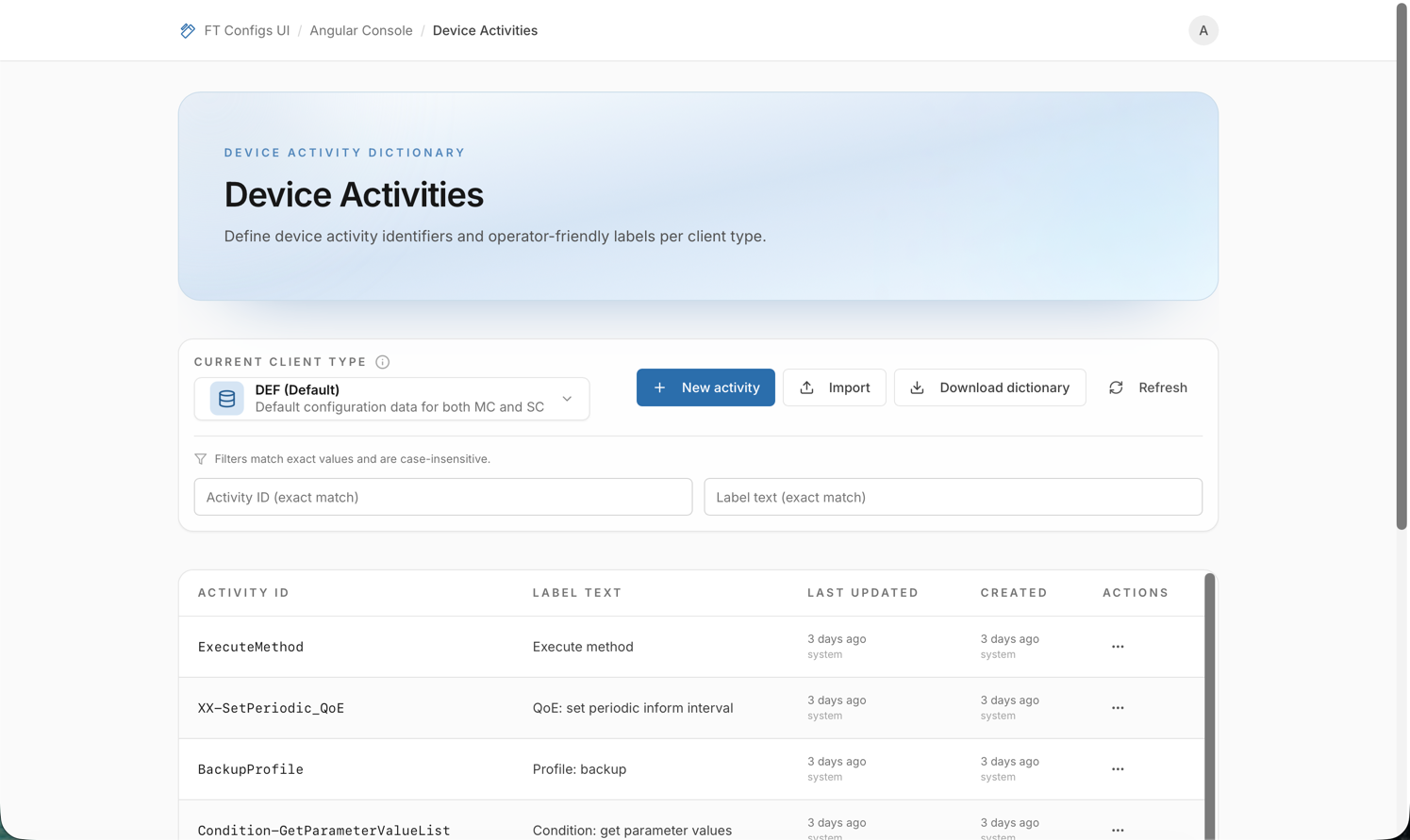
Device Activities is a per-Client Type dictionary of activity identifiers and operator-friendly labels. Operators use it to keep activity IDs consistent and to control the label text shown downstream. Because bulk imports can update or delete many entries at once, always follow the safe workflow: export → dry-run → apply.
When to use this module
Use Device Activities when you need to:
-
review which activity IDs exist for a specific Client Type,
-
fix a label text that is unclear or incorrect,
-
add a missing activity ID/label pair,
-
remove an obsolete activity entry (with permission),
-
apply many changes at once by importing a JSON dictionary (with mandatory dry-run).
Prerequisites
-
Select a Client Type (DEF / MC / SC). Listing, create/edit/delete, import, and export all run against the selected Client Type.
-
Confirm your permissions:
-
VIEWER — browse and export.
-
EDITOR / ADMIN — create, edit, delete, import.
If you don’t see New activity or Import, it’s a permissions issue.
-
Navigation path
-
Angular Console → Device Activities
Before changing anything, confirm the selected Client Type in the toolbar. Import/export actions always apply to that scope.
What a device activity entry contains
A Device Activity entry includes:
- Activity ID
-
A unique identifier (per Client Type). Required; maximum 128 characters. Example format:
REBOOT. - Label text
-
The human-readable label for the activity. Required; maximum 255 characters. Example format:
Device reboot scheduled. - Client Type
-
The scope the entry belongs to (DEF / MC / SC).
- Created / Last updated (read-only)
-
Relative timestamps are shown in the table, along with the username (when available).
| When editing an entry, the Activity ID field is locked (cannot be changed). To “rename” an Activity ID, create a new entry and delete the old one. |
Common tasks
Browse, filter, and refresh
-
Open Device Activities.
-
Select the required Client Type.
-
Use the two filter inputs:
-
Activity ID (exact match)
-
Label text (exact match)
-
-
Click Refresh to reload the list.
-
If filters are active, use Reset filters to clear them.
What you should see:
-
a paginated table with Activity ID, Label text, Last updated, and Created,
-
row actions (via the actions menu) for EDITOR/ADMIN users.
| The filter hint on the page states filters are case-insensitive and match exact values. |
Create a device activity (EDITOR / ADMIN)
-
Select the required Client Type.
-
Click New activity.
-
Fill in:
-
Activity ID
-
Label text
-
-
Click Create activity.
-
Confirm the new entry appears in the list for the selected Client Type.
Edit a device activity (EDITOR / ADMIN)
-
Find the target entry in the table.
-
Open the row actions menu and click Edit.
-
Update Label text (Activity ID is read-only in edit mode).
-
Click Save changes.
-
Confirm the updated label is visible in the list.
Delete a device activity (EDITOR / ADMIN)
-
Find the target entry in the table.
-
Open the row actions menu and click Delete.
-
Confirm deletion.
| Deleting an activity removes it from the selected Client Type dictionary. If other users or systems rely on that Activity ID, removal may cause missing labels or lookups elsewhere. |
Export the dictionary (JSON)
Export downloads the current Device Activities dictionary for the selected Client Type as a JSON file.
-
Select the required Client Type.
-
Click Download dictionary.
-
Save the downloaded
.jsonfile.
For export best practices, see: Export a Snapshot.
Import with dry-run (mandatory)
Import accepts a JSON array of entries in the form:
{\"id\":\"…\",\"text\":\"…\"}.
- Supported file type
-
.json(max 10 MB).
Steps
-
Export a dictionary first (recommended): Export a Snapshot.
-
Select the required Client Type.
-
Click Import.
-
Select an Import mode:
-
MERGE — add new rows and update matches; entries not present in the file remain unchanged.
-
REPLACE — mirror the uploaded file by deleting entries that are not present.
-
-
Click Upload JSON and select the file.
-
Dry-run starts automatically after you select a file, and re-runs when you change the import mode.
-
Review the dry-run preview:
-
totals (rows received, unique valid rows, to delete),
-
planned operations (will create/update/keep/delete),
-
duplicates in upload (if any),
-
invalid rows (if any).
-
-
Click Confirm import only when the preview matches your intent.
Import safety checklist
-
Confirm you are in the correct environment.
-
Confirm your selected context (for example, client type) matches the file.
-
Export a snapshot before changes.
-
Run Dry-run and review:
-
errors (must be resolved),
-
warnings (understand impact),
-
create/update/delete counts.
-
-
If using REPLACE, confirm you accept deletions shown in the dry-run plan.
-
Apply import and immediately verify by refreshing and re-opening the affected entries.
| In REPLACE mode, the import can delete entries that are not present in the uploaded file. Treat unexpected deletions as a stop signal until you confirm the file is complete and the selected Client Type is correct. |
After-change verification checklist
-
Confirm the selected Client Type is still correct.
-
If you used filters, clear them so you can see the full result.
-
Click Refresh.
-
For edited entries: re-check the row’s Label text value.
-
For created entries: filter by Activity ID (exact match) and confirm the row exists.
-
For deletions (manual or REPLACE import): filter by Activity ID and confirm the row no longer exists.
-
(Optional) Export a fresh dictionary for audit: Export a Snapshot.
Troubleshooting
- I don’t see New activity / Import
-
You are likely signed in as VIEWER. Ask an administrator to grant EDITOR/ADMIN access.
- Nothing loads / list is empty
-
Confirm a Client Type is selected and click Refresh. If filters are set, use Reset filters.
- Activity ID already exists
-
Device Activities enforces uniqueness per Client Type. Use a different Activity ID, or edit the existing entry instead.
- Save is disabled or errors are shown
-
Both fields are required. Activity ID must be ≤ 128 characters; Label text must be ≤ 255 characters.
- Dry-run reports invalid rows or duplicates
-
Fix the input file (for example, remove duplicates, fill missing
id/text, shorten oversized values), then select the file again to re-run dry-run. - Dry-run shows unexpected deletions
-
You likely selected REPLACE, or the file is incomplete. Export the current dictionary, re-apply your edits to that file, and retry.