Editor Guide
The Editor is the visual front-end for the YAML test case format consumed by
run_test.py. Every field maps 1:1 to a YAML key — the editor never hides data,
it just makes it editable without writing YAML by hand.
It sits in the sidebar under Author. You also land in it from a Test cases row — the pencil and Copy buttons appear on hover — and from a run report (Open in editor).
|
At a glance
|
Overview
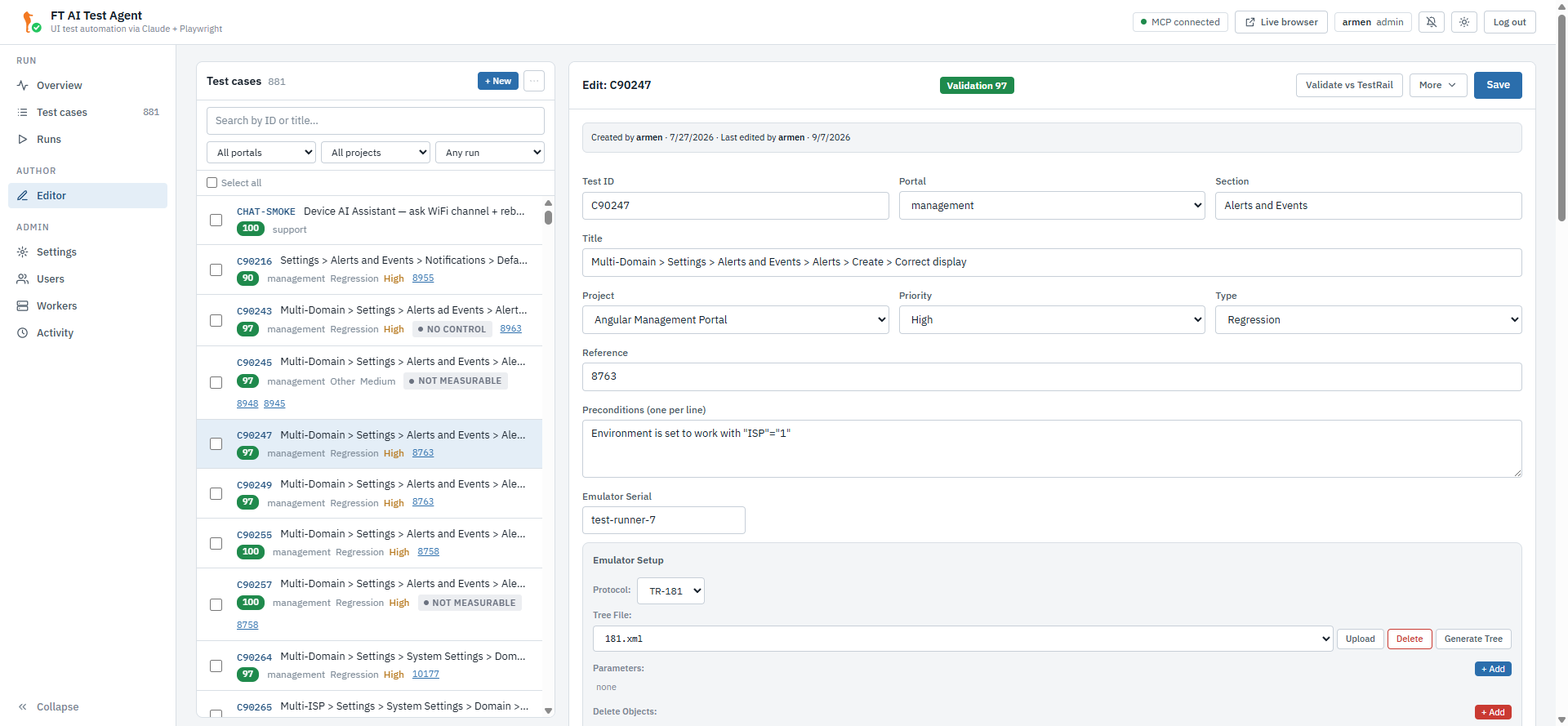
Open the Editor. The layout is split:
-
Left — list of all YAML cases currently on the agent (under
/app/tests/casesinside the container, mounted as the persistenttest-casesvolume). Search box filters by ID or title. -
Right — the form. Three modes:
-
list — empty placeholder (no case selected, "+ New" not pressed).
-
new — empty form for authoring a fresh case.
-
edit — populated form for an existing case.
-
The Case-List Header
The header of the left list is four rows, one job each.
-
Title, count and actions. The count is how many cases the filters below currently leave on screen. Beside it:
-
+ New — clear the form and switch to new mode.
-
⋯ — an overflow menu (labelled More actions) holding TestRail… (the import modal, Importing Tests), Import (upload a hand-edited
.yaml,POST /api/tests/upload-yaml), Sync runs… (ask TestRail which cases each run covers and stamp it on the local YAMLs), and — after a separator — the destructive Delete all tests and Delete by section (see Bulk Delete (the ⋯ menu)).
Both are hidden from a viewer account: the whole row is write-only.
-
-
Search, full width, matching ID or title.
-
Three filters of equal width — All portals, All projects and Any run — plus a Reset link that appears only while at least one of them is set. All three drop the cases they hide from the sidebar’s selection — this list drives bulk edits and deletes, where acting on a row that is off screen is a different kind of accident from running it. Project and run are shared with Test cases, so a project chosen there is still in force here, but since the 2026-09-09 build neither one touches that tab’s selection: a case picked for a run stays picked.
-
Selection. A Select all checkbox (it ticks exactly the cases the filters leave on screen) and an N selected count. The sidebar’s own bulk bar appears only once something is ticked: Validate, Reimport, Add to project… and Delete.
| Add to project… used to sit among the filters, where it read as a way of narrowing the list. It is a bulk action and now lives with the others, so it appears only when there is a selection to act on. |
A row that has been validated carries its score as a coloured chip; clicking the chip opens the validation report. A case nobody has validated yet has no chip at all, which is how the two are told apart. A row also shows the portal, the type and priority, a blocked pill where the case needs infrastructure the stand lacks, and its Jira references as links.
| Periodic TestRail refresh is handled by the background sync loop (see Auto-sync Interval). |
Right-panel header buttons (visible only in edit mode):
-
Validate vs TestRail — re-reads the case from TestRail live and scores the YAML against it, so drift since the import is visible (the report says whether it compared against the live case or the import snapshot).
-
More ▾ — Export YAML, Duplicate (copy this case under a free id; TestRail run membership is deliberately dropped and the attachments are copied), Regenerate (see Regenerate Emulator Setup), Reimport, and Delete (a move to the trash, not an unlink — see test-management.adoc#trash).
-
Save — persist changes to disk.
At the bottom of the form there is also ▶ Save & Run — saves the case and immediately starts a run with the model and env picked in Test cases.
| There is no auto-save. After every change press Save (or Save & Run) at the bottom. |
|
Unsaved changes are guarded, not kept
Switching section, opening another case, or closing the browser tab with unsaved edits raises "Leave the editor with unsaved changes?". Confirming discards them — there is no draft buffer. Save first. |
Bulk Delete (the ⋯ menu)
The bottom half of the ⋯ overflow menu, below the separator, holds two sweeping actions:
-
Delete all tests — calls
DELETE /api/testsand moves every case out of/app/tests/cases. Use after a major converter rewrite when you intend to fully reimport from TestRail. -
Delete by section — under the Delete by section label the menu lists every distinct
sectionvalue in the current YAMLs, with a count next to each. Click a section to remove only those tests (DELETE /api/tests?section=). Useful for cleaning up an obsolete TestRail section without losing the rest.
Both are confirmed before they run, and both are undoable: a delete is a move into the trash, not an unlink. The cases come back from Test cases → Library → Trash — see test-management.adoc#trash. What cannot be undone is emptying that trash, which is admin-only.
Core Fields
These are the top-level keys that drive the runner before steps are even considered.
| Field | YAML key | Notes |
|---|---|---|
Test ID |
|
Format |
Portal |
|
|
Section |
|
Free-text grouping (e.g. |
Title |
|
Human-readable test title, shown in the list and reports. |
Project |
|
Dropdown of the projects defined under
Organizing Cases: Projects & Sections. Groups the case for list filtering and
reporting alongside |
Priority |
|
|
Type |
|
Test category — |
Reference |
|
Jira ticket reference(s), e.g. |
Base URL |
|
Defaults to the value from Settings if left empty. Override only when one specific case must hit a non-default portal. |
Username / Password |
|
Same fallback rule — empty here means use the Settings defaults. |
Preconditions |
|
Plain-text bullet list (one per line). Read
by the LLM during conversion to deduce required |
Emulator Serial |
|
The CWMP serial number of
the emulated CPE. Defaults to |
In edit mode an attribution strip above the form shows Created by
(created_by) and Last edited by (edited_by) with timestamps, plus a
per-case edit history. These are written by the server from the logged-in
account — they are read-only and not part of the editable form. See
Organizing Cases: Projects & Sections for the project / section taxonomy these fields
feed into.
|
Emulator Setup
Most tests need state on the emulator — TR-181 parameters, dynamic instances, diagnostic results — for the dashboard / portal to render the expected value. This is configured under Emulator Setup.
If the block is missing, click + Add Emulator Setup and an empty stub is
created (tree_file, parameters, delete_objects, instance_limits,
wifi_client_limit, ui_preconditions, phases). All sub-fields are optional.
The block also carries a protocol selector. TR-181 / TR-098 (the
default) run the case on the TR-069 emulator through mcp-tr-emul; USP
routes it to the IoT emulator through mcp-iot-emul instead (USP/TR-369 over
STOMP, plus LwM2M / MQTT / CoAP devices). The ACS target for a USP agent comes
from the env profile’s usp_* keys — see settings.adoc#emulator.
Execution order (server-side, before the first step runs):
-
Push
tree_fileto the emulator (factory reset → upload tree). -
Apply
delete_objects(CWMP DeleteObject). -
Apply
instance_limits(truncates dynamic tabular objects to N instances). -
Apply
wifi_client_limit(special-case forHosts.Host). -
Set
parametersvia SetParameterValues. -
Run
ui_preconditionsagainst the management backend (see UI Preconditions). -
Trigger ACS Inform so backend reads the new state.
-
If
phases[0]exists, apply phase 1 parameters and continue.
Tree File and "Generate Tree"
tree_file is the name of an XML file under /opt/mcp-shared/ on the
test-runner host. It defines the initial TR-181 tree pushed into the
emulator (factory reset baseline). Common templates:
| File | Purpose |
|---|---|
|
Default Fiber CPE: CPU, MEM, 4 radios, full diagnostics. Fallback for unrecognised KPI types. |
|
Cellular CPE. |
|
Mesh CPEs with DataElements / MultiAP data models. |
Selecting a different tree_file does not re-push the tree. It only
changes which file is used the next time the test runs. To verify what’s
currently on the emulator, query its API directly (see Troubleshooting).
|
The Tree File row exposes four controls:
-
Tree dropdown — populated from
GET /api/trees, which lists every*.xmlin/opt/mcp-shared/. The currently selected file is always pre-rendered as the first option so the dropdown reflects the saved value immediately, even when the list is still loading or the file is no longer on disk. -
Upload — opens a file picker. Selecting an
.xmlcallsPOST /api/trees/upload(multipart). The server validates the payload as well-formed XML, sanitises the basename (no path traversal), and writes it into/opt/mcp-shared/. On success the dropdown refreshes and the new name is auto-selected. Re-uploading the same name replaces the existing file — the response carriesreplaced: true. -
Delete — removes the selected tree from
/opt/mcp-shared/(DELETE /api/trees/{filename}). Only do this for a tree you uploaded; the templates are shared by every case on the stand. -
Generate Tree — described below.
Generate Tree
The Generate Tree button calls the bbf-tree-mcp server with a natural-
language description of the test (title + preconditions + first step). The MCP
returns a fresh XML tree tailored to the case. Workflow:
-
Edit Title and Preconditions so they describe the device state you want.
-
Click Generate Tree.
-
A modal appears with a live status pane (connecting → reading preconditions → calling MCP). Generation typically takes 10–30 s but can run minutes for large mesh topologies.
-
On success the modal shows the new filename and the
tree_filefield in the form is updated. Save the test to persist. -
On failure the modal shows the MCP error verbatim — fix the preconditions text or fall back to a template under
/opt/mcp-shared/(use the dropdown).
Use this when none of the existing templates fit (unusual KPI mix, exotic data model, multi-radio mesh topology).
Parameters
Key/value list of TR-181 paths that override the tree after factory reset. Examples:
parameters:
  Device.WiFi.AccessPoint.1.AssociatedDevice.1.SignalStrength: "-55"
  Device.WiFi.AccessPoint.1.AssociatedDevice.1.Noise: "-95"
  Device.WiFi.AccessPoint.1.AssociatedDevice.1.OperatingStandard: "ax"
Editing in the UI:
-
+ Add opens an inline row — paste the full
Device.<…>path and the value. Both fields are free-text monospace. -
The big monospace block lists existing entries — click in the value field to edit in place; the x button removes.
-
Values are sent as strings to the emulator; numeric/boolean coercion happens on the emulator side per TR-181 type.
SNR is not a TR-181 parameter — it’s computed as
SNR = SignalStrength - Noise. To get a target SNR set both SignalStrength
and Noise accordingly.
|
Delete Objects and Instance Limits
Delete Objects |
List of TR-181 instance paths to delete after the tree is
pushed. Useful when the template tree contains a parameter the test wants
absent (e.g. delete |
Instance Limits |
Map of |
WiFi Client Limit |
Special integer — caps |
UI Preconditions
Pre-test actions executed against the management backend’s REST API (not
against the portal browser). Each entry has an action and params. The
server dispatches them through the _PREFLIGHT_ACTIONS table; the full set is
below, grouped by purpose.
| Action | Purpose |
|---|---|
|
Creates a monitoring rule on the device so the network-history widget has data points. Mostly auto-applied; rarely edited by hand. (Also the anti-flap trigger — its presence disables the autonomous Periodic Inform for the run.) |
|
Removes a monitoring rule (the inverse of |
|
Forces the backend’s monitoring tasks to run now instead of waiting for the next scheduled pull, so freshly set state is reflected immediately. |
|
Creates a group update with the selected diagnostics list and optional
|
| Action | Purpose |
|---|---|
|
Generic diagnostic runner. Supports |
|
Triggers |
|
Alias of |
|
Runs an |
|
Polls the backend until the device reports online — a guard step so later actions don’t run against a still-booting CPE. |
| Action | Purpose |
|---|---|
|
Drives the ACS via the management REST API (SPV / GPV / add / delete object /
reboot / factory reset) as a precondition. Same surface as the |
|
Sets an ACS configuration parameter (e.g. |
|
Enables ACS Basic / Digest credential generation for the device (sets the
CPE login + |
|
Assigns a tariff plan to the device (static QoE tariff seed). |
|
Assigns a dynamic tariff (used by diagnostic / QoE tests that need a rate-limited plan). |
|
Writes a portal UI setting (e.g. an Advanced-View toggle) the test depends on. |
| Action | Purpose |
|---|---|
|
Registers a deployment (firmware / config) file in the platform so a file-download / deployment test can select it. |
|
Registers a download file entry the device can be told to fetch. |
|
Creates a device via the North-Bound Interface (NBI) before the run — for tests that need a freshly provisioned device record. |
| Action | Purpose |
|---|---|
|
Creates the domain the case acts in — nested under a parent when the case needs a hierarchy. Purged on post-flight. |
|
Creates a user inside that domain and injects the matching
|
|
Moves the test device into the run’s domain, the way the product does it for the stand’s ISP mode. |
|
Seeds a domain-scoped settings record, for cases that assert a setting applies to one domain only. |
|
Seeds an event URL on a domain so the inheritance cases have something to read back. |
|
Seeds an External-System override in the domain. |
| Action | Purpose |
|---|---|
|
Creates a saved view in the views bar. |
|
Creates an automation / event-monitoring record. |
|
Creates a group condition the case then edits or filters on. |
|
Creates a user group with a permission tree — read back by
|
|
Creates a device profile and waits for its provisioning task. |
|
Seeds an ACS login record. |
|
Seeds a whitelist entry. |
|
Seeds the USP Security row the ACS needs before it will admit a USP agent (an Endpoint-ID mask and an MTP record). |
|
Seeds the MQTT security record for MQTT devices. |
|
Registers an upload file entry. |
| Action | Purpose |
|---|---|
|
Starts a device trace before the run — for the trace-viewer cases. |
|
Assert a TR-181 parameter is (or is not) on the device before the case looks at it, so a stale stand cannot decide the verdict. |
|
Explicitly does nothing. Used to keep a converted precondition visible in the YAML when it needs no action on this stand. |
| The dispatch table is strict — an unknown action name raises instead of being skipped, so a typo fails loudly at pre-flight rather than silently producing a green run with no preconditions. |
device_serial and portal are auto-filled from the test’s top-level fields,
so you only need to choose the action and (if relevant) the diagnostic type,
host, or action-specific params.
Multi-Phase Tests
Some TestRail cases are written as a sequence of "set state A → verify; set
state B → verify". The converter encodes them as a single YAML with multiple
phases. Each phase has a name and its own parameters map.
Editing:
-
Click + Add Phase to append. The button appears both in the populated Phases header and in the empty-state row when no phases exist yet — fresh tests can grow phases from zero without touching YAML.
-
Each phase shows an editable name and a parameter map (same UI as the main Parameters block).
-
Order matters — phases run in array order. Use the x to remove.
-
The corresponding
phasestep in the steps list (see Steps) is what triggers the runtime to apply that phase.
Phases share the base parameters — phase entries are additive overrides
on top of the initial tree + base parameters, not full replacements.
|
A phase with an empty parameters map is a scenario marker — the
runtime treats the matching step as instant pass and only re-runs any
diagnostic preconditions tied to the phase. Such empty phases are
preserved through a load → save round trip so converter-emitted markers
(common in multi-scenario tests) survive in-place edits.
|
Converter-emitted phases sometimes carry extra fields like
preflight (e.g. SET_TARIFF_DYNAMIC for diagnostic tests) and
diag_params. The editor preserves those fields verbatim — they are
out-of-band of the visible inputs but round-trip cleanly on save.
|
Steps
Steps is a flat list. Each step has:
| Field | Meaning |
|---|---|
Type |
One of 23 step types, 22 of them in the dropdown. Empty type
defaults to |
Action |
Free-text. For |
Expected |
What the verifier should look for. Programmatic verifier scans the DOM; LLM verifier reads the rendered page text. |
nav_action |
Only for |
nav_target |
Label text for the action (sidebar item, tab name, button text,
widget caption, dropdown trigger label, option text). E.g. |
wait_for_content_change |
Optional checkbox for |
phase_index |
Only for |
emulator_action |
Only for |
params |
Only for |
Use the up / down arrows in each step row to reorder; ✕ removes; + Add Step appends.
Step Type Reference
The 23 step types and what each does. For step phrasing (how to word
action / expected so the converter and verifier agree), see
Writing TestRail Cases.
They fall into three families: the two general-purpose ones (nav,
interact), the typed executors that drive something other than the browser
(phase, acs_task, emulator_action, db_query, log_check), and the
_verify family — deterministic checks that *measure a claim over REST or the
DOM instead of asking a model about it. Every one of the latter exists because
the same sentence, judged from a snapshot, produced a green that proved nothing;
they are what the Measured judge tag reports (see
running-tests.adoc#verdicts).
| Type | Purpose & key fields |
|---|---|
|
Deterministic browser script (fast, never stalls). Drives the portal via a
|
|
Handed to Claude with a snapshot-action loop. |
|
Apply a multi-phase emulator delta and refresh state. |
|
Drive the ACS through the management REST API. |
|
Push parameters / invoke |
|
Verify a Device-Activity SPA monitoring task was emitted (e.g. a "Set parameter attributes / Notification" task) after a portal action. |
|
Assert against the Platform DB (MySQL / Oracle). Requires the Platform DB connection to be configured in Settings. |
|
Post-test SSH |
|
Validate generated-credential min/max length. Fields: |
|
Ask the Device AI Assistant a question and judge the answer — by containment and semantically — with an optional confirm / deny follow-up. |
|
A natural-language step. What decides its verdict is not the model but its
|
|
A read-only survey of a screen. Produces a report, never a pass or a fail; the
report can then be turned into draft cases. Normally synthesised by
Explore rather than written by hand, but selectable like any other type — an
|
| Type | What it reads instead of guessing |
|---|---|
|
Attempts the creation the case says is forbidden and reports the backend’s own answer, instead of describing an empty form. |
|
Compares the domain user’s unused-model list against the super domain’s over REST — not the row count, which drifts stand-wide inside one batch. |
|
Reads the External System tab as the domain user and as the super domain, so "configuration related to the Super domain is present" is proven rather than asserted as page text. |
|
Compares the |
|
Re-reads a Settings section as both callers after the Save, so "changes applied separately to a specific domain" is measured on two screens, not one. |
|
Reads the seeded group’s permission tree over REST (e.g. View + Execute on Domains). |
|
Re-registers the device with the other domain the way the product does for the ISP mode, waits, and reads it back as both domain users. |
|
Reads, over REST as the logged-in domain user, the two lists the Edit Event URLs dialog renders — so "the URL from the parent domain is present / absent" is answered even when the dialog shows an empty list. |
|
Reads the saved update’s rows, its "Send to" and its associated serials after an XML serial-list import. |
|
Fetches the uploaded file from the run domain’s folder on the stand’s file server (FTP / HTTP), rather than judging the form left behind on screen. |
|
Drives and reads back a device Upload / Download over REST as the domain user. |
Every type has its own inputs in the editor form — each renders a
tinted block under the common action/expected pair carrying just its own fields
(interact its target hint, emulator_action the MCP tool and its arguments,
spa_task_verify the task name and value, explore its starting point). Two
unit tests keep it that way: a type the runner dispatches must be selectable in
the editor and must have a render block.
|
nav_action Reference
When Type is nav, the nav_action dropdown groups about a hundred actions
into six sections. The ones you will write by hand are in the first two groups;
the rest are overwhelmingly converter-emitted, and most of the _verify ones
are *self-verifying — they decide their own step, which is why they show up
with the Measured judge.
| nav_action | Purpose |
|---|---|
|
Log into the portal (always the first step). |
|
Log in as a domain user — the entry action of the multi-domain wave. Takes |
|
Click a left-sidebar item ( |
|
Switch a tab (or a nested tab) inside a widget or page. |
|
Click the row of the test device (auto-targets the emulator serial). |
|
Click any button by label; optional |
|
Change a field and save it in one deterministic gesture. |
|
Edit the Settings form deterministically, leaving Save alone. |
|
Hover a button (reveals tooltips / hover-only UI). |
|
Open a dashboard widget ( |
|
Scroll a named section into view. |
|
Send |
|
Tick the checkbox on a table row. |
|
Assert the list on screen actually has rows. |
|
Assert which domain context the screen is in. |
| nav_action | Purpose |
|---|---|
|
Open a Material |
|
Pick an option in an open mat-select dropdown. |
|
Hover an element inside an open dialog. |
|
Drive the New condition dialog end to end. |
| nav_action | Purpose |
|---|---|
|
Open the File-Download Add-form dropdown and assert a value is present / absent. |
|
Read the File-name dropdown placeholder and assert the default text. |
|
Type into Description / Username / Password and confirm each is populated. |
|
Create a download task and verify a row renders in the list. |
| nav_action | Purpose |
|---|---|
|
Upload a file (URL mode default or explicit URL). |
|
Open the Upload Add form. |
|
Delete an uploaded file (optionally from FTP). |
|
Fetch / read back an uploaded file entry. |
| nav_action | Purpose |
|---|---|
|
Collect an open diagnostic dropdown’s options and self-verify (min count / max numeric). |
|
Assert named fields are present / absent in the diagnostic Add form. |
|
Assert a parameter is rendered read-only. |
|
Fill named param value(s) in the Advanced-View tree edit mode. |
|
Click a child tree node and assert the selection cascade. |
|
Assert which root the Advanced View opened on. |
|
Open the Device-Activity "Task name" filter and assert the target method is listed. |
|
Assert the Custom RPC method list offers the expected method. |
|
Edit a device setting and read the saved value back. |
|
Assert the port-mapping interface list. |
|
Click export and confirm a 2xx report request fired. Takes |
|
Place focus, then assert which element has it — including after Tab. |
|
Assert a delete was refused, and on what grounds. |
|
Assert long text wraps instead of overflowing. |
|
Assert the empty-result state, and that the result list scrolls. |
|
Re-read the setting after Save and compare it with what was typed. |
|
Read the grid itself and assert which rows the domain filter left. |
|
Assert the seeded record is (or is not) in the list, by the seed’s own name. |
|
Assert a named field holds a given value. |
|
Read one named check-box, toggle, radio button or field. Fail unless it is in the state |
|
Wait for a live filter, then read its grid. Fail unless the filter input holds a value and every row matches it. Set |
|
Scroll the parameter area of a task form to its end. Fail unless the last row ends above the Save and Cancel bar. Set |
|
Open an object sub-tab of Automation parameters. Fail unless its Parameter name cells are in ascending order. |
|
Read the Password values of the "Set parameter values" rows on Device activity. Set |
|
Apply a list filter, then read it after the return to the list. Set |
|
Assert the file URL the form produced. |
|
Assert the tab set of the default profile. |
|
Assert which page the login landed on. |
|
Type a URL and assert the validation verdict. |
|
Assert the outcome the import reported. |
|
Assert the software-install task was created and completed. |
|
Assert the password policy the portal enforces. |
|
Open the network-map modal and collect its topology text for the verifier. |
| nav_action | Purpose |
|---|---|
|
Pick a domain in the picker, or follow the domain link in the header. |
|
Confirm the picker dialog. |
|
Create a nested domain, or delete one. |
|
Assert the name validation, close the dialog. |
|
Assert which domains the picker offers this account. |
|
Assert the domain each listed row belongs to. |
|
Build a filter row by row, including its logic operator. |
|
Set the search criteria deterministically. |
|
Drive the views bar, the action bar, and open a row. |
|
Import a file or a serial list without the OS file dialog, and pick the source type. |
|
Set a radio, a toggle, or a row checkbox. |
|
Assert a control is disabled — and that it is disabled, not absent. |
|
Pick a device or profile model. |
|
Drive the File Management screen. |
|
Fill a group update: target, devices, name, and the rest of the form. |
|
Drive the Account info dialog. |
|
Create the USP Security row from the UI. |
|
Change one field of a form without touching the rest. |
|
Do nothing — keeps a converted step visible without acting. |
Step Type Cheat Sheet
| Goal | Use type | Example |
|---|---|---|
Log into the portal |
|
always the first step |
Log in as a domain user |
|
|
Click an item in the left sidebar |
|
|
Switch tab inside a widget / page |
|
|
Click the row with the test device |
|
auto-targets |
Click any other button |
|
|
Open a dashboard widget |
|
|
Open a Material Design select dropdown (mat-select rendered in
|
|
|
Pick an option in an open mat-select dropdown |
|
|
Apply the next phase from |
|
phase_index = 2 |
Push TR-181 params directly without UI (no portal click — emulator-only state change) |
|
|
Verify a value or perform any UI action that needs reasoning |
|
action = "Verify the Health value is 'Good'" |
Prefer nav whenever the action has a fixed label and no decision-making —
it is roughly an order of magnitude faster than interact and never stalls.
|
expand_dropdown issues an Escape only when the next step is not
select_option, so the open dropdown stays accessible to the option click.
The selector logic walks cdk-overlay-container because Angular Material
renders the option list at the end of the DOM, not inside the trigger element.
|
The Case’s Own Panels
Below the step list, an open case carries three panels. They are read-only context for the form above them: none of them is part of the YAML, and none is saved with Save.
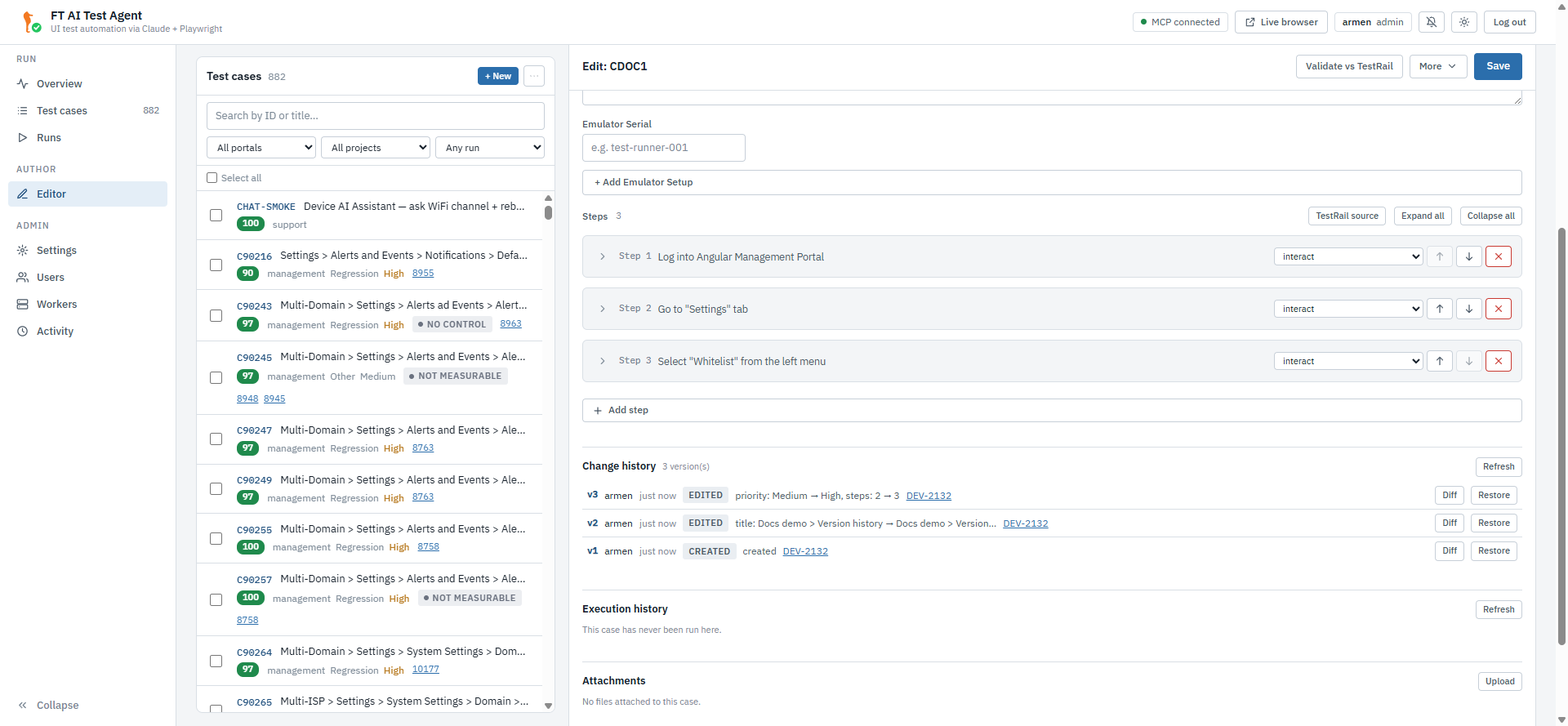
Change History
Every write to this case — a Save, a YAML upload, a TestRail import or reimport, a duplicate, a restore, a bulk edit — is one numbered version, whichever screen made it. A delete is logged too, without a number. The panel lists them newest first, and each row carries:
-
the version number (
v7) — a deleted row and rows written before versions existed carry none; -
who saved it and when;
-
the action —
created,edited,uploaded,imported,reimported,restoredordeleted; -
what changed — the fields that moved, as
field: before → after; -
the bug reference the edit was made for, rendered as a Jira link when Settings supplies a
jira_base_url; -
the portal build the edit was made against (
build master_7.1.2.RC), probed from the portal itself, so a case edited the morning after a deploy is distinguishable from one edited before it.
A row that kept a snapshot offers:
-
Diff — a modal with the unified diff of that version against the case as it is now (
GET /api/tests/{filename}/history/{version}). The modal offers Restore this version as well, so you can read before deciding. -
Restore — overwrite the case with that version (
POST /api/tests/{filename}/history/{version}/restore). Write access only, confirmed first, and itself recorded as a new version — so a restore is undone by restoring the version that preceded it.
A snapshot holds the case as that save left it, not as it was before.
v7 is what the seventh write produced, which is why restoring v7 reproduces
that state exactly.
|
The panel is hidden for a case with no history at all. Refresh re-reads it.
Execution History
The last twenty runs of this case, newest first: verdict pill, when, how long, which env and the owner. Clicking a row opens that run’s report, so "did my last edit help" is answered without a trip to Runs.
The rows are owner-scoped like the rest of the run history: you see only runs you started. A case nobody has run under your account on this stand says so: "This case has never been run here."
Attachments
The files the case was written against — the device tree, a screenshot, the TestRail export. The panel lists each file with its size and who uploaded it. Everyone can read and download them; Upload, Delete and Use as tree need write access.
-
Upload — one file per press, 20 MB cap, the name reduced to a safe basename. Uploading the same name replaces it.
-
Clicking the file name downloads it.
-
Delete — removes it for good (confirmed).
-
Use as tree — offered on
.xmlattachments only. It pushes the file into/opt/mcp-shared/throughPOST /api/trees/uploadand points the case’stree_fileat it, which is the step that used to be done by hand.Use as tree needs the case to already have an Emulator Setup block — without one there is no
tree_filefield to write, and the editor says so instead of acting. And it only puts the name on the form: press Save to keep it.
Attachments survive a delete and a restore — they are removed only when the case is purged from the trash. A Duplicate copies them onto the new case.
Regenerate Emulator Setup
Regenerate, in the form’s More ▾ menu (edit mode only), re-runs
the converter pipeline using the current text fields (preconditions, steps,
expected, title) and replaces the emulator_setup block while leaving steps
and metadata untouched.
A modal appears with live status (saving edits → re-running the converter →
score-simulator retry → reload). On success the modal shows the new
tree_file, parameter count, and any delete_objects / wifi_client_limit
that were derived. On failure the converter error is shown verbatim.
When to use:
-
You changed Preconditions or step Expected values and want the emulator state regenerated.
-
You’re investigating why a test was imported with the wrong tree / parameters.
-
The backend formula changed and you want the score-verifier-driven retry to pick a new parameter combination.
This overwrites manual edits inside emulator_setup. If you hand-
tuned the parameters, save a copy first via More ▾ → Export YAML — or lean
on the change history, which snapshots every save (see Change History).
|
Download / Inspect YAML
More ▾ → Export YAML downloads the raw YAML file as it lives on disk. Useful for:
-
Diffing two cases when one passes and the other fails.
-
Pasting into a Jira ticket / chat for handover.
-
Manually editing fields the editor doesn’t expose (rare — usually only experimental converter output keys, e.g.
kpi_type, which is read by the tree-coverage pre-flight, the score simulator, and the converter retry loop).
To upload a hand-edited YAML back, use the case list’s ⋯ menu → Import,
or POST /api/tests/upload-yaml directly. To move a whole set of cases between
stands, Test cases → Library → Import XML… and the Export XML bulk
action are the wider door — see test-management.adoc#case-xml.
Saving and Validation
-
Save —
POST /api/tests(new) orPUT /api/tests/{filename}(existing). Server normalises the YAML, validates the tree file path, and writes to the persistent volume. -
On error, the toast shows the server message — typically a missing required field (
id,title,portal) or an invalidtree_filereference.
|
The serializer writes a whitelist — an unknown field is dropped, silently
Saving does not round-trip arbitrary YAML. The server writes only the step
fields it knows ( This is why adding a new step type or a new field on an existing type is two changes in one commit: the editor’s render block for that type, and the serializer whitelist. If you hand-edit a YAML and the editor "loses" a field on the next save, this is why — upload the file instead of saving the form. Two unit tests hold the line, and a new field that skips the whitelist fails
them: |
Validation against TestRail
Validate vs TestRail scores the case against the TestRail text as it stands
today, so drift since the import is visible. The report shows a score out of
100, the per-section findings, and whether it compared against the live case or
the import snapshot. The same thing runs in bulk from the list’s Validate
button, and across a whole project via POST /api/validate/scan.
Related, and worth knowing before you accept a green: TestRail source (in the Steps header) renders the original case beside the converted steps — preconditions, every step’s content and its expected result, with a count of how many were converted. A TestRail step that the converter merged or dropped is visible here in seconds.
Promoting an ai_step
An ai_step that has run the same way several times can be compiled into
deterministic steps: GET /api/tests/{filename}/promotable lists which steps are
stable enough, and the Promote… button (or
POST /api/tests/{filename}/promote) rewrites one of them from its latest
trace. This is how an exploratory step graduates into a nav sequence.