Single Emulator Mode
Single Emulator Mode provides full control over individual CPE devices — ideal for development, debugging, and protocol testing.
Access it from the landing page at http://localhost:8555 or directly at http://localhost:8555/single.
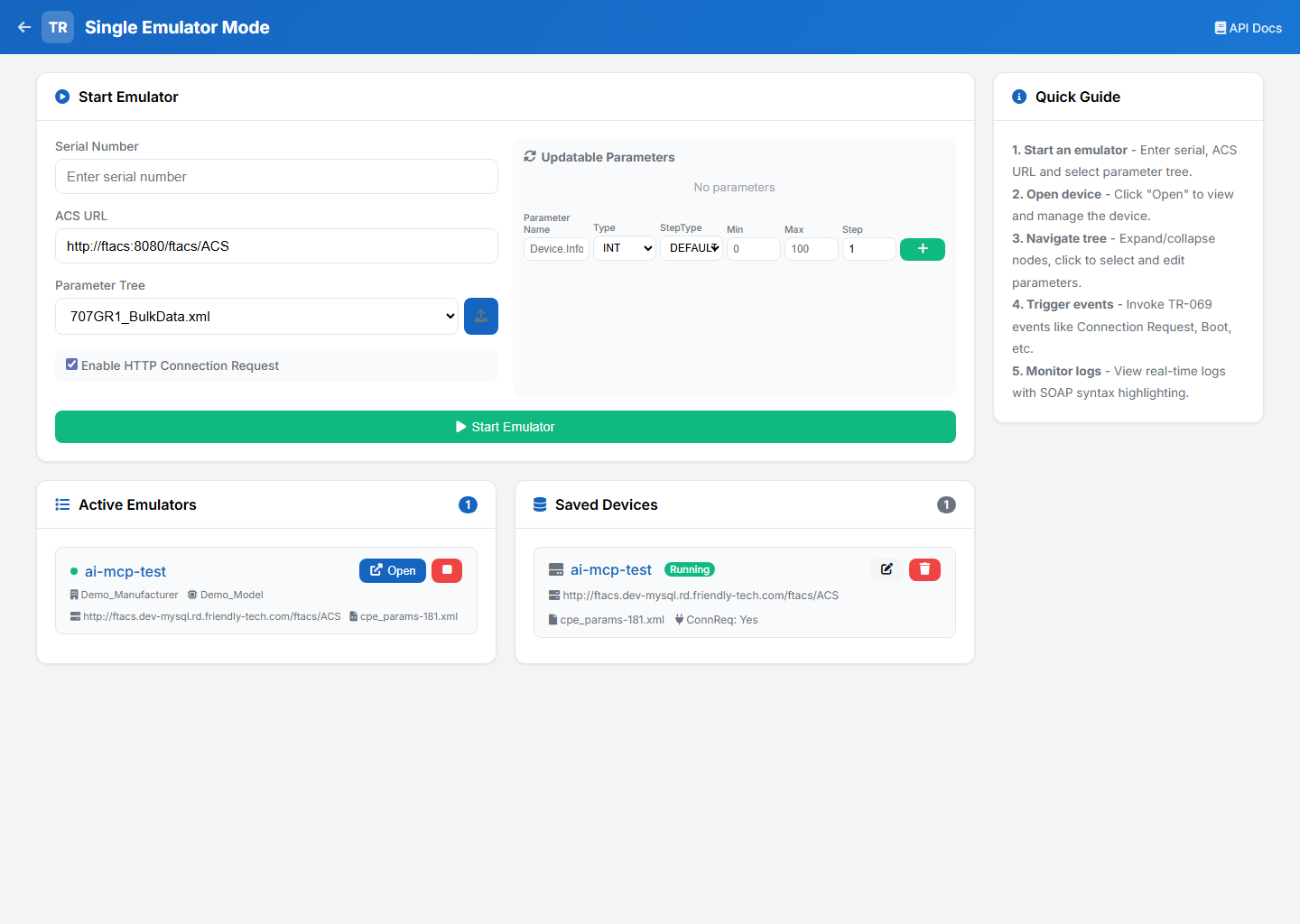
Overview
Single Mode is designed for working with one device at a time with granular control over parameters, events, and logs. For bulk device simulation, see the Load Test Mode.
| Feature | Single Mode |
|---|---|
Device count |
One at a time |
Parameter editing |
Interactive tree browser with search |
Event triggering |
Manual per-event selection |
Log viewing |
Real-time live viewer with syntax highlighting |
Device persistence |
Save and restore device configurations |
Getting Started
|
These steps assume the emulator is running at |
-
In Start Emulator, enter a Serial Number, set the ACS URL (or accept the default) and pick a Parameter Tree. Tick Enable HTTP Connection Request if the ACS will initiate sessions.
-
Click Start Emulator. The device registers with the ACS and appears under Active Emulators.
-
Click Open on the device to inspect it: browse/edit the parameter tree, invoke TR-069 events, and watch the live log.
-
Click Stop (in the list or the detail view) when finished. Saved configurations remain under Saved Devices for quick re-start.
Common Workflows
Inspect and edit a device’s data model
Open the device, use the Device Tree search to find a parameter, click it, then edit its Value or Notification level and Save. See Device Detail View.
Trigger a TR-069 event
Open the device, pick an event from the Invoke Event dropdown (e.g. Connection Request (6)) and click Invoke. The device starts a session with the ACS. See Device Detail View.
Watch a session in real time
Open the device and use the Live Log (auto-refreshes every 1.5 s). Click Full View for search, errors-only filtering, statistics and download. See Live Log Viewer.
Simulate realistic, changing values
Add Updatable Parameters (e.g. an increasing uptime or random signal) so the device reports changing values automatically. See Updatable Parameters.
Reuse and clone devices
Saved devices can be re-started with one click (Play), loaded back into the form for editing (Edit), or cloned to a new serial via the REST API (POST /apiV2/cloneDevice). See Saved Devices and the /apiV2 API.
Starting a Device
The start form lets you configure a new emulator instance.
Configuration Fields
| Field | Description |
|---|---|
Serial Number |
Unique identifier for the emulated CPE device |
ACS URL |
Full URL of the Auto Configuration Server (e.g., |
Parameter Tree |
XML file defining the device data model. Select from available files or upload a new one. |
HTTP Connection Request |
Enable the HTTP listener so the ACS can initiate connection requests to this device |
Click Start to launch the emulator. The device registers with the ACS and appears in the Active Emulators list.
Device Detail View
Click Open on an active emulator to open the device detail modal. The modal is split into two sections:
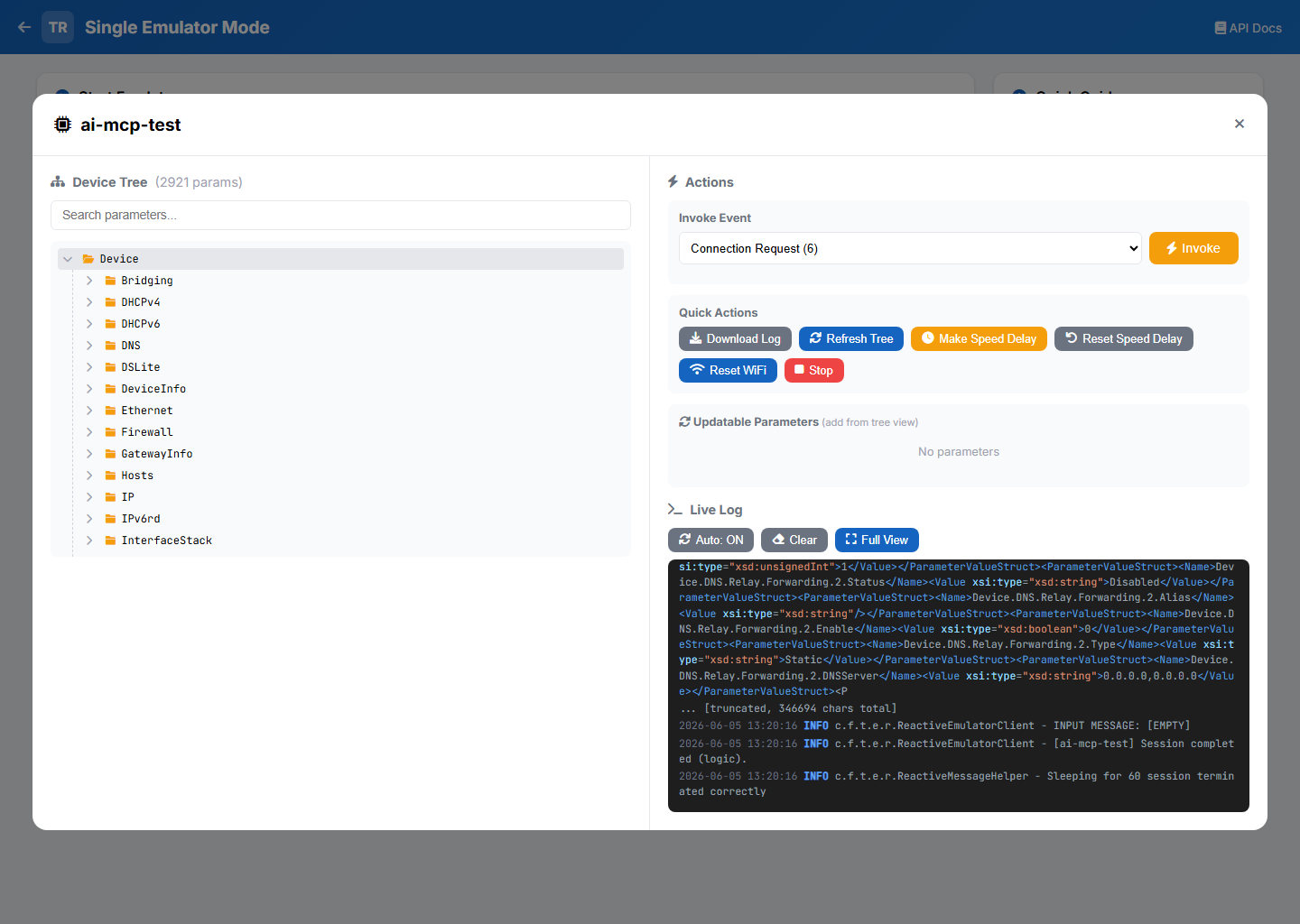
Left Panel — Parameter Tree
-
Search — Filter parameters by name in real-time
-
Hierarchical tree — Expand/collapse nodes to browse the full device data model
-
Visual indicators — Folder icons for object containers, cube icons for leaf parameters
-
Inline values — Parameter values displayed next to each node
Parameter Editor
Click any parameter in the tree to select it. The editor shows:
| Control | Description |
|---|---|
Value |
Editable input field for the current parameter value |
Notification |
Dropdown to set notification level: 0 (off), 1 (passive), 2 (active) |
Save Value |
Persist the modified value |
Save Notif |
Update the notification level |
Delete |
Remove a writable parameter or object instance |
Add to Updatable |
Add this parameter to the auto-updating list |
Right Panel — Actions and Monitoring
Event Invocation
Trigger TR-069 events from the dropdown:
| Event | Description |
|---|---|
BootStrap (0) |
Device initialization / factory reset event |
Boot (1) |
Device reboot event |
Periodic (2) |
Scheduled inform to ACS |
ValueChange (4) |
Parameter changed with active notification |
Connection Request (6) |
ACS-initiated connection request |
TransferComplete (7) |
File download/upload completed |
Diagnostics (8) |
Diagnostics complete |
Quick Actions
| Button | Description |
|---|---|
Download Log |
Download the full device log file ( |
Refresh Tree |
Reload the parameter tree from the device |
Make Speed Delay |
Simulate network latency |
Reset Speed Delay |
Remove latency simulation |
Reset WiFi |
Reset WiFi parameters to defaults |
Stop |
Stop this emulator |
Live Log Viewer
The compact log viewer shows the last 150 lines of device activity.
-
Auto-Refresh — Toggle automatic refresh (every 1.5 seconds)
-
Clear — Clear log output
-
Full View — Open expanded log viewer
Full Log Viewer
The expanded viewer provides advanced log analysis:
-
Configurable line cap via Max lines (1,000 / 5,000 / 10,000 / 25,000 / 50,000 / 100,000; default 5,000)
-
Real-time refresh with auto-scroll (every 2 seconds; fetches new lines incrementally)
-
Search — Free-text filtering with highlighted matches
-
Errors only — Filter to show only error/warning entries
-
Log statistics — Total lines, error count, warning count
-
Clear — Clear the viewer output
-
Syntax highlighting — Color-coded log levels and SOAP/XML content
Backed by GET /apiV2/getLogContent with incremental position tracking. The compact viewer fetches 150 lines per refresh; the full viewer fetches up to the selected cap. To save the complete log file to disk, use Download Log in the device’s Quick Actions (GET /apiV2/getLog).
|
Saved Devices
Device configurations are persisted for quick reuse.
-
Play (icon) — Start an emulator from the saved configuration (hidden while the device is already running)
-
Edit (icon) — Load the saved configuration back into the Start Emulator form for editing
-
Delete (icon) — Remove the saved device
Each saved device shows: Serial Number, ACS URL, Parameter File, and the HTTP Connection Request status (ConnReq: Yes/No); a Running badge appears while the device is currently active.
Updatable Parameters
Configure parameters that change automatically during emulation — useful for simulating sensor data, counters, or signal metrics.
Configuration
| Field | Description |
|---|---|
Name |
Full parameter path (e.g., |
Type |
Data type: |
Step Type |
Update behavior: |
Min / Max |
Value range (for numeric types) |
Step |
Increment/decrement step size |
Updatable parameters can be configured both at device start and from the device detail view for running devices.
REST API (v2)
Single Mode devices are managed through the /apiV2/ endpoints.
See the Swagger UI at http://localhost:8555/swagger-ui.html for the full interactive reference, and REST API — Single Mode for the complete documented endpoint list, request/response shapes and event codes.
Key Endpoints
| Method | URL | Description |
|---|---|---|
|
|
Start a device with full configuration |
|
|
Stop a running device |
|
|
List running devices |
|
|
List saved device configurations |
|
|
Save a device configuration |
|
|
Start from a saved configuration |
|
|
Get all parameters for a device |
|
|
Get parameters by path prefix |
|
|
Modify a parameter value |
|
|
Set parameter notification level |
|
|
Trigger a TR-069 event |
|
|
Get log content with position tracking |
|
|
Get log line count and error/warning counts |
|
|
Add a new object instance |
|
|
Remove an object from the tree |
|
|
Clone a device configuration with a new serial |