Load Test Mode
Load Test Mode spins up many CPE devices at once to stress-test an ACS. You configure the ACS connection, a device data model (parameter tree), the batch size and behaviour options, then start the whole batch with one click.
|
Working with one device at a time — browsing its parameter tree, editing values, triggering individual TR-069 events, watching live logs? Use Single Emulator Mode instead. This page covers bulk load testing. |
Getting Started
This walk-through takes you from a freshly started emulator to a running load test.
|
These steps assume the emulator is running and reachable at |
-
Open
http://localhost:8555and choose Load Test Mode (direct URL:/load). -
In ACS Connection, set Protocol, Host, Port and URL Path. The full URL is shown below the form (e.g.
http://localhost:8080/ftacs/ACS). Click Save. -
In Parameters XML, pick a Device Tree File that defines the CPE data model, then click Save. Upload a custom tree with Upload New if needed.
-
In Emulator Configuration, set the batch size and behaviour:
-
Groups and Concurrent determine how many devices are created (≈ Groups × Concurrent).
-
Delay (ms) spreads registrations over time.
-
Enable the options you need (Periodic Inform, Connection Req, …). Click Save Config.
-
-
(Optional) In Updatable Parameters, add parameters that should change automatically during the test (see Updatable Parameters).
-
Click Start (in the ACS Connection panel) to launch the batch. The header Total / Active counters reflect the running devices, and the bottom status shows Running.
-
Click Stop to end the test and disconnect the devices.
Common Workflows
Task-oriented recipes. Each links to the detailed reference below.
Stress-test an ACS with N devices
-
Configure ACS Connection and a Parameters XML tree.
-
In Emulator Configuration set Groups and Concurrent to reach the target device count, and use Delay (ms) (and optionally Reg. Group) to control the registration ramp.
-
Save Config, then Start. Watch the Total / Active counters in the header.
For very large counts, enable Lightweight mode and raise the JVM heap — see JAVA_OPTS and the load-test checklist.
|
Schedule a test to start later
Set Scheduled To (DD-MM-YYYY HH:MI:SS) in Emulator Configuration, Save Config, then Start — the batch begins at the scheduled time.
Simulate firmware transfers
Enable Transfer Emul and set a Transfer Delay (e.g. 0-100) so emulated devices report Download/Upload transfers with realistic timing.
Inject changing telemetry
Add entries under Updatable Parameters (e.g. an increasing byte counter or a random signal value). They mutate automatically while the test runs — see Updatable Parameters.
Drive the test from scripts
Every Load Test action maps to a /api REST endpoint (/api/properties, /api/paramsXml, /api/start, /api/stop, …). See REST API — Load Test.
# Save config, then start the batch
curl -X POST http://localhost:8555/api/properties \
  -H 'Content-Type: application/json' \
  -d '{"protocol":"http","host":"acs","port":8080,"url":"ftacs/ACS","groups":10,"concurrent":5}'
curl -X POST http://localhost:8555/api/start
Control individual devices
Load Test Mode starts/stops the batch as a whole. To trigger events, browse the parameter tree, or read per-device logs, switch to Single Emulator Mode (or use the /apiV2 API).
Web Interface Overview
Open http://localhost:8555 and choose Load Test Mode (/load). The page is a responsive grid of collapsible panels (click a panel header to collapse/expand it).
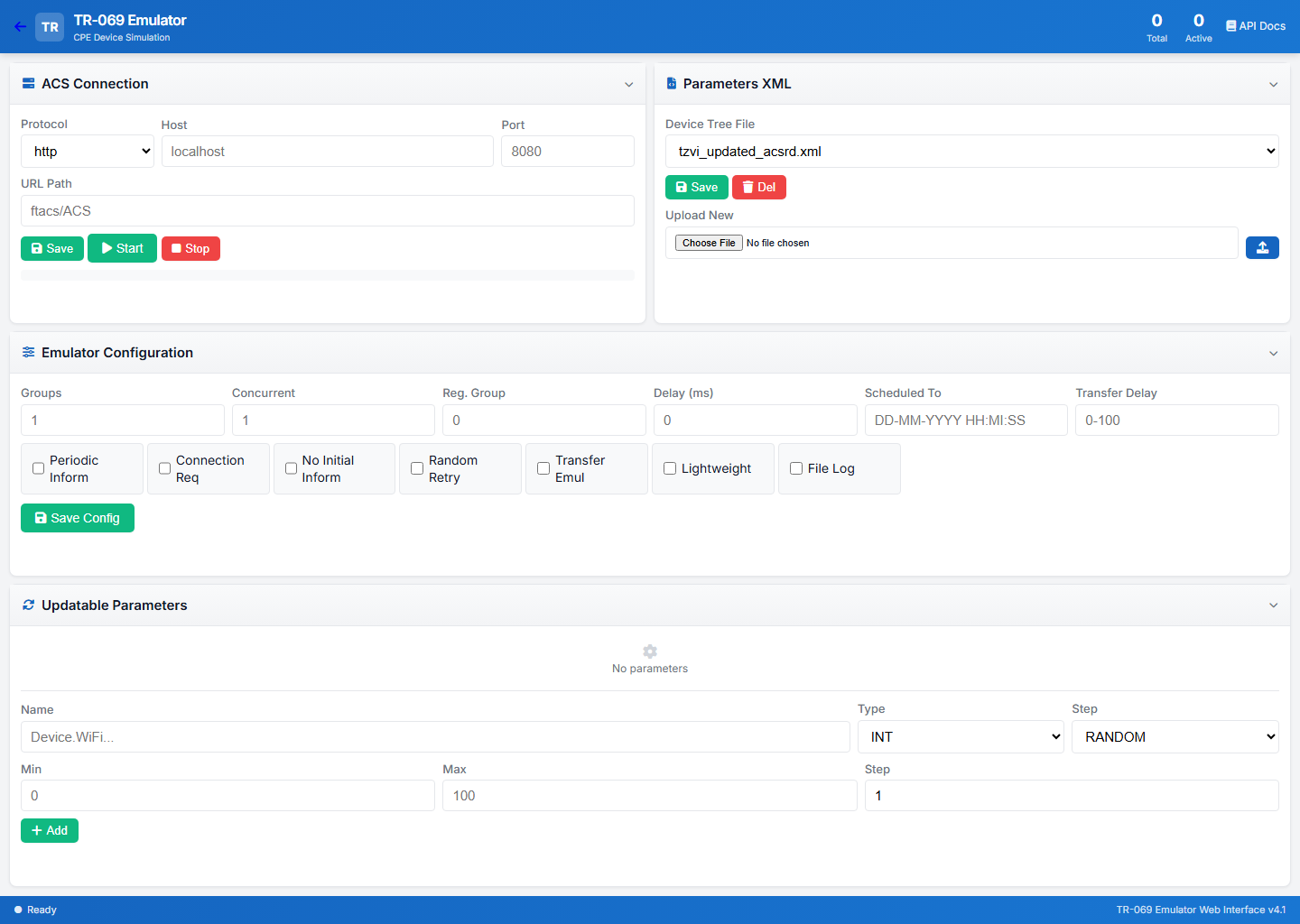
| Area | Description |
|---|---|
Header |
Logo/title, live Total and Active device counters, and an API Docs link (Swagger UI). The back arrow returns to the landing page. |
ACS Connection |
Target ACS endpoint plus the Save / Start / Stop controls for the batch. |
Parameters XML |
Select, upload or delete the device-model XML used by the batch. |
Emulator Configuration |
Batch size (groups/concurrent), timing and behaviour options. |
Updatable Parameters |
Parameters that change automatically while the test runs. |
Bottom bar |
Status indicator (Ready / Running / …) and the interface version (TR-069 Emulator Web Interface v4.1). |
ACS Connection
Configure the connection to your ACS.
| Field | Description |
|---|---|
Protocol |
|
Host |
ACS hostname or IP (e.g. |
Port |
ACS port (e.g. |
URL Path |
ACS endpoint path (e.g. |
The full ACS URL is shown below the form (e.g. http://localhost:8080/ftacs/ACS).
| Button | Action |
|---|---|
Save |
Persist the ACS settings ( |
Start |
Start the configured batch ( |
Stop |
Stop the batch ( |
Parameters XML
Manage the device-model XML files (served from the parameterstree/ directory).
Device Tree File
Select the XML file that defines the device data model (parameters, values, types). The dropdown lists every XML file available on the server.
Starting & Stopping the Batch
The Start and Stop buttons live in the ACS Connection panel and act on the whole batch using the saved configuration:
-
Start — creates the configured devices (≈ Groups × Concurrent) and registers them with the ACS, honouring Delay (ms) and Scheduled To.
-
Stop — stops and disconnects all running devices.
The header Total / Active counters and the bottom status bar reflect the current state.
Emulator Configuration
Configure batch size, timing and behaviour, then click Save Config (POST /api/properties).
Numeric Settings
| Field | Description |
|---|---|
Groups |
Number of device groups to create |
Concurrent |
Devices per group / concurrent registrations |
Reg. Group |
Registration group identifier |
Delay (ms) |
Delay between device registrations (milliseconds) |
Scheduled To |
Schedule the start ( |
Transfer Delay |
Delay (range/CSV, e.g. |
Task Execution Delays
Hold the emulated CPE for a number of seconds before it processes each ACS task, modelling
real-CPE "thinking time". The section is collapsed by default — click the Task Execution
Delays (seconds) header to expand it. There is one field per TR-069 task type — GetParameterValues, SetParameterValues, GetParameterNames, Get/SetParameterAttributes,
Add/DeleteObject, Download, Upload, Reboot, FactoryReset, ChangeDUState (TR-157) and
GetRPCMethods — each defaulting to 11 seconds. Set a field to 0 to disable the delay for
that task, or enter a value next to Apply to all to fill every task type at once. The delays
apply globally to every device and are persisted with Save Config (POST /api/properties);
the section does not need to be expanded for its values to be saved. See
EmulatorPropertiesDto for the exact JSON field names.
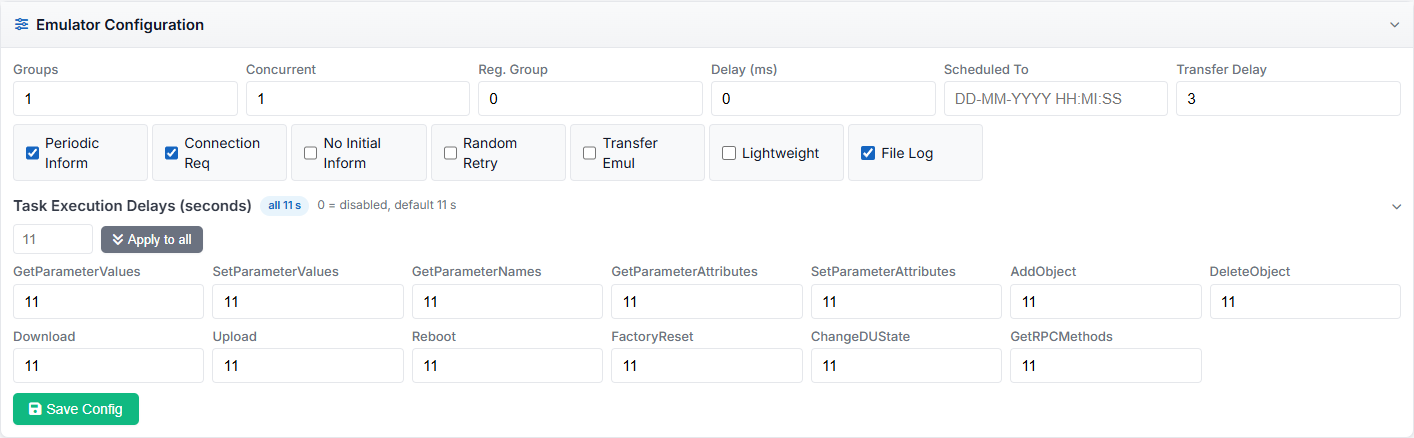
The badge next to the section title summarises the current values without expanding the
section: all N s when every task type shares the same delay, disabled when all delays are
0, or custom when they differ. The expanded/collapsed state is remembered by the browser
(local storage), so the section stays the way you left it across page reloads.
Options
| Option | Maps to |
|---|---|
Description |
Periodic Inform |
|
Send periodic Inform messages to the ACS |
Connection Req |
|
Accept ACS-initiated Connection Requests (requires the listener on port 9999 — see Connection Request Host) |
No Initial Inform |
|
Skip the initial |
Random Retry |
|
Randomise retry counts on connection failures |
Transfer Emul |
|
Emulate firmware Download/Upload transfer operations |
Lightweight |
|
Lightweight (Inform-focused) mode — reduces per-device work for maximum scale |
File Log |
|
Write a per-device log file |
Monitoring the Batch
While a test runs, the header shows live Total and Active device counts and the bottom bar shows the run status.
|
Per-device inspection (parameter tree, event invocation, live logs) is not part of Load Test Mode — use Single Emulator Mode for a single device, or the |
Updatable Parameters
Configure parameters that change automatically during the test — useful for simulating sensor data, counters or signal metrics.
The list shows configured parameters (name | type | stepType); each has a delete button.
Add a Parameter
| Field | Description |
|---|---|
Name |
Full parameter path (e.g. |
Type |
|
Step |
Update mode: |
Min / Max |
Value range (numeric types) |
Step (numeric) |
Step size for increment/decrement |
Click Add to append the parameter; the list is saved via POST /api/updatableParameters.