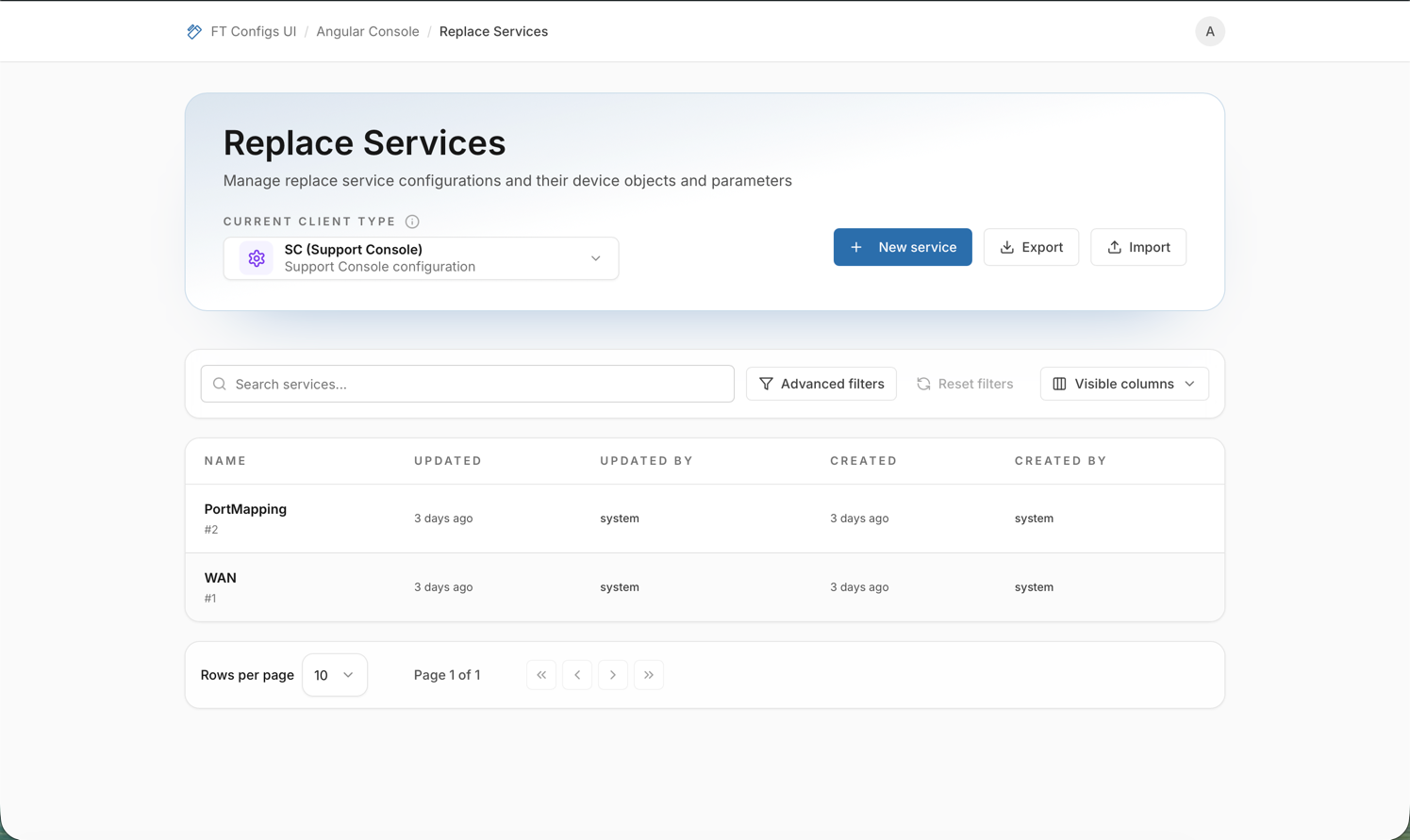
Replace Services
|
This module is currently unavailable and will be available in future versions. The documentation below is provided for reference only. |
Replace Services lets operators manage service configurations that include nested device objects and parameters for a selected Client Type. These configurations determine what service mappings are available and what parameters belong to each service. This module is sensitive because changes can affect nested structures and deletions can cascade across related objects and parameters.
When to use Replace Services
Use Replace Services when you need to:
-
browse existing replace service configurations,
-
create or edit a configuration in a controlled way,
-
export a snapshot before making changes,
-
import bulk updates safely with dry-run preview.
Prerequisites
-
A Client Type must be selected (DEF, MC, SC).
-
Your role determines which actions are available.
In Replace Services specifically:
-
VIEWER — browse and export.
-
EDITOR / ADMIN — create, edit, delete, and import.
| If the Client Type is not selected, the module shows a guarded state and actions may be disabled or blocked until you select a Client Type. |
Key concepts (operator-friendly)
- Configuration
-
A single row in the list represents one replace service configuration (identified by service name) for the selected Client Type.
- Details sheet
-
Selecting a row opens a details sheet where you can inspect the configuration, review its nested objects and parameters, and (with permissions) edit or delete it.
- Why dry-run preview matters
-
Imports and edits can change nested data (services → objects → parameters). Dry-run preview is important because it shows the exact plan (create/update/delete/duplicates) before anything is applied.
Common tasks
Browse and search
-
Open Replace Services from the Angular Console dashboard.
-
Select the required Client Type.
-
Use the search field to find a service by name.
-
(Optional) Open Advanced filters and set Updated from / Updated to to narrow the list by update date.
-
Select a row to open the details sheet.
What you should see:
-
a list of services for the selected Client Type (with updated/created metadata),
-
a details sheet showing the service configuration and its nested objects and parameters.
Create a configuration (EDITOR / ADMIN)
-
Select the required Client Type.
-
Click New service.
-
Enter a Service Name and save.
Expected result: the new service appears in the list for the selected Client Type and can be opened in the details sheet.
Use clear, stable names (for example: WAN, PortMapping) so services are easy to search and audit later.
|
Edit or delete (EDITOR / ADMIN)
Edit a configuration
-
Open the service details sheet.
-
Click Edit.
-
Add, update, or remove objects and parameters as needed.
-
Click Save.
-
Refresh the list and re-open the service to confirm the updated state.
| If you remove objects or parameters while editing, the UI may show a confirmation listing what will be deleted when you save. Review that list carefully before confirming. |
Export a snapshot
-
Select the required Client Type.
-
Click Export and save the downloaded JSON file.
| Store snapshots alongside the change ticket (module + Client Type + date). For details, see Export a Snapshot. |
Import with dry-run (mandatory)
Use import to apply many changes at once. Always follow the safe workflow: export → dry-run → apply.
-
Export a snapshot first: Export a Snapshot.
-
Click Import.
-
Choose the import mode (MERGE or REPLACE).
See Merge vs Replace.
-
Select a JSON file.
-
Wait for the dry-run preview to complete.
-
Dry-run runs automatically after you select a file.
-
Changing the file or switching MERGE/REPLACE re-runs the preview.
-
-
Review the preview:
-
summary counts for services, objects, and parameters,
-
created / updated / deleted / duplicate changes,
-
detailed changes (nested service/object/parameter impact),
-
warnings and errors.
-
-
Click Confirm import only when the preview matches your intent.
| Replace Services imports can delete nested objects and parameters. Treat large Deleted counts (especially in REPLACE mode) as a stop signal until you confirm the file is complete and the Client Type is correct. |
| If duplicates are reported, resolve conflicts in the source JSON (for example by renaming or removing conflicting entries), then re-run the preview. |
Import safety checklist
-
Confirm you are in the correct environment.
-
Confirm your selected context (for example, client type) matches the file.
-
Export a snapshot before changes.
-
Run Dry-run and review:
-
errors (must be resolved),
-
warnings (understand impact),
-
create/update/delete counts.
-
-
If using REPLACE, confirm you accept deletions shown in the dry-run plan.
-
Apply import and immediately verify by refreshing and re-opening the affected entries.
After-change verification checklist
After any edit or import:
-
Confirm you are still on the intended Client Type.
-
Re-open the changed service in the details sheet.
-
Spot-check a few nested objects and parameters that should have changed (and a few that should not).
-
(Recommended) Export a new snapshot for audit and rollback readiness.
Troubleshooting
- No data shown
-
Confirm the Client Type is selected and clear overly narrow filters (search text or Updated from/to).
- I don’t see Create/Edit/Import
-
You are likely signed in as VIEWER. Editing and import are available only for EDITOR or ADMIN.
- Dry-run shows many deletions
-
You may be using REPLACE, or the file is incomplete for the selected Client Type. Switch to MERGE or rebuild the file from an export snapshot and retry.
- Dry-run shows errors
-
The file does not match the expected JSON structure or contains invalid values. Start from a fresh export snapshot, apply your edits, and retry the import.
- Unexpected nested changes
-
Review the detailed preview carefully and confirm the selected Client Type and import mode match your intent.