Editor Guide
The Editor tab is the visual front-end for the YAML test case format consumed
by run_test.py. Every field maps 1:1 to a YAML key — the editor never hides
data, it just makes it editable without writing YAML by hand.
|
At a glance
|
Overview
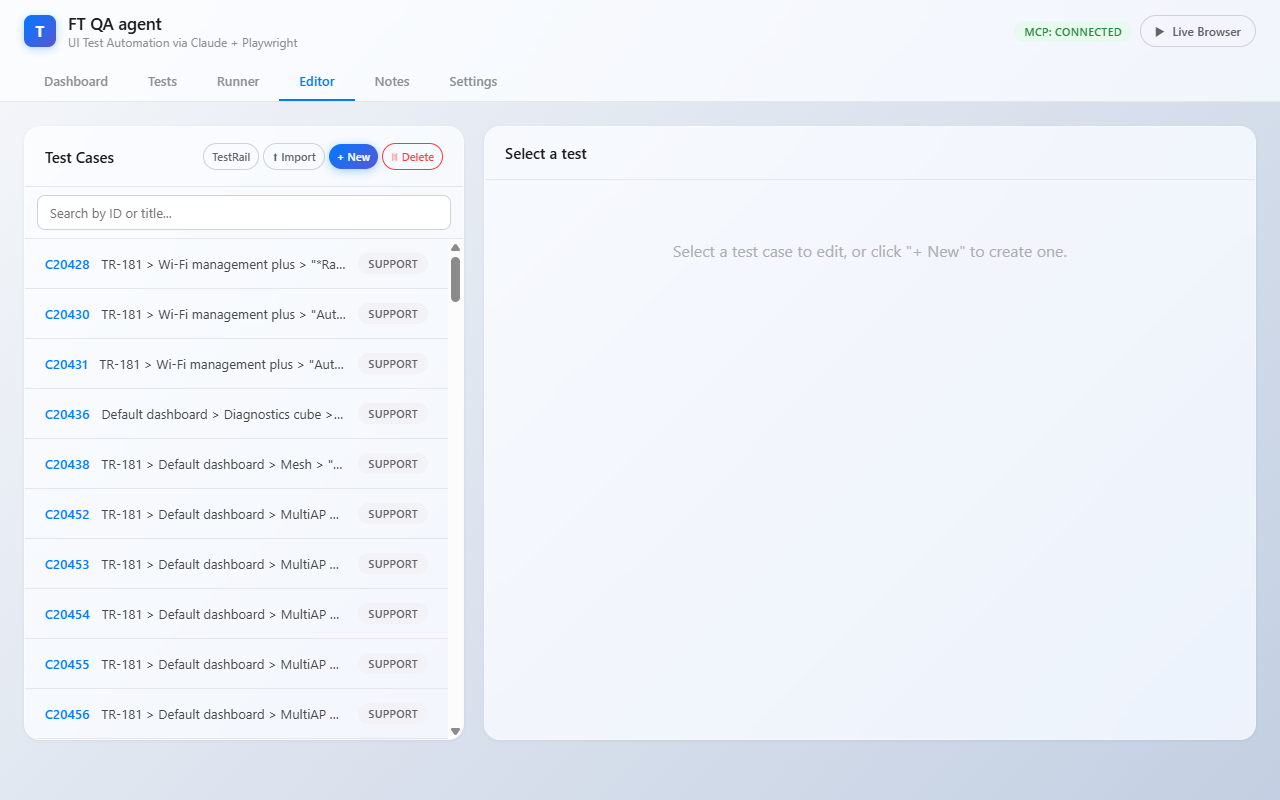
Open the Editor tab. The layout is split:
-
Left — list of all YAML cases currently on the agent (under
/app/tests/casesinside the container, mounted as the persistenttest-casesvolume). Search box filters by ID or title. -
Right — the form. Three modes:
-
list — empty placeholder (no case selected, "+ New" not pressed).
-
new — empty form for authoring a fresh case.
-
edit — populated form for an existing case.
-
Left-panel header buttons:
-
TestRail — opens the import modal (Importing Tests).
-
⬆ Import — upload a hand-edited
.yamlfile (POST /api/tests/upload-yaml). -
+ New — clear the form and switch to new mode.
-
🗑 Delete — opens a dropdown with bulk-delete actions (see Bulk Delete Menu (🗑 Delete)).
| Periodic TestRail refresh is handled by the background sync loop (see Auto-sync Interval). |
Right-panel header buttons (visible only in edit mode):
-
⬇ Export YAML — download the current YAML file.
-
Delete — remove the YAML file from disk (single test).
-
Regenerate — regenerate
emulator_setupfrom the test text (see Regenerate Emulator Setup). -
Save — persist changes to disk.
At the bottom of the form there is also ▶ Save & Run — saves the case and immediately starts a run with the model picked in the Tests tab.
| There is no auto-save. After every change press Save (or Save & Run) at the bottom. |
Bulk Delete Menu (🗑 Delete)
The red trash icon in the left-panel header opens a dropdown with two destructive actions:
-
Delete All Tests — calls
DELETE /api/testsand wipes the entire/app/tests/casesdirectory. Use after a major converter rewrite when you intend to fully reimport from TestRail. -
Delete by Section — lists every distinct
sectionvalue in the current YAMLs, with a count next to each. Click a section to delete only those tests. Useful for cleaning up an obsolete TestRail section without losing the rest.
| Both actions are irreversible. The persistent volume is overwritten on disk. Reimport from TestRail to restore. |
Core Fields
These are the top-level keys that drive the runner before steps are even considered.
| Field | YAML key | Notes |
|---|---|---|
Test ID |
|
Format |
Portal |
|
|
Section |
|
Free-text grouping (e.g. |
Title |
|
Human-readable test title, shown in the list and reports. |
Project |
|
Dropdown of the projects defined under
Organizing Cases: Projects & Sections. Groups the case for list filtering and
reporting alongside |
Priority |
|
|
Type |
|
Test category — |
Reference |
|
Jira ticket reference(s), e.g. |
Base URL |
|
Defaults to the value from Settings if left empty. Override only when one specific case must hit a non-default portal. |
Username / Password |
|
Same fallback rule — empty here means use the Settings defaults. |
Preconditions |
|
Plain-text bullet list (one per line). Read
by the LLM during conversion to deduce required |
Emulator Serial |
|
The CWMP serial number of
the emulated CPE. Defaults to |
In edit mode an attribution strip above the form shows Created by
(created_by) and Last edited by (edited_by) with timestamps, plus a
per-case edit history. These are written by the server from the logged-in
account — they are read-only and not part of the editable form. See
Organizing Cases: Projects & Sections for the project / section taxonomy these fields
feed into.
|
Emulator Setup
Most tests need state on the emulator — TR-181 parameters, dynamic instances, diagnostic results — for the dashboard / portal to render the expected value. This is configured under Emulator Setup.
If the block is missing, click + Add Emulator Setup and an empty stub is
created (tree_file, parameters, delete_objects, instance_limits,
wifi_client_limit, ui_preconditions, phases). All sub-fields are optional.
Execution order (server-side, before the first step runs):
-
Push
tree_fileto the emulator (factory reset → upload tree). -
Apply
delete_objects(CWMP DeleteObject). -
Apply
instance_limits(truncates dynamic tabular objects to N instances). -
Apply
wifi_client_limit(special-case forHosts.Host). -
Set
parametersvia SetParameterValues. -
Run
ui_preconditionsagainst the management backend (see UI Preconditions). -
Trigger ACS Inform so backend reads the new state.
-
If
phases[0]exists, apply phase 1 parameters and continue.
Tree File and "Generate Tree"
tree_file is the name of an XML file under /opt/mcp-shared/ on the
test-runner host. It defines the initial TR-181 tree pushed into the
emulator (factory reset baseline). Common templates:
| File | Purpose |
|---|---|
|
Default Fiber CPE: CPU, MEM, 4 radios, full diagnostics. Fallback for unrecognised KPI types. |
|
Cellular CPE. |
|
Mesh CPEs with DataElements / MultiAP data models. |
Selecting a different tree_file does not re-push the tree. It only
changes which file is used the next time the test runs. To verify what’s
currently on the emulator, query its API directly (see Troubleshooting).
|
The Tree File row exposes three controls:
-
Tree dropdown — populated from
GET /api/trees, which lists every*.xmlin/opt/mcp-shared/. The currently selected file is always pre-rendered as the first option so the dropdown reflects the saved value immediately, even when the list is still loading or the file is no longer on disk. -
Upload — opens a file picker. Selecting an
.xmlcallsPOST /api/trees/upload(multipart). The server validates the payload as well-formed XML, sanitises the basename (no path traversal), and writes it into/opt/mcp-shared/. On success the dropdown refreshes and the new name is auto-selected. Re-uploading the same name replaces the existing file — the response carriesreplaced: true. -
Generate Tree — described below.
Generate Tree
The Generate Tree button calls the bbf-tree-mcp server with a natural-
language description of the test (title + preconditions + first step). The MCP
returns a fresh XML tree tailored to the case. Workflow:
-
Edit Title and Preconditions so they describe the device state you want.
-
Click Generate Tree.
-
A modal appears with a live status pane (connecting → reading preconditions → calling MCP). Generation typically takes 10–30 s but can run minutes for large mesh topologies.
-
On success the modal shows the new filename and the
tree_filefield in the form is updated. Save the test to persist. -
On failure the modal shows the MCP error verbatim — fix the preconditions text or fall back to a template under
/opt/mcp-shared/(use the dropdown).
Use this when none of the existing templates fit (unusual KPI mix, exotic data model, multi-radio mesh topology).
Parameters
Key/value list of TR-181 paths that override the tree after factory reset. Examples:
parameters:
  Device.WiFi.AccessPoint.1.AssociatedDevice.1.SignalStrength: "-55"
  Device.WiFi.AccessPoint.1.AssociatedDevice.1.Noise: "-95"
  Device.WiFi.AccessPoint.1.AssociatedDevice.1.OperatingStandard: "ax"
Editing in the UI:
-
+ Add opens an inline row — paste the full
Device.<…>path and the value. Both fields are free-text monospace. -
The big monospace block lists existing entries — click in the value field to edit in place; the x button removes.
-
Values are sent as strings to the emulator; numeric/boolean coercion happens on the emulator side per TR-181 type.
SNR is not a TR-181 parameter — it’s computed as
SNR = SignalStrength - Noise. To get a target SNR set both SignalStrength
and Noise accordingly.
|
Delete Objects and Instance Limits
Delete Objects |
List of TR-181 instance paths to delete after the tree is
pushed. Useful when the template tree contains a parameter the test wants
absent (e.g. delete |
Instance Limits |
Map of |
WiFi Client Limit |
Special integer — caps |
UI Preconditions
Pre-test actions executed against the management backend’s REST API (not
against the portal browser). Each entry has an action and params. The
server dispatches them through the _PREFLIGHT_ACTIONS table; the full set is
below, grouped by purpose.
| Action | Purpose |
|---|---|
|
Creates a monitoring rule on the device so the network-history widget has data points. Mostly auto-applied; rarely edited by hand. (Also the anti-flap trigger — its presence disables the autonomous Periodic Inform for the run.) |
|
Removes a monitoring rule (the inverse of |
|
Forces the backend’s monitoring tasks to run now instead of waiting for the next scheduled pull, so freshly set state is reflected immediately. |
|
Creates a group update with the selected diagnostics list and optional
|
| Action | Purpose |
|---|---|
|
Generic diagnostic runner. Supports |
|
Triggers |
|
Alias of |
|
Runs an |
|
Polls the backend until the device reports online — a guard step so later actions don’t run against a still-booting CPE. |
| Action | Purpose |
|---|---|
|
Drives the ACS via the management REST API (SPV / GPV / add / delete object /
reboot / factory reset) as a precondition. Same surface as the |
|
Sets an ACS configuration parameter (e.g. |
|
Enables ACS Basic / Digest credential generation for the device (sets the
CPE login + |
|
Assigns a tariff plan to the device (static QoE tariff seed). |
|
Assigns a dynamic tariff (used by diagnostic / QoE tests that need a rate-limited plan). |
|
Writes a portal UI setting (e.g. an Advanced-View toggle) the test depends on. |
| Action | Purpose |
|---|---|
|
Registers a deployment (firmware / config) file in the platform so a file-download / deployment test can select it. |
|
Registers a download file entry the device can be told to fetch. |
|
Creates a device via the North-Bound Interface (NBI) before the run — for tests that need a freshly provisioned device record. |
device_serial and portal are auto-filled from the test’s top-level fields,
so you only need to choose the action and (if relevant) the diagnostic type,
host, or action-specific params.
Multi-Phase Tests
Some TestRail cases are written as a sequence of "set state A → verify; set
state B → verify". The converter encodes them as a single YAML with multiple
phases. Each phase has a name and its own parameters map.
Editing:
-
Click + Add Phase to append. The button appears both in the populated Phases header and in the empty-state row when no phases exist yet — fresh tests can grow phases from zero without touching YAML.
-
Each phase shows an editable name and a parameter map (same UI as the main Parameters block).
-
Order matters — phases run in array order. Use the x to remove.
-
The corresponding
phasestep in the steps list (see Steps) is what triggers the runtime to apply that phase.
Phases share the base parameters — phase entries are additive overrides
on top of the initial tree + base parameters, not full replacements.
|
A phase with an empty parameters map is a scenario marker — the
runtime treats the matching step as instant pass and only re-runs any
diagnostic preconditions tied to the phase. Such empty phases are
preserved through a load → save round trip so converter-emitted markers
(common in multi-scenario tests) survive in-place edits.
|
Converter-emitted phases sometimes carry extra fields like
preflight (e.g. SET_TARIFF_DYNAMIC for diagnostic tests) and
diag_params. The editor preserves those fields verbatim — they are
out-of-band of the visible inputs but round-trip cleanly on save.
|
Steps
Steps is a flat list. Each step has:
| Field | Meaning |
|---|---|
Type |
One of nine step types. The dropdown exposes all of them: |
Action |
Free-text. For |
Expected |
What the verifier should look for. Programmatic verifier scans the DOM; LLM verifier reads the rendered page text. |
nav_action |
Only for |
nav_target |
Label text for the action (sidebar item, tab name, button text,
widget caption, dropdown trigger label, option text). E.g. |
wait_for_content_change |
Optional checkbox for |
phase_index |
Only for |
emulator_action |
Only for |
params |
Only for |
Use the up / down arrows in each step row to reorder; ✕ removes; + Add Step appends.
Step Type Reference
The nine step types and what each does. For step phrasing (how to word
action / expected so the converter and verifier agree), see
Writing TestRail Cases.
| Type | Purpose & key fields |
|---|---|
|
Deterministic browser script (fast, never stalls). Drives the portal via a
|
|
Handed to Claude with a snapshot-action loop. |
|
Apply a multi-phase emulator delta and refresh state. |
|
Drive the ACS through the management REST API. |
|
Push parameters / invoke |
|
Verify a Device-Activity SPA monitoring task was emitted (e.g. a "Set parameter attributes / Notification" task) after a portal action. |
|
Assert against the Platform DB (MySQL / Oracle). Requires the Platform DB connection to be configured in Settings. |
|
Post-test SSH |
|
Validate generated-credential min/max length. Fields: |
Of these, only nav, interact, phase, and acs_task get tailored
inputs in the editor form. The remaining types are typically converter-emitted;
edit their fields via the YAML download / upload path (see
Download / Inspect YAML).
|
nav_action Reference
When Type is nav, the nav_action dropdown groups ~25 actions. One-line
purpose each:
| nav_action | Purpose |
|---|---|
|
Log into the portal (always the first step). |
|
Click a left-sidebar item ( |
|
Switch tab inside a widget / page. |
|
Click the row of the test device (auto-targets the emulator serial). |
|
Click any button by label; optional |
|
Open a dashboard widget ( |
|
Open a Material |
|
Pick an option in an open mat-select dropdown. |
|
Hover a button (reveals tooltips / hover-only UI). |
|
Scroll a named section into view. |
|
Send |
|
Tick the checkbox on a table row. |
|
Hover an element inside an open dialog. |
| nav_action | Purpose |
|---|---|
|
Open the File-Download Add-form dropdown and assert a value is present / absent. |
|
Read the File-name dropdown placeholder and assert the default text. |
|
Type into Description / Username / Password and confirm each is populated. |
|
Create a download task and verify a row renders in the list. |
| nav_action | Purpose |
|---|---|
|
Upload a file (URL mode default or explicit URL). |
|
Open the Upload Add form. |
|
Delete an uploaded file (optionally from FTP). |
|
Fetch / read back an uploaded file entry. |
| nav_action | Purpose |
|---|---|
|
Collect an open diagnostic dropdown’s options and self-verify (min count / max numeric). |
|
Assert named fields are present / absent in the diagnostic Add form. |
|
Fill named param value(s) in the Advanced-View tree edit mode. |
|
Click a child tree node and assert the selection cascade. |
|
Open the Device-Activity "Task name" filter and assert the target method is listed. |
|
Click export and confirm a 2xx report request fired. Takes |
|
Open the network-map modal and collect its topology text for the verifier. |
Step Type Cheat Sheet
| Goal | Use type | Example |
|---|---|---|
Log into the portal |
|
always the first step |
Click an item in the left sidebar |
|
|
Switch tab inside a widget / page |
|
|
Click the row with the test device |
|
auto-targets |
Click any other button |
|
|
Open a dashboard widget |
|
|
Open a Material Design select dropdown (mat-select rendered in
|
|
|
Pick an option in an open mat-select dropdown |
|
|
Apply the next phase from |
|
phase_index = 2 |
Push TR-181 params directly without UI (no portal click — emulator-only state change) |
|
|
Verify a value or perform any UI action that needs reasoning |
|
action = "Verify the Health value is 'Good'" |
Prefer nav whenever the action has a fixed label and no decision-making —
it is roughly an order of magnitude faster than interact and never stalls.
|
expand_dropdown issues an Escape only when the next step is not
select_option, so the open dropdown stays accessible to the option click.
The selector logic walks cdk-overlay-container because Angular Material
renders the option list at the end of the DOM, not inside the trigger element.
|
Regenerate Emulator Setup
The Regenerate button (top-right of the form, edit mode only) re-runs
the converter pipeline using the current text fields (preconditions, steps,
expected, title) and replaces the emulator_setup block while leaving steps
and metadata untouched.
A modal appears with live status (saving edits → re-running the converter →
score-simulator retry → reload). On success the modal shows the new
tree_file, parameter count, and any delete_objects / wifi_client_limit
that were derived. On failure the converter error is shown verbatim.
When to use:
-
You changed Preconditions or step Expected values and want the emulator state regenerated.
-
You’re investigating why a test was imported with the wrong tree / parameters.
-
The backend formula changed and you want the score-verifier-driven retry to pick a new parameter combination.
This overwrites manual edits inside emulator_setup. If you hand-
tuned the parameters, save a copy first via ⬇ Export YAML.
|
Download / Inspect YAML
The ⬇ Export YAML button downloads the raw YAML file as it lives on disk. Useful for:
-
Diffing two cases when one passes and the other fails.
-
Pasting into a Jira ticket / chat for handover.
-
Manually editing fields the editor doesn’t expose (rare — usually only experimental converter output keys, e.g.
kpi_type, which is read by the tree-coverage pre-flight, the score simulator, and the converter retry loop).
To upload a hand-edited YAML back, use the Editor tab header → ⬆ Import
action, or POST /api/tests/upload-yaml directly.
Saving and Validation
-
Save —
POST /api/tests(new) orPUT /api/tests/{filename}(existing). Server normalises the YAML, validates the tree file path, and writes to the persistent volume. -
On error, the toast shows the server message — typically a missing required field (
id,title,portal) or an invalidtree_filereference.