Connected Clients Information (TR-098)
Overview
TR-098 (InternetGatewayDevice data model) is a legacy specification that provides basic connected client information. While limited compared to TR-181, it remains relevant for older CPE devices that haven’t been upgraded to newer data models.
TR-098 provides the following client information:
-
Hostname: Client device name
-
MAC Address: Client hardware identifier
-
IP Address: Assigned IP address
-
Connection Type: Ethernet or WiFi (with band and channel)
-
Additional Support Information: Vendor-specific details
TR-098 Limitations
|
Key Limitations of TR-098:
|
TR-098 Parameter Reference
| Parameter Path | Description | Type | Example Value |
|---|---|---|---|
InternetGatewayDevice.LANDevice.{i}.Hosts.Host.{j}.MACAddress |
MAC address of the connected client device. |
string (MAC format) |
"00:11:22:33:44:55" |
InternetGatewayDevice.LANDevice.{i}.Hosts.Host.{j}.IPAddress |
IP address assigned to the client. |
string (IP format) |
"192.168.1.100" |
InternetGatewayDevice.LANDevice.{i}.Hosts.Host.{j}.HostName |
Hostname of the client device (if available). |
string |
"Johns-iPhone" |
InternetGatewayDevice.LANDevice.{i}.Hosts.Host.{j}.Layer2Interface |
Reference to the layer 2 interface the host is connected to. Used to determine connection type. |
string (path reference) |
"InternetGatewayDevice.LANDevice.1.WLANConfiguration.1." |
InternetGatewayDevice.LANDevice.{i}.Hosts.Host.{j}.InterfaceType |
Fallback parameter indicating connection interface type. |
string |
"Ethernet", "WiFi", "802.11" |
InternetGatewayDevice.LANDevice.{i}.WLANConfiguration.{j}.Channel |
WiFi channel number. Used to determine radio band. |
unsignedInt |
6 (2.4GHz), 36 (5GHz) |
InternetGatewayDevice.LANDevice.{i}.WLANConfiguration.{j}.AssociatedDevice.{k}.AssociatedDeviceMACAddress |
MAC address of a device associated with this WiFi interface. |
string (MAC format) |
"00:11:22:33:44:55" |
InternetGatewayDevice.LANDevice.{i}.LANEthernetInterfaceConfig.{j}. |
Ethernet interface configuration path (used for Layer2Interface matching). |
object path |
"InternetGatewayDevice.LANDevice.1.LANEthernetInterfaceConfig.1." |
Radio Band Detection
Since TR-098 does not provide a direct radio band parameter, the band must be inferred from the channel number:
Channel to Band Mapping
| Channel Range | Radio Band | Notes |
|---|---|---|
1-14 |
2.4 GHz |
Standard 2.4 GHz channels (channel 14 Japan only) |
36-165 |
5 GHz |
Includes UNII-1, UNII-2A, UNII-2C, UNII-3 bands |
N/A |
6 GHz |
Not supported in TR-098 devices |
Connection Type Detection Logic
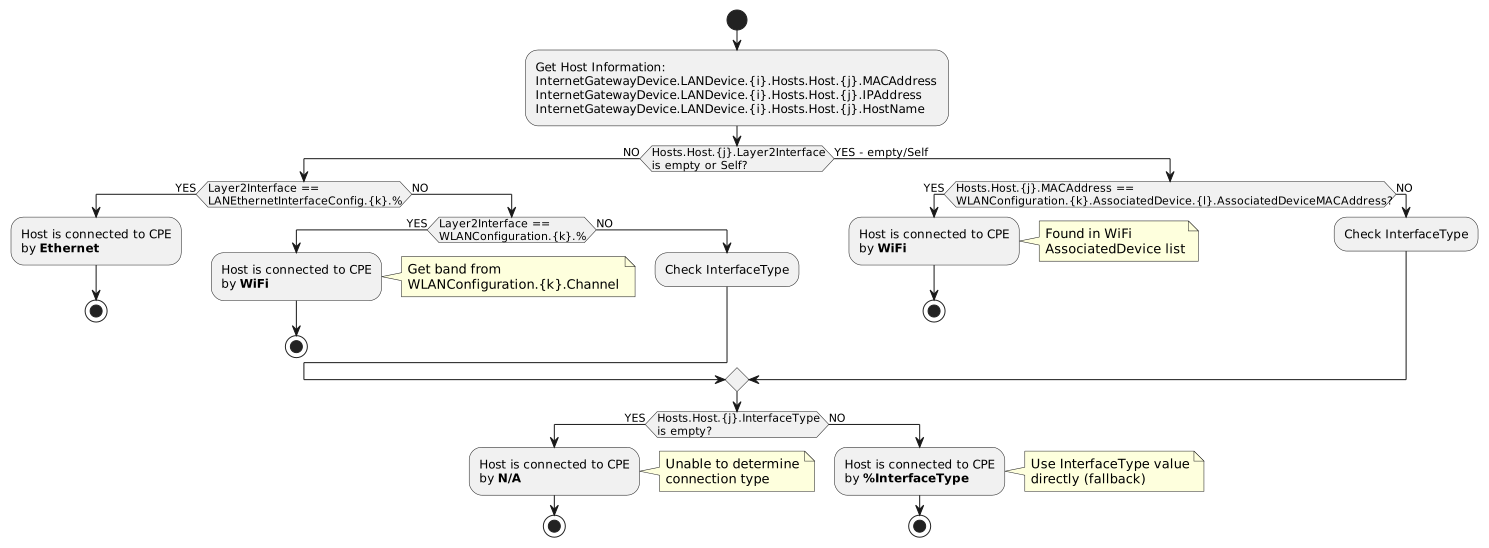
Step 1: Check Layer2Interface
The Layer2Interface parameter provides the most reliable connection type information:
# Ethernet connection
Layer2Interface = "InternetGatewayDevice.LANDevice.1.LANEthernetInterfaceConfig.1."
# Result: Ethernet

# WiFi connection
Layer2Interface = "InternetGatewayDevice.LANDevice.1.WLANConfiguration.2."
# Result: WiFi (check WLANConfiguration.2.Channel for band)
Pattern Matching:
- LANEthernetInterfaceConfig.% → Ethernet
- WLANConfiguration.% → WiFi
Step 2: Check AssociatedDevice List (Fallback)
If Layer2Interface is empty or "Self", search WiFi AssociatedDevice lists:
# Check if host MAC appears in any WLANConfiguration AssociatedDevice list
Host.MACAddress = "00:11:22:33:44:55"

WLANConfiguration.1.AssociatedDevice.1.AssociatedDeviceMACAddress = "00:11:22:33:44:55"
# Match found → Host is connected via WiFi on WLANConfiguration.1Implementation Requirements
Extracting Client Information
# For each connected host
InternetGatewayDevice.LANDevice.1.Hosts.Host.1.MACAddress = "00:11:22:33:44:55"
InternetGatewayDevice.LANDevice.1.Hosts.Host.1.IPAddress = "192.168.1.100"
InternetGatewayDevice.LANDevice.1.Hosts.Host.1.HostName = "MyDevice"
InternetGatewayDevice.LANDevice.1.Hosts.Host.1.Layer2Interface = "InternetGatewayDevice.LANDevice.1.WLANConfiguration.1."
InternetGatewayDevice.LANDevice.1.Hosts.Host.1.InterfaceType = "WiFi"

# Get WiFi details from referenced WLANConfiguration
InternetGatewayDevice.LANDevice.1.WLANConfiguration.1.Channel = 6
InternetGatewayDevice.LANDevice.1.WLANConfiguration.1.SSID = "MyNetwork"
Extracted Information: - MAC: 00:11:22:33:44:55 - IP: 192.168.1.100 - Hostname: MyDevice - Connection: WiFi - Band: 2.4 GHz (channel 6) - SSID: MyNetwork
WiFi Client with AssociatedDevice Lookup
# Host with empty Layer2Interface
InternetGatewayDevice.LANDevice.1.Hosts.Host.2.MACAddress = "AA:BB:CC:DD:EE:FF"
InternetGatewayDevice.LANDevice.1.Hosts.Host.2.IPAddress = "192.168.1.101"
InternetGatewayDevice.LANDevice.1.Hosts.Host.2.Layer2Interface = ""

# Search AssociatedDevice lists
InternetGatewayDevice.LANDevice.1.WLANConfiguration.2.AssociatedDevice.3.AssociatedDeviceMACAddress = "AA:BB:CC:DD:EE:FF"
# Found! Host is on WLANConfiguration.2

InternetGatewayDevice.LANDevice.1.WLANConfiguration.2.Channel = 36
# Band: 5 GHz
Mesh Topology Limitations
|
TR-098 does not support standard mesh topology detection. Mesh network information (Controller/Satellite roles, backhaul type, topology relationships) is NOT available through standard TR-098 parameters. Options for mesh detection on TR-098 devices:
|
Vendor-Specific Extensions
Some vendors provide mesh information via custom parameters:
# Example vendor-specific mesh parameters (non-standard)
InternetGatewayDevice.X_VENDOR_Mesh.Enable = true
InternetGatewayDevice.X_VENDOR_Mesh.Role = "Controller"
InternetGatewayDevice.X_VENDOR_Mesh.BackhaulType = "WiFi"
InternetGatewayDevice.X_VENDOR_Mesh.ConnectedSatellites = 2Note: These parameters vary by vendor and are not part of the TR-098 specification.
Comparison: TR-098 vs TR-181
| Feature | TR-098 | TR-181 |
|---|---|---|
Host Information |
Basic (MAC, IP, Hostname) |
Extended (+ Active, AddressSource, DHCPClient) |
Connection Type |
Layer2Interface + fallbacks |
Layer1Interface with explicit paths |
Radio Band |
Inferred from channel |
Direct OperatingFrequencyBand parameter |
Channel Width |
Not available |
CurrentOperatingChannelBandwidth |
Signal Strength |
Not available (standard) |
SignalStrength in STA/AssociatedDevice |
6 GHz Support |
No |
Yes |
Mesh Topology |
Custom X_ only |
Full support (DataElements/MultiAP) |
Common Issues and Debugging
Layer2Interface Empty for WiFi Clients
Symptom: WiFi clients have empty Layer2Interface
Solution: Use AssociatedDevice lookup as fallback
# Search all WLANConfiguration AssociatedDevice lists
for each WLANConfiguration:
    for each AssociatedDevice:
        if AssociatedDeviceMACAddress == Host.MACAddress:
            return "WiFi", WLANConfiguration.Channel
Unknown Channel Values
Symptom: Channel value doesn’t map to known band
Cause: Non-standard channel or DFS channel
Solution: Expand channel range or return "Unknown"
def get_radio_band_extended(channel):
    if 1 <= channel <= 14:
        return "2.4GHz"
    elif 32 <= channel <= 177:  # Extended 5 GHz range
        return "5GHz"
    else:
        return "Unknown"
InterfaceType Values Vary by Vendor
Symptom: Different devices return different InterfaceType values
Solution: Normalize common variations
def normalize_interface_type(interface_type):
    if interface_type is None or interface_type == "":
        return None

    lower = interface_type.lower()
    if "ethernet" in lower or "eth" in lower:
        return "Ethernet"
    elif "wifi" in lower or "wlan" in lower or "802.11" in lower:
        return "WiFi"
    else:
        return interface_type  # Return as-is
Related Documentation
-
Connected Clients Detection - TR-181 detection methods
-
TR-098 Specification: https://www.broadband-forum.org/technical/download/TR-098.pdf