Columns
|
This module is currently unavailable and will be available in future versions. The documentation below is provided for reference only. |
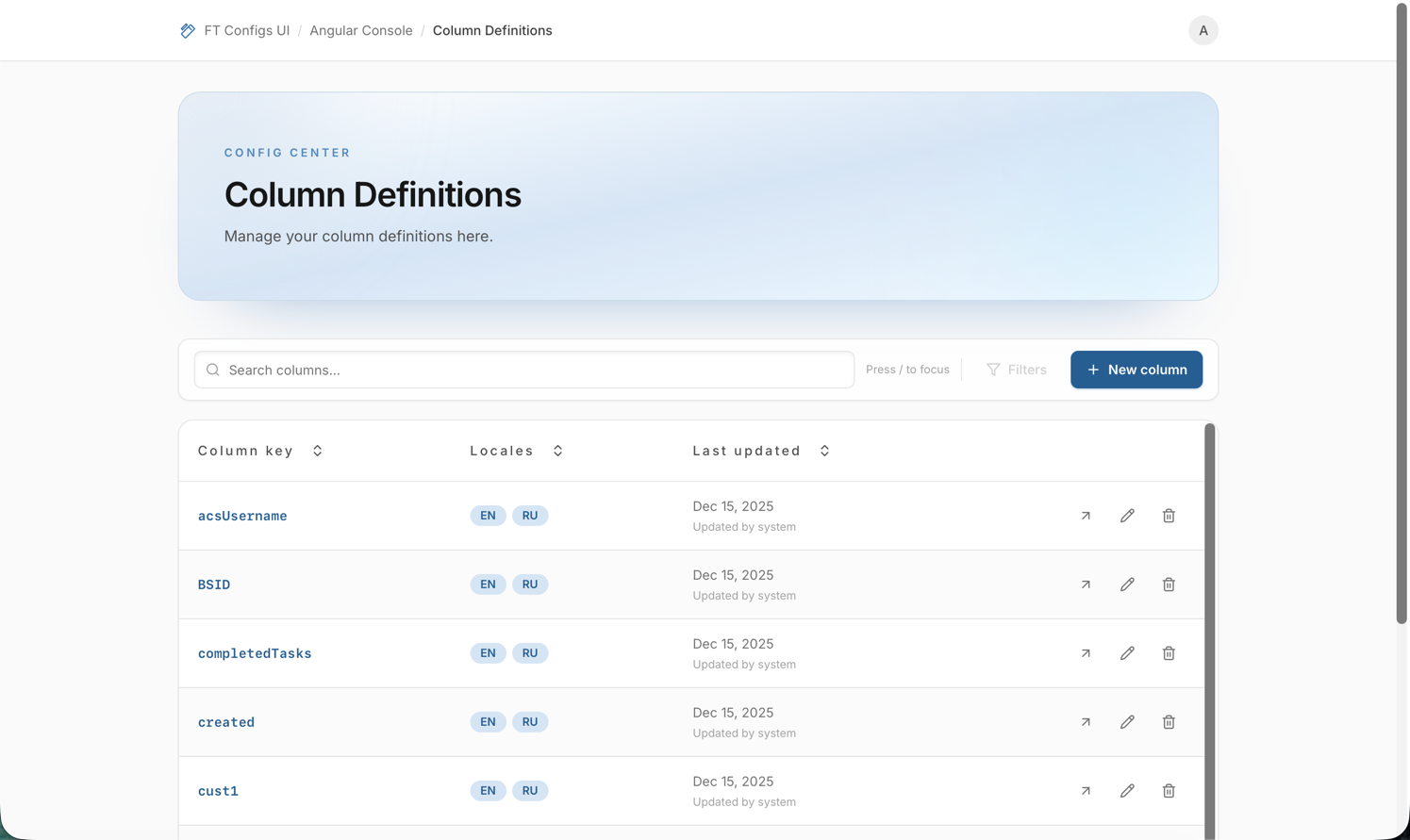
Columns (Column Definitions) controls the human-readable column names shown in the Angular Console for a given columnKey.
Each column definition is a key plus one or more localizations (locale → localized name).
Because these labels are reused across screens, make changes one key at a time and verify the result in the UI before continuing.
When to use this module
Use Columns when you need to:
-
add a new
columnKeyso it appears with a proper label in the UI, -
fix a wrong or unclear column label,
-
add a missing translation for a locale (for example EN/RU),
-
review which locales are defined for a column key,
-
remove a column definition (if it is no longer needed and you have permission).
Prerequisites
-
Columns is not scoped by Client Type.
-
Confirm your permissions:
-
VIEWER — browse (read-only).
-
EDITOR / ADMIN — create, edit, delete.
If you don’t see New column / Edit column / Delete column, it’s a permissions issue.
-
Navigation path
-
Angular Console → Columns
Before changing anything, confirm you are working in the intended environment. Column definitions affect UI labeling broadly.
What a column definition contains
A column definition consists of:
- Column key (
columnKey) -
The unique identifier used by the system. Constraints: required, max 50 characters, must start with a Latin letter and contain only Latin letters, digits, dots (
.), underscores (_), and hyphens (-). Example:user_country. - Localizations
-
A list of translations for the same column key. Each localization contains:
-
Locale — a code like
en,ru,en-US,ru-RU(format:xxorxx-YY). -
Localized name — the UI label for that locale (required, max 255 characters).
Only one localization per locale is allowed within a column definition.
-
- Audit timestamps (read-only)
-
Created/Updated timestamps are shown in the details view (based on the latest localization metadata).
Common tasks
Browse, search, and open details
-
Open Columns.
-
Use the toolbar search input (Search columns…) to filter by Column key.
-
Shortcut: press
/(orCtrl+K/Cmd+K) to focus the search field.
-
-
(Optional) Sort columns using a table header menu (Asc/Desc).
-
Click a row (or use View details) to open Column Details.
What you should see:
-
a table with Column key, Locales, and Last updated,
-
locale badges (for example
EN,RU) showing which translations exist, -
a details dialog where you can review and manage localizations.
The Filters button is currently disabled on this page; search is the primary way to narrow the list.
Create a column definition (EDITOR / ADMIN)
-
Click New column.
-
Fill in Column Key.
-
Under Localizations, add at least one localization:
-
choose a Locale (for example
en), -
enter Localized Name (for example
Country).
-
-
Click Create column.
-
Return to the list and open Column Details to confirm the localization(s) are present.
| You cannot change the Column Key after creation (the field is disabled in edit mode). Choose a stable key. |
Edit localizations (EDITOR / ADMIN)
You can manage localizations from either:
-
Column Details → Add Localization (quick add/edit/delete per locale), or
-
Edit column (form view for adding/updating multiple localizations).
Add a localization (details view)
-
Open Column Details.
-
Click Add Localization.
-
Select a Locale and enter a Localized Name.
-
Click Add (or Save when editing).
Delete a column definition (EDITOR / ADMIN)
-
In the table, click Delete column for the target
columnKey. -
Confirm the deletion.
Deleting a column definition cannot be undone.
If other screens rely on that columnKey, the UI may fall back to showing the raw key or an empty label.
|
Export a snapshot
The Columns module does not currently provide Export in the UI.
If your change process requires a backup/audit trail, capture it via your organization’s standard approach (for example, a ticket note and screenshots), and keep the safety workflow in mind: Export a Snapshot.
Import with dry-run (mandatory)
The Columns module does not currently provide Import (and therefore no in-UI dry-run) for bulk updates.
If bulk changes are performed using external tooling, still follow the same safety principles and terminology: Import with Dry-run.
Import safety checklist
-
Confirm you are in the correct environment.
-
Confirm your selected context (for example, client type) matches the file.
-
Export a snapshot before changes.
-
Run Dry-run and review:
-
errors (must be resolved),
-
warnings (understand impact),
-
create/update/delete counts.
-
-
If using REPLACE, confirm you accept deletions shown in the dry-run plan.
-
Apply import and immediately verify by refreshing and re-opening the affected entries.
After-change verification checklist
-
Confirm the new/updated localization appears as a locale badge in the list.
-
Open Column Details and verify the Locale and Localized Name values.
-
Navigate to a screen where this
columnKeyis used and confirm the label matches your intent (reload the page if needed). -
If you deleted a localization, confirm it is no longer listed in Column Details.
-
If you deleted a column definition, confirm it no longer appears in the Columns list.
Troubleshooting
- I don’t see New/Edit/Delete actions
-
You are likely signed in as VIEWER. Ask an administrator to grant EDITOR/ADMIN access.
- Search doesn’t find what I expect
-
The search filters by Column key. Try searching by
columnKey(not by the localized name). - Column key validation error
-
Column Key is required, must be ≤ 50 characters, must start with a Latin letter, and can contain only letters/digits plus
._-. - I can’t add a locale / locale is disabled
-
A localization with that locale already exists for this column. Each locale can appear only once.
- I don’t see my updated label in the UI
-
Reload the page or re-open the screen that displays the label. Then confirm you edited the intended
columnKeyand locale. - Delete fails
-
The backend may reject the operation. Re-open the column to confirm its current state and try again, or contact an administrator with the error message shown in the UI.