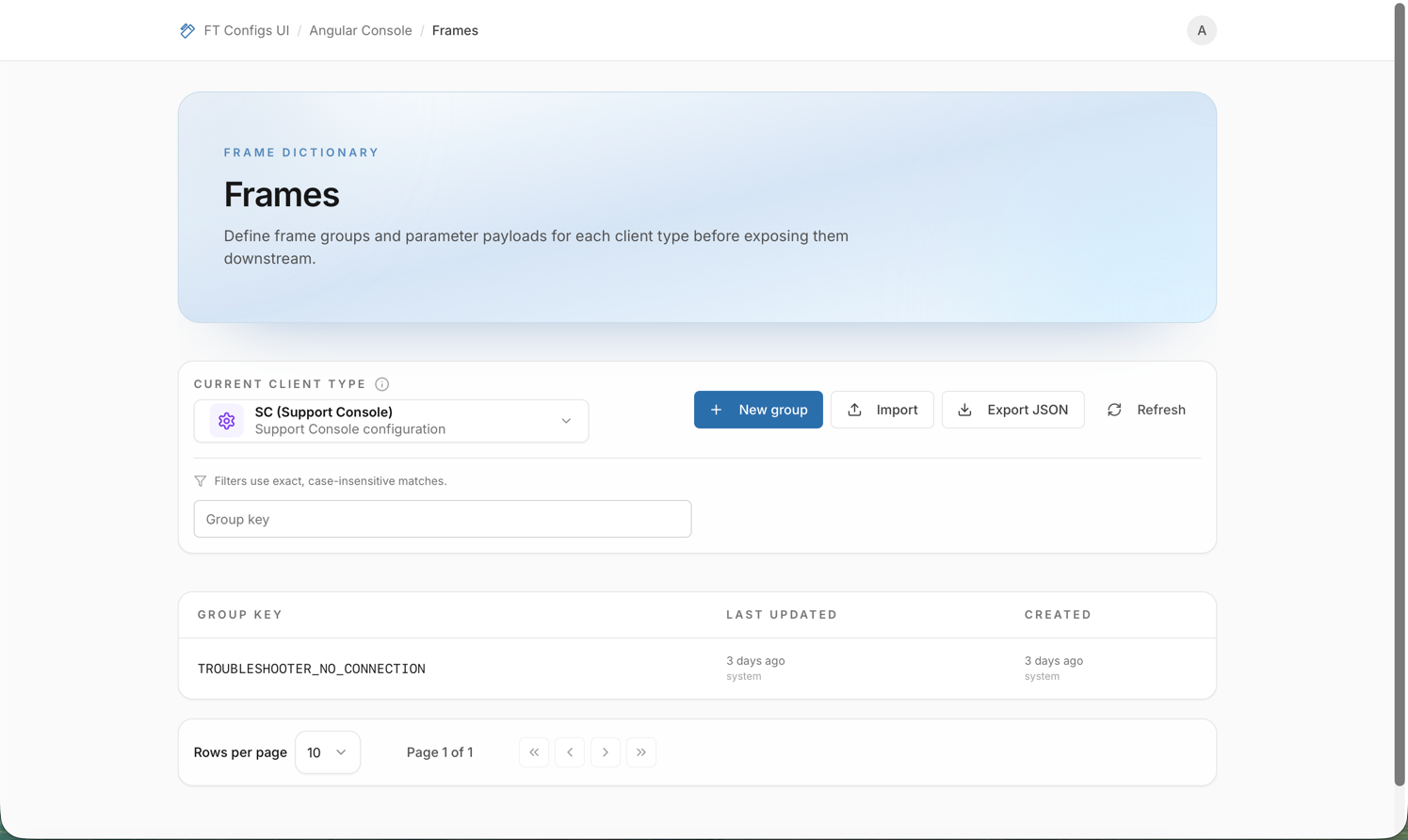
Frames
|
This module is currently unavailable and will be available in future versions. The documentation below is provided for reference only. |
This page explains how to work with the Frames module. Frames define groups of parameters that are used by the system and can be safely viewed, exported, and (with sufficient permissions) modified through FT Configs UI.
When to use Frames
Use the Frames module when you need to:
-
review existing parameter structures,
-
adjust parameter values or metadata,
-
add or remove parameters within a frame group,
-
import or export frame configurations safely.
Prerequisites
Before working with Frames:
-
A Client Type must be selected (for example: DEF, MC, SC).
-
Required permissions:
-
VIEWER — browse and export frames.
-
EDITOR / ADMIN — create, edit, delete, and import frames.
-
NOTE: If the client type is not selected, the module will display an empty or guarded state.
Browse frame groups
To view existing frame groups:
-
Open Frames from the Angular Console dashboard.
-
Select the required Client Type.
-
Use the Key filter to narrow the list of frame groups.
-
Select a frame group to view its parameters and structure.
You can browse all data in read-only mode if you have VIEWER access.
Edit frames safely (EDITOR / ADMIN)
Editing frames directly affects how parameters are interpreted by the system. Always proceed carefully.
To edit a frame group:
-
Select a frame group and open its parameters view.
-
Modify the group key, parameter names, or values as needed.
-
Save the changes.
-
Refresh the view to confirm the updated state.
| After significant edits, exporting a snapshot is strongly recommended. |
Export frame configuration
Exporting creates a snapshot of the current frame configuration.
To export frames:
-
Select the required Client Type.
-
Click Export.
-
Save the downloaded JSON file locally.
For details, see: Export a Snapshot.
Import frames with dry-run
Importing allows you to apply multiple changes at once using a JSON file. A dry-run is mandatory and always runs before the import is applied.
To import frames:
-
Select the required Client Type.
-
Click Import.
-
Choose the import mode (MERGE or REPLACE).
-
Upload a JSON file.
-
Review the dry-run results carefully.
-
Apply the import only if the results match your intent.
| Use Export first to obtain a canonical file structure for your environment. Edit that file and re-import it to avoid schema or validation issues. |
| REPLACE mode may remove existing frame data. Always confirm the dry-run results before applying an import. |