Columns
|
This module is not available in the current version. It will be available in a future version. Use this page for reference only. |
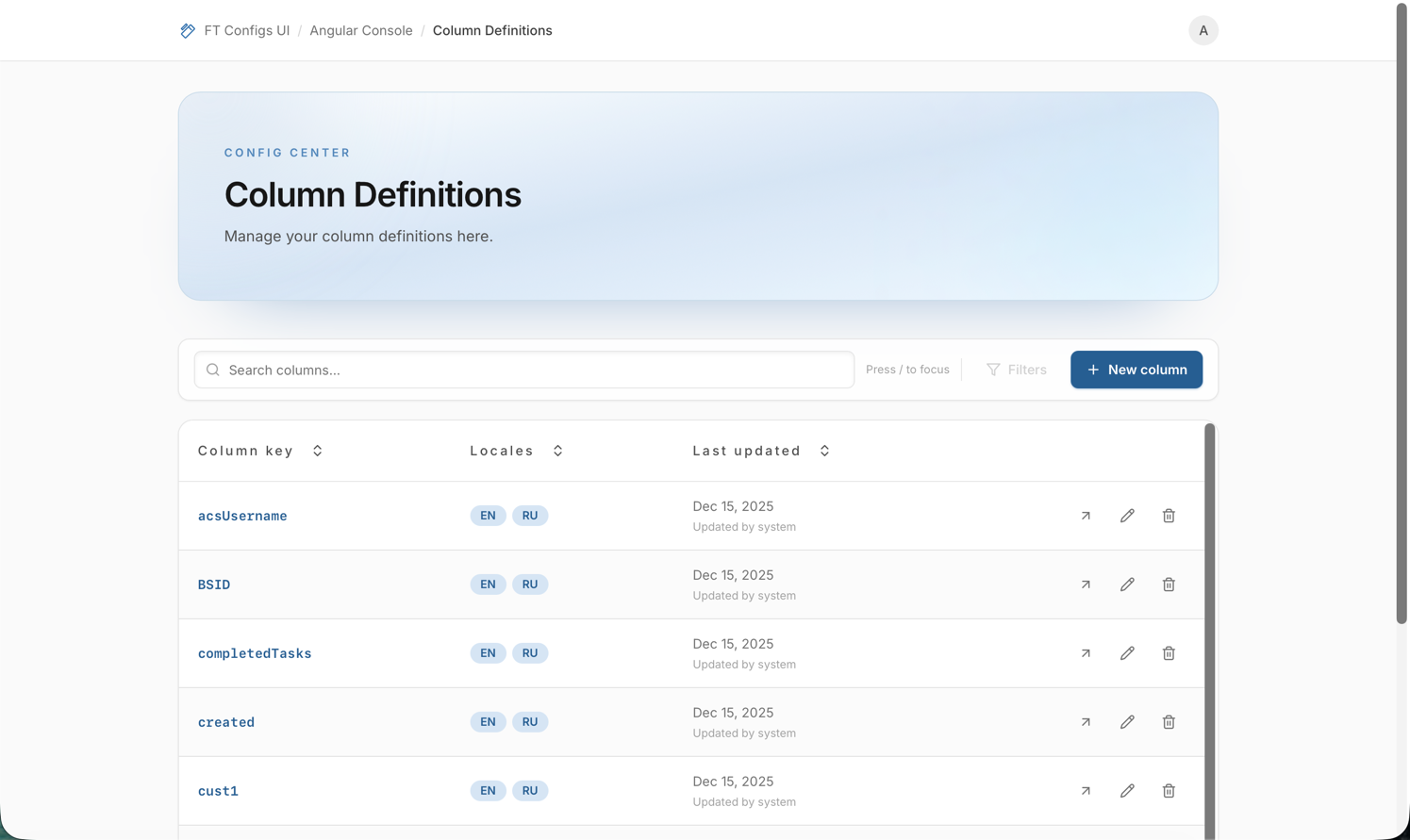
Columns (Column Definitions) controls the human-readable column names shown in the Angular Console for a given columnKey.
Each column definition is a key plus one or more localizations (locale and localized name).
Many screens use these labels.
Change one key at a time and check the result in the UI before you continue.
Where to find parameter descriptions: The create page and the edit page show a subtitle for each section. The Column Key field has a hint. Other fields show labels only.
When to use it
Use Columns to do the following:
-
Add a new
columnKeywith a correct label in the UI. -
Fix a wrong or unclear column label.
-
Add a missing translation for a locale, for example EN or RU.
-
Review the locales of a column key.
-
Delete an old column definition, if you have permission.
Before you start
-
Open Angular Console → Columns.
-
Check if you are in the correct environment. Column definitions change the labels of many screens.
-
Check your role.
Columns does not depend on the Client type.
Roles for this module:
-
VIEWER: browse only.
-
EDITOR or ADMIN: create, edit, and delete.
If you do not see New column, Edit column, or Delete column, your role does not allow it.
Fields
A column definition has these parts:
- Column key (
columnKey) -
The unique identifier of the column. Required. Maximum 50 characters. It starts with a Latin letter. It can contain Latin letters, digits, dots (
.), underscores (_), and hyphens (-). Example:user_country. - Localizations
-
A list of translations for the same column key. Each localization has two fields. Each column definition can have only one localization for each locale.
-
Locale: a code such as
en,ru,en-US, orru-RU. The format isxxorxx-YY. -
Localized name: the UI label for the locale. Required. Maximum 255 characters.
-
- Audit times
-
Read-only. The details view shows the created and updated times. The times come from the latest localization data.
Find a column definition
-
Open Columns.
-
Enter text in the search field (Search columns…). The search filters by Column key.
-
Optional: to focus the search field, press
/,Ctrl+K, orCmd+K. -
Optional: sort the columns with a table header menu (Asc or Desc).
-
Click a row, or use View details, to open Column Details.
Expected result:
-
You see a table with Column key, Locales, and Last updated.
-
Locale badges, for example
ENandRU, show the existing translations. -
The details dialog lets you review and manage localizations.
| The Filters button is disabled on this page. Use the search to narrow the list. |
Add a column definition
Required role: EDITOR or ADMIN.
-
Click New column.
-
Enter Column Key.
-
Under Localizations, add at least one localization.
-
Select a Locale, for example
en. -
Enter Localized Name, for example
Country. -
Click Create column.
-
Return to the list and open Column Details.
Expected result: the details show the localizations.
| You cannot change the column key after you create it. The field is disabled in edit mode. Choose a stable key. |
Change localizations
Required role: EDITOR or ADMIN.
You can manage localizations in two places:
-
Column Details, with Add Localization. You add, edit, and delete one locale at a time.
-
Edit column. This form adds and changes many localizations.
Add a localization
-
Open Column Details.
-
Click Add Localization.
-
Select a Locale and enter a Localized Name.
-
Click Add, or Save when you edit.
Delete a column definition
Required role: EDITOR or ADMIN.
-
In the table, click Delete column for the
columnKey. -
Confirm the deletion.
You cannot undo the deletion of a column definition.
Other screens can use the columnKey.
If they do, the UI can show the raw key or an empty label.
|
Export a snapshot
The Columns module has no Export in the UI.
If your process needs a backup or an audit trail, use your organization’s standard method. For example, add a note to the ticket and attach screenshots. Keep the safety order in mind: Export a Snapshot.
Import with dry-run
The Columns module has no Import in the UI. It has no dry-run for bulk changes.
If you make bulk changes with external tools, use the same safety rules and terms: Import with Dry-run.
Import safety checklist
-
Check the environment name.
-
Check the selected client type. It must match the file.
-
Export a snapshot before you change data.
-
Run Dry-run and review:
-
the errors: you must fix them,
-
the warnings: you must understand them,
-
the create, update, and delete counts.
-
-
If you use REPLACE, review the deletions in the dry-run plan. Continue only if you accept them.
-
Apply the import.
-
Refresh the page and open the changed entries to check them.
Check the result
-
Check if the new or changed localization shows as a locale badge in the list.
-
Open Column Details and check the Locale and Localized Name values.
-
Open a screen with this
columnKeyand check the label. Reload the page if needed. -
After you delete a localization, check if Column Details no longer lists it.
-
After you delete a column definition, check if the Columns list no longer shows it.
Troubleshooting
- You do not see New, Edit, or Delete
-
You are probably signed in as VIEWER. Ask an administrator for EDITOR or ADMIN access.
- The search does not find the entry
-
The search filters by Column key. Search by the
columnKey, not by the localized name. - Column key validation error
-
Column Key is required. It can have 50 characters at most. It must start with a Latin letter. It can contain only letters, digits,
.,_, and-. - You cannot add a locale, or the locale is disabled
-
A localization with this locale already exists for the column. Each locale can appear only once.
- You do not see your new label in the UI
-
Reload the page, or open the screen with the label again. Then check if you changed the correct
columnKeyand locale. - Delete fails
-
The backend can reject the action. Open the column again and check its state, then try again. If the problem remains, send the UI error message to an administrator.