Tabs
|
This module is not available in the current version. It will be available in a future version. Use this page for reference only. |
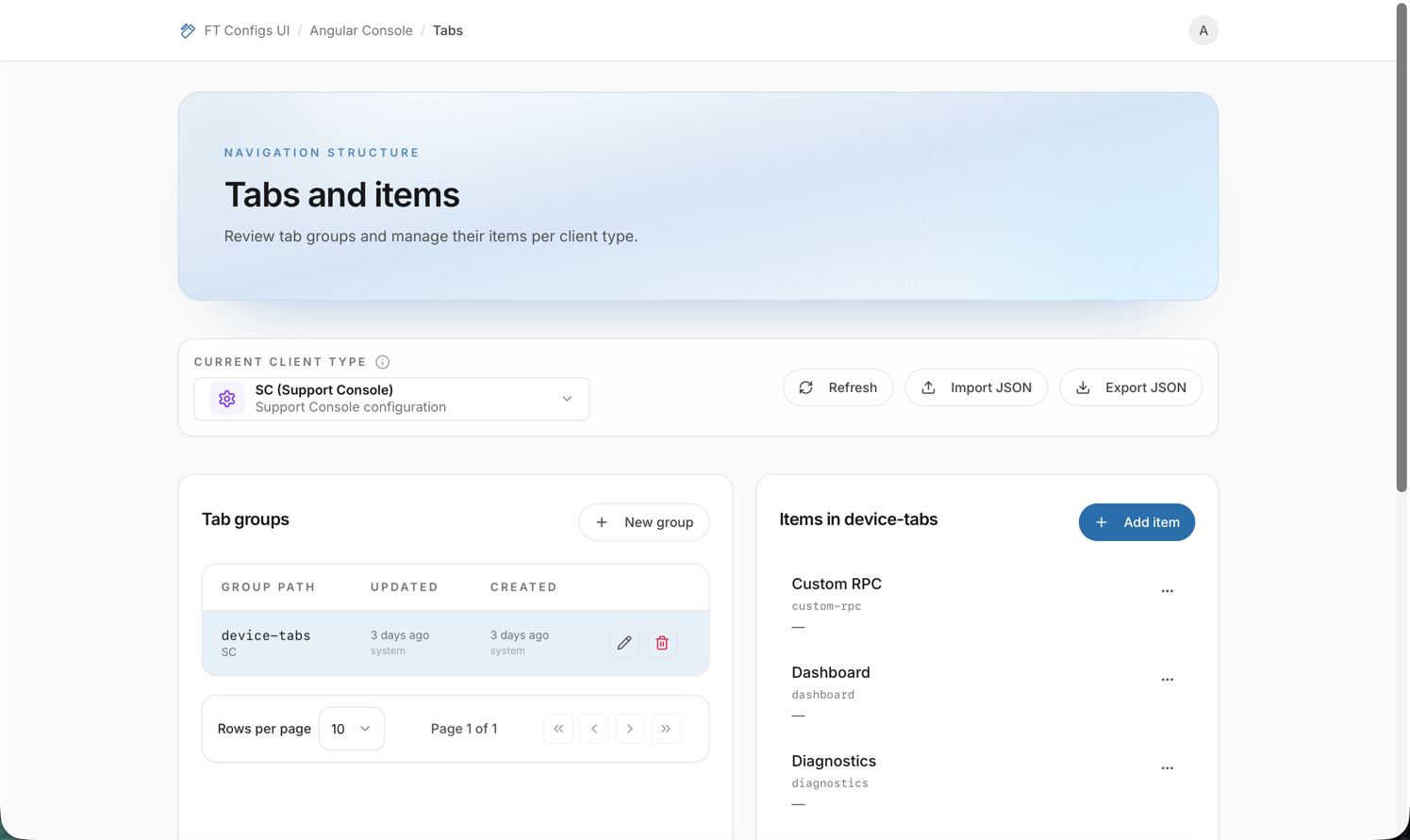
Tabs defines tab groups and their items for each client type. Each item has a parent, a path, a description, and a priority.
Changes can affect the groups and the navigation of the configuration. Work in small steps and follow the safety flow: export, dry-run, import.
Where to find parameter descriptions: Open the item dialog. The Parent, Path, and Priority fields have a description under the label. The items table shows the description of each item.
When to use it
Use Tabs to do these tasks:
-
Review existing entries.
-
Search or filter to find an entry.
-
Export a snapshot as a backup before changes.
-
Import many changes from a prepared file. Dry-run is required.
-
Change single entries, if your role allows it.
-
Check what changed after an import or a change.
Before you start
-
Open Angular Console → Tabs.
-
If the page asks for a Client type, select it. Some deployments need this before data loads.
-
Check the environment, the breadcrumbs, and the Client type before you change anything.
-
Check your role.
Your role sets what you can do:
-
VIEWER: browse and export.
-
EDITOR and ADMIN: change and import.
If a requirement is missing, the module can show an empty page and disable the write actions.
Find an entry
-
Open Tabs.
-
If the page has filters or search, use them to narrow the list.
-
Open an entry to read its details.
Expected result:
-
The page shows a list of entries.
-
The details view shows the fields of the entry.
-
A VIEWER sees the entry as read-only.
Export a snapshot
-
Open Tabs.
-
Click Export.
-
Save the downloaded file as your backup.
For details, see Export a Snapshot.
Import with dry-run
Import is the safest way to apply many changes at once. Always follow this order: export, dry-run, apply.
-
Export a snapshot first: Export a Snapshot.
-
Click Import.
-
If the page shows import modes, select MERGE or REPLACE.
-
Upload the prepared file.
-
Wait for the dry-run to finish.
-
Review the plan (created, updated, deleted) and all warnings and errors.
-
Confirm the import only if the plan matches your intent.
Import safety checklist
-
Check the environment name.
-
Check the selected client type. It must match the file.
-
Export a snapshot before you change data.
-
Run Dry-run and review:
-
the errors: you must fix them,
-
the warnings: you must understand them,
-
the create, update, and delete counts.
-
-
If you use REPLACE, review the deletions in the dry-run plan. Continue only if you accept them.
-
Apply the import.
-
Refresh the page and open the changed entries to check them.
| REPLACE can delete the entries missing from the imported file. If the delete count is large, stop. Check the file for missing entries. Check the selected client type. |
Change an entry
You need the EDITOR or ADMIN role.
-
Open the entry.
-
Click Edit.
-
Change the fields.
-
Click Save.
-
Refresh the page and open the entry again.
Expected result:
The entry shows the saved values.
| Export a snapshot before large manual changes. The snapshot helps you check the changes and restore the old values. |
Check the result
-
Check the environment name.
-
Check the selected Client type, if the page shows one.
-
Click Refresh, or open the module again, to load the latest data.
-
Open each changed entry and check the values.
-
Check a few unchanged entries to find unwanted changes.
-
After an import, compare the real changes with the dry-run plan.
-
Optional: export a new snapshot for audit: Export a Snapshot.
Troubleshooting
- The page shows no data
-
A requirement can be missing, for example the Client type selection. Select the Client type. Clear the filters and the search field.
- You cannot change or import
-
You are probably signed in as VIEWER. Only EDITOR and ADMIN can change and import.
- Dry-run shows errors
-
The file can have a wrong structure. Export a snapshot, apply your changes to it, and run the dry-run again.
- Dry-run shows many deletions
-
You can have selected REPLACE, or the file is incomplete for the current client type. Check the selected client type and create the file again from a snapshot.
- Save is disabled or blocked
-
The form shows validation errors. Fix them and click Save again.