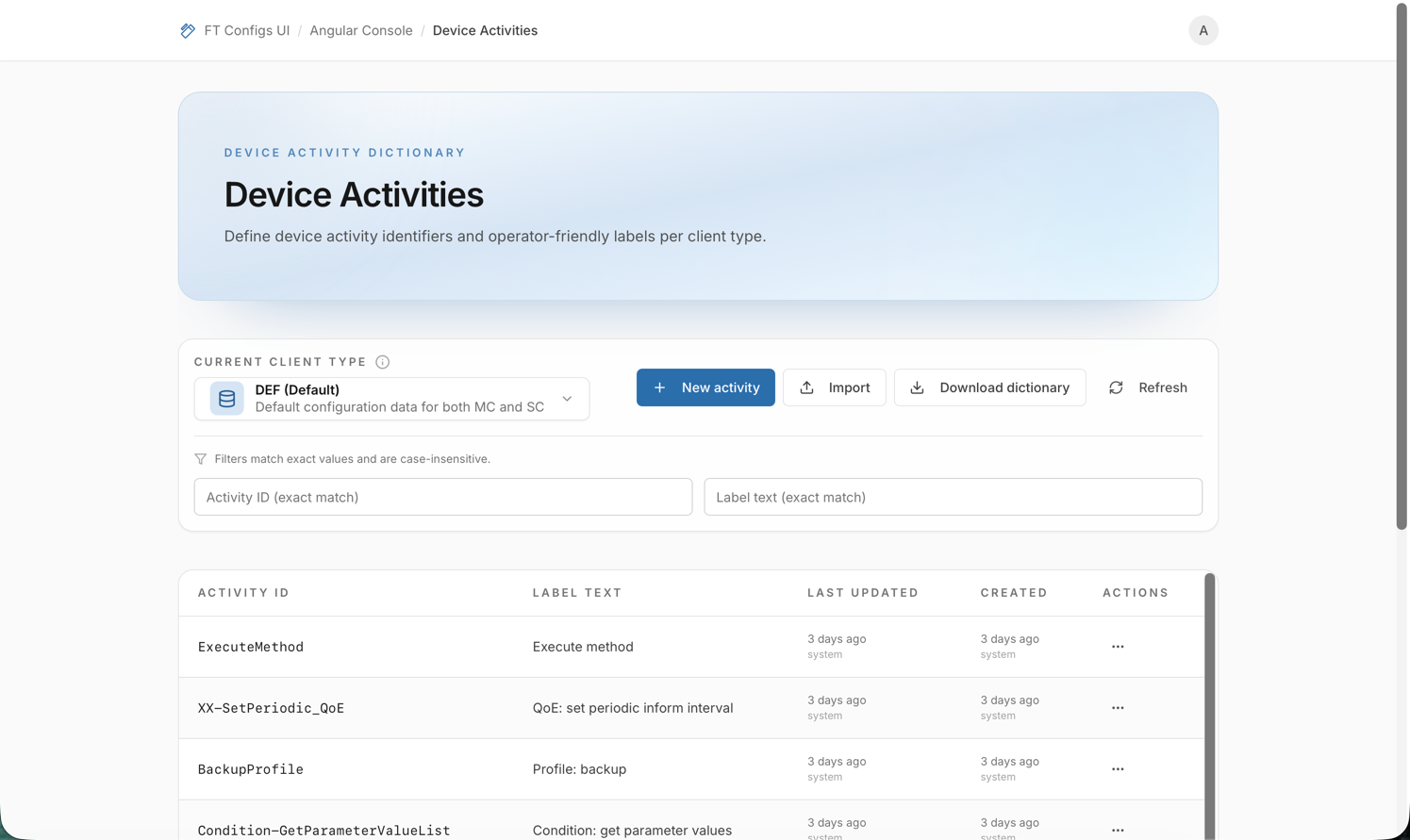
Device Activities
|
This module is not available in the current version. It will be available in a future version. Use this page for reference only. |
Device Activities is a dictionary of activity IDs and labels for each client type. Use it to keep activity IDs consistent and to control the label text. A bulk import can change or delete many entries at once. Always follow this order: export, dry-run, apply.
Where to find parameter descriptions: Open the create or edit dialog. The Activity ID and Label fields have a hint under the input.
When to use it
Use Device Activities to do the following:
-
Review the activity IDs of a client type.
-
Fix an unclear or wrong label text.
-
Add a missing activity ID and label pair.
-
Remove an old activity entry, if you have permission.
-
Apply many changes at once with a JSON import. Dry-run is required.
Before you start
-
Open Angular Console → Device Activities.
-
Select a Client type: DEF, MC, or SC.
-
Check the selected Client type in the toolbar.
-
Check your role.
The list, create, edit, delete, import, and export actions work on the selected client type.
Roles for this module:
-
VIEWER: browse and export.
-
EDITOR or ADMIN: create, edit, delete, and import.
If you do not see New activity or Import, your role does not allow it.
Fields
An entry has these fields:
- Activity ID
-
A unique identifier for each client type. Required. Maximum 128 characters. Example:
REBOOT. - Label text
-
The label for the activity. Required. Maximum 255 characters. Example:
Device reboot scheduled. - Client Type
-
The scope of the entry: DEF, MC, or SC.
- Created and Last updated
-
Read-only. The table shows relative times and the user name, if available.
| When you edit an entry, the Activity ID field is locked. To rename an activity ID, create a new entry and delete the old entry. |
Find an entry
-
Open Device Activities.
-
Select the Client type.
-
Enter a value in one or both filters: Activity ID (exact match) and Label text (exact match).
-
Click Refresh to load the list again.
-
To clear the filters, click Reset filters.
Expected result:
-
You see a table with Activity ID, Label text, Last updated, and Created.
-
The table has pages.
-
EDITOR and ADMIN users see row actions in the actions menu.
| The filter hint on the page says: filters are case-insensitive and match exact values. |
Add an entry
Required role: EDITOR or ADMIN.
-
Select the Client type.
-
Click New activity.
-
Enter Activity ID.
-
Enter Label text.
-
Click Create activity.
Expected result: the new entry is in the list for the selected client type.
Change an entry
Required role: EDITOR or ADMIN.
-
Find the entry in the table.
-
Open the row actions menu and click Edit.
-
Change Label text. The Activity ID is read-only.
-
Click Save changes.
Expected result: the list shows the new label.
Delete an entry
Required role: EDITOR or ADMIN.
-
Find the entry in the table.
-
Open the row actions menu and click Delete.
-
Confirm the deletion.
| Deleting an activity removes it from the dictionary of the selected client type. Other users or systems can use this activity ID. If they do, labels or lookups can be missing. |
Export a snapshot
Export downloads the dictionary of the selected client type as a JSON file.
-
Select the Client type.
-
Click Download dictionary.
-
Save the downloaded
.jsonfile.
For best practices, see Export a Snapshot.
Import with dry-run
Import accepts a JSON array of entries in this form:
{\"id\":\"…\",\"text\":\"…\"}.
The file type is .json. The maximum size is 10 MB.
Dry-run is required.
-
Export the dictionary first: Export a Snapshot.
-
Select the Client type.
-
Click Import.
-
Select an Import mode.
-
MERGE: adds new rows and updates matching rows. Other entries stay the same.
-
REPLACE: makes the dictionary equal to the file. The import deletes entries missing from the file.
-
-
Click Upload JSON and select the file.
-
Wait for the dry-run. It starts after you select a file. It runs again if you change the import mode.
-
Read the dry-run preview.
-
Totals: rows received, unique valid rows, rows to delete.
-
Planned operations: create, update, keep, delete.
-
Duplicates in the upload, if any.
-
Invalid rows, if any.
-
-
Click Confirm import only if the preview matches your intent.
Import safety checklist
-
Check the environment name.
-
Check the selected client type. It must match the file.
-
Export a snapshot before you change data.
-
Run Dry-run and review:
-
the errors: you must fix them,
-
the warnings: you must understand them,
-
the create, update, and delete counts.
-
-
If you use REPLACE, review the deletions in the dry-run plan. Continue only if you accept them.
-
Apply the import.
-
Refresh the page and open the changed entries to check them.
| In REPLACE mode, the import can delete entries missing from the file. If the preview shows unexpected deletions, stop. Check if the file is complete and the client type is correct. |
Check the result
-
Check if the Client type is correct.
-
Clear the filters to see the full result.
-
Click Refresh.
-
For a changed entry, check the Label text value.
-
For a new entry, filter by Activity ID (exact match) and check if the row exists.
-
For a deleted entry, filter by activity ID and check if the row is gone. This applies to manual deletes and REPLACE imports.
-
Optional: export a new dictionary for audit. See Export a Snapshot.
Troubleshooting
- You do not see New activity or Import
-
You are probably signed in as VIEWER. Ask an administrator for EDITOR or ADMIN access.
- Nothing loads or the list is empty
-
Check if a Client type is selected. Click Refresh. If filters are set, click Reset filters.
- Activity ID already exists
-
Each client type allows an activity ID only once. Use a different activity ID, or edit the existing entry.
- Save is disabled or errors are shown
-
Both fields are required. The activity ID can have 128 characters at most. The label text can have 255 characters at most.
- Dry-run reports invalid rows or duplicates
-
The file has errors. Remove duplicates, add missing
idortextvalues, and shorten long values. Then select the file again to run the dry-run again. - Dry-run shows unexpected deletions
-
You probably selected REPLACE, or the file is not complete. Export the current dictionary, add your changes to that file, and try again.